CarbCam: Screenshots
All important screens of CarbCam at a glance. iOS and Android are functionally identical, visual differences only result from platform-specific UI elements.
Choose your platform, the screenshots will adapt:
Contents
1, Scan Tab
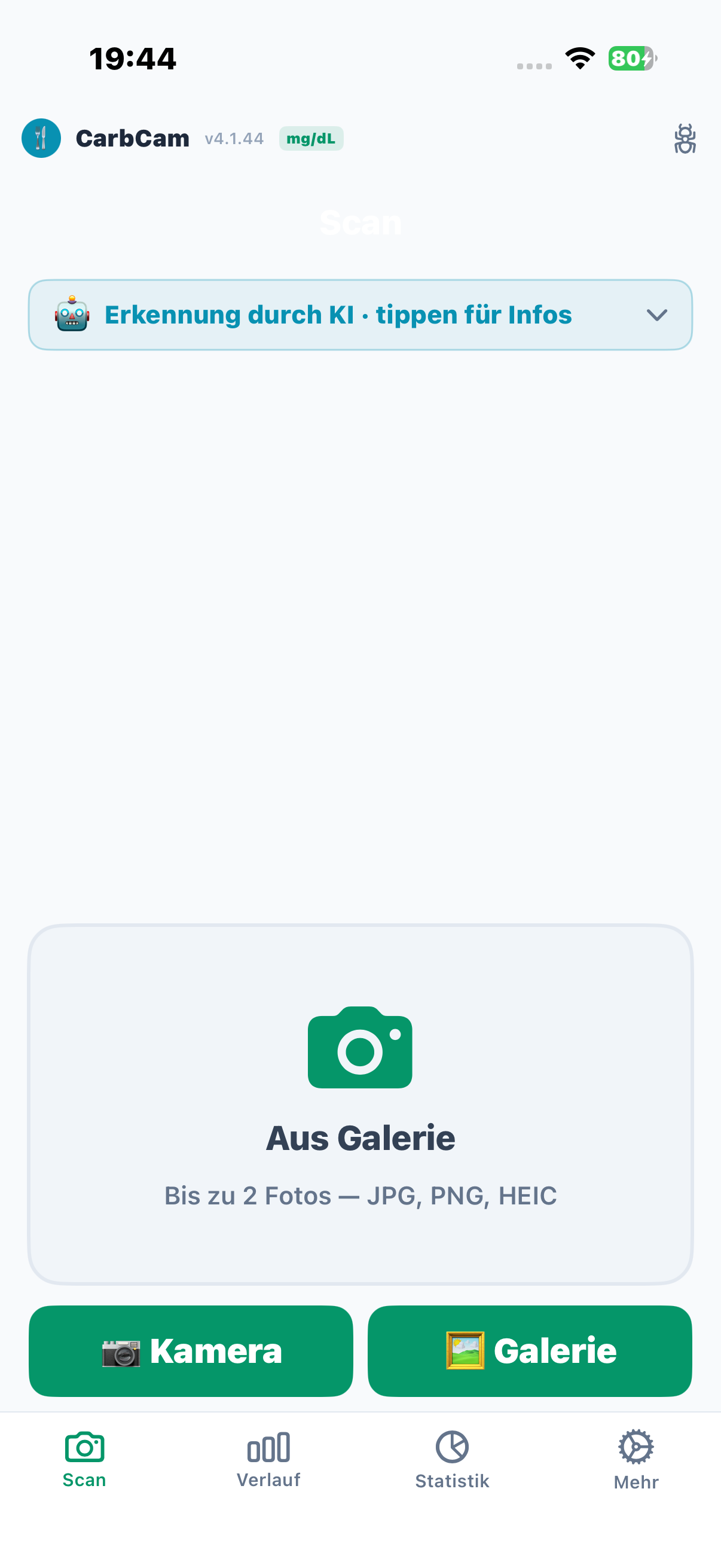
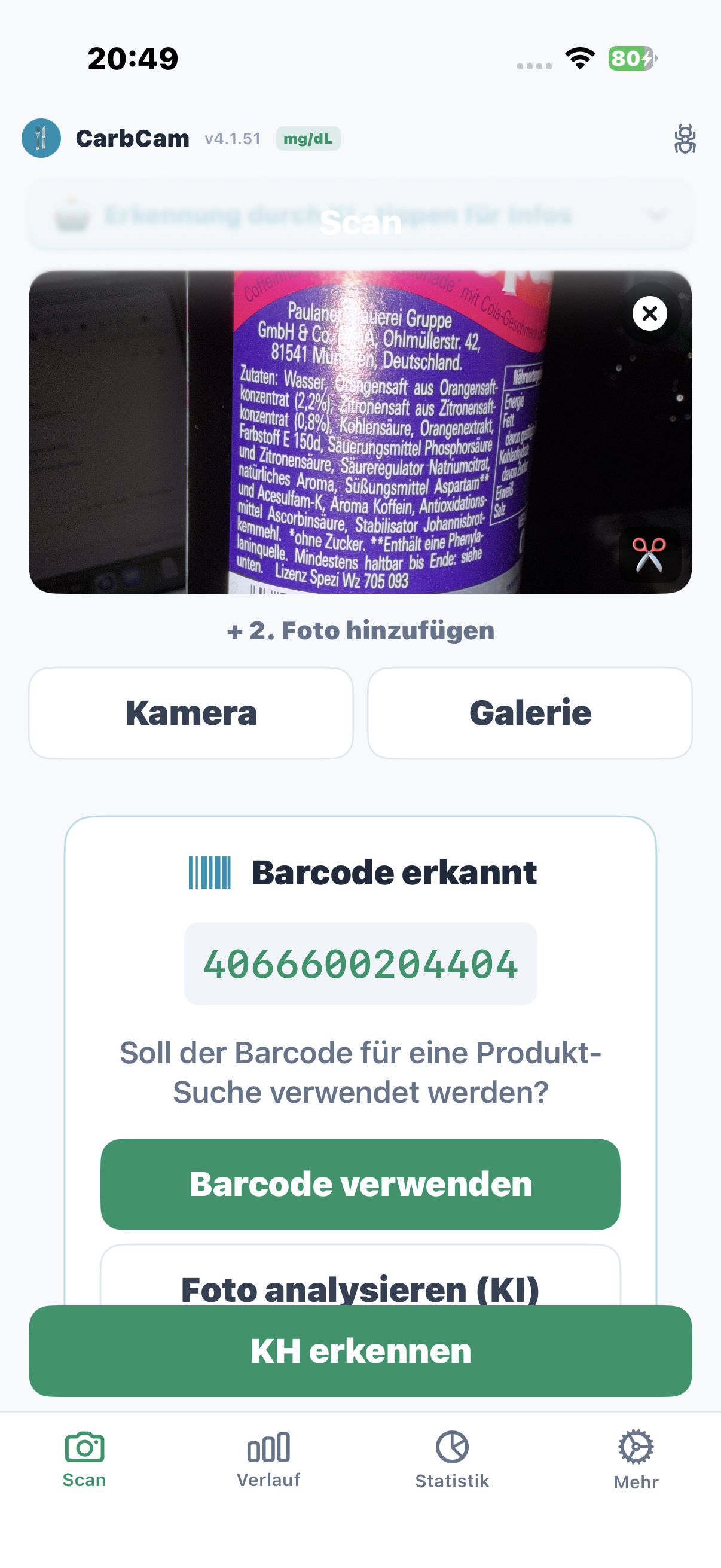
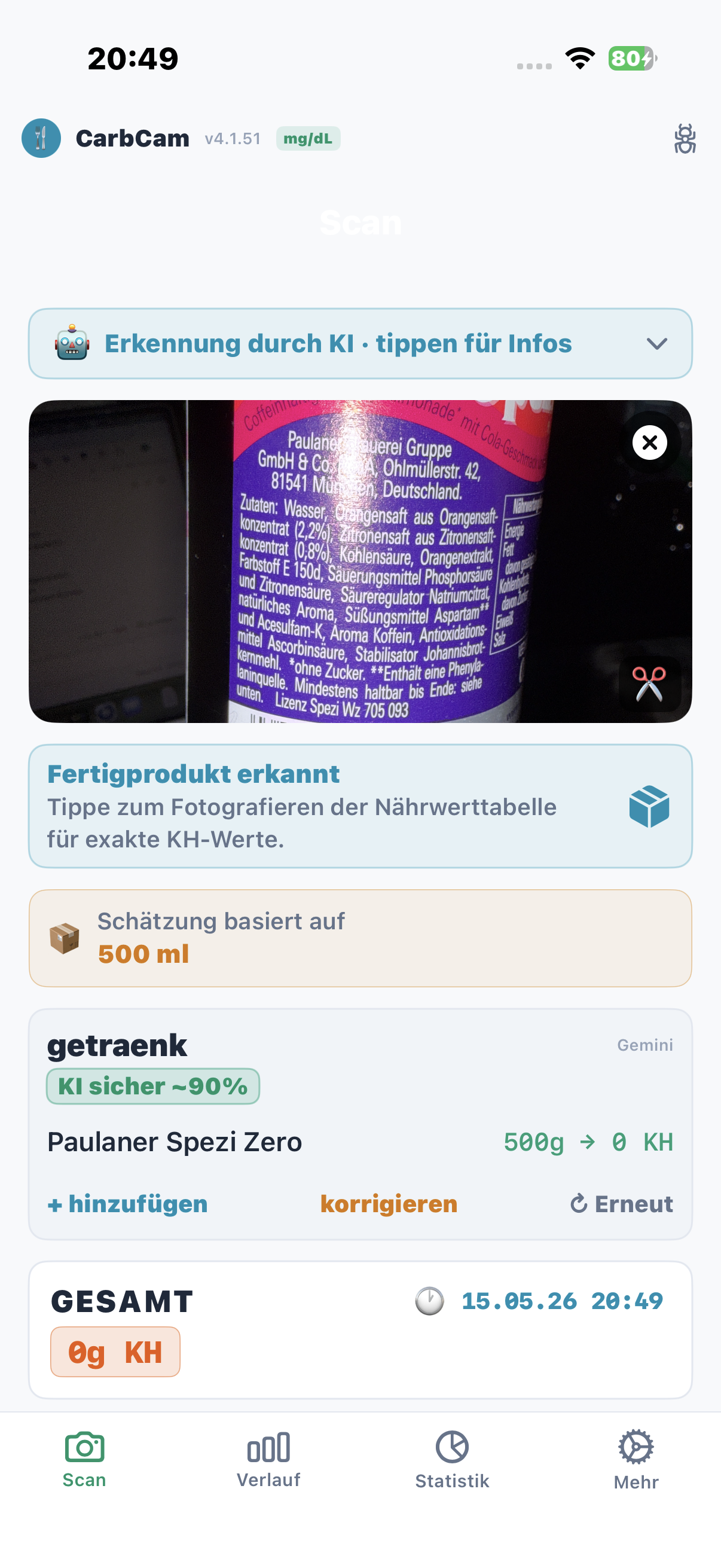
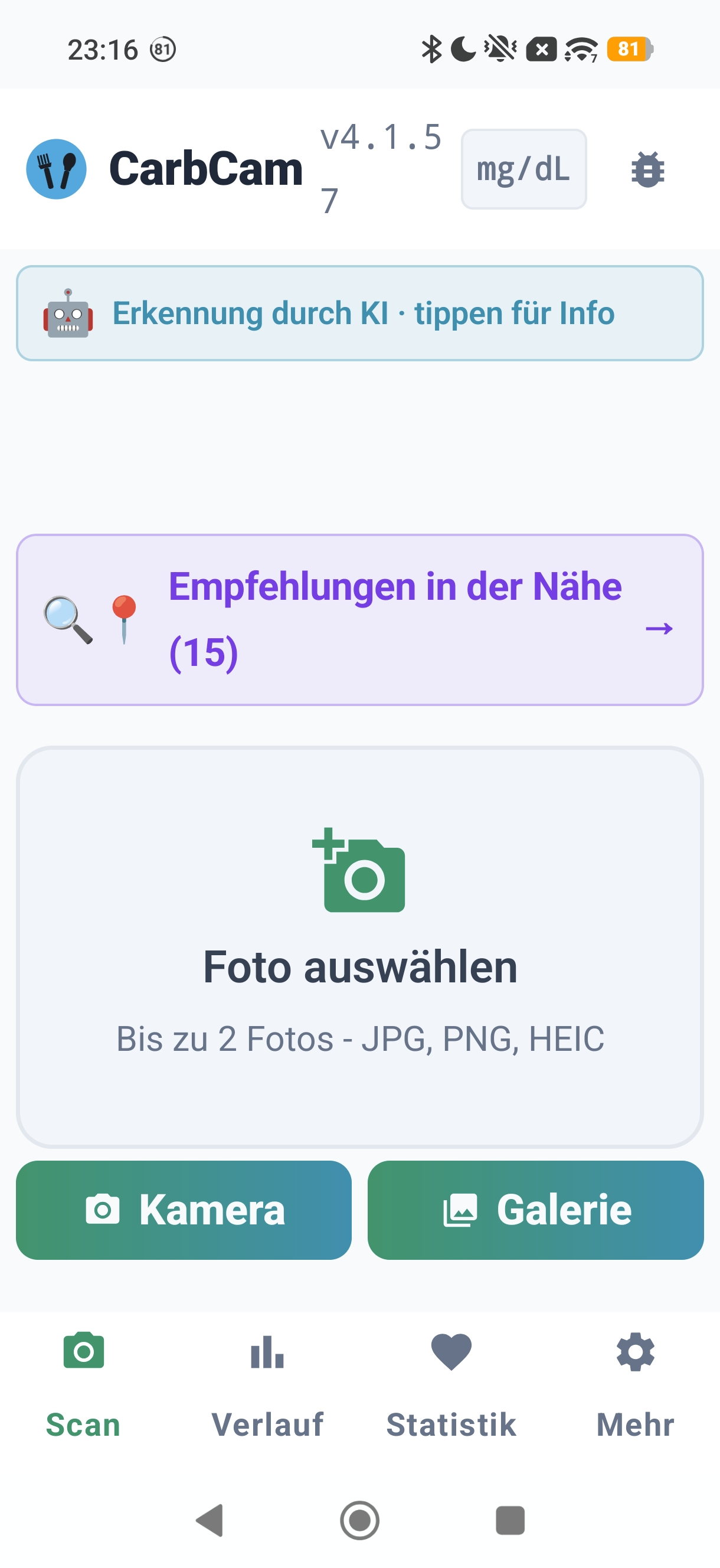
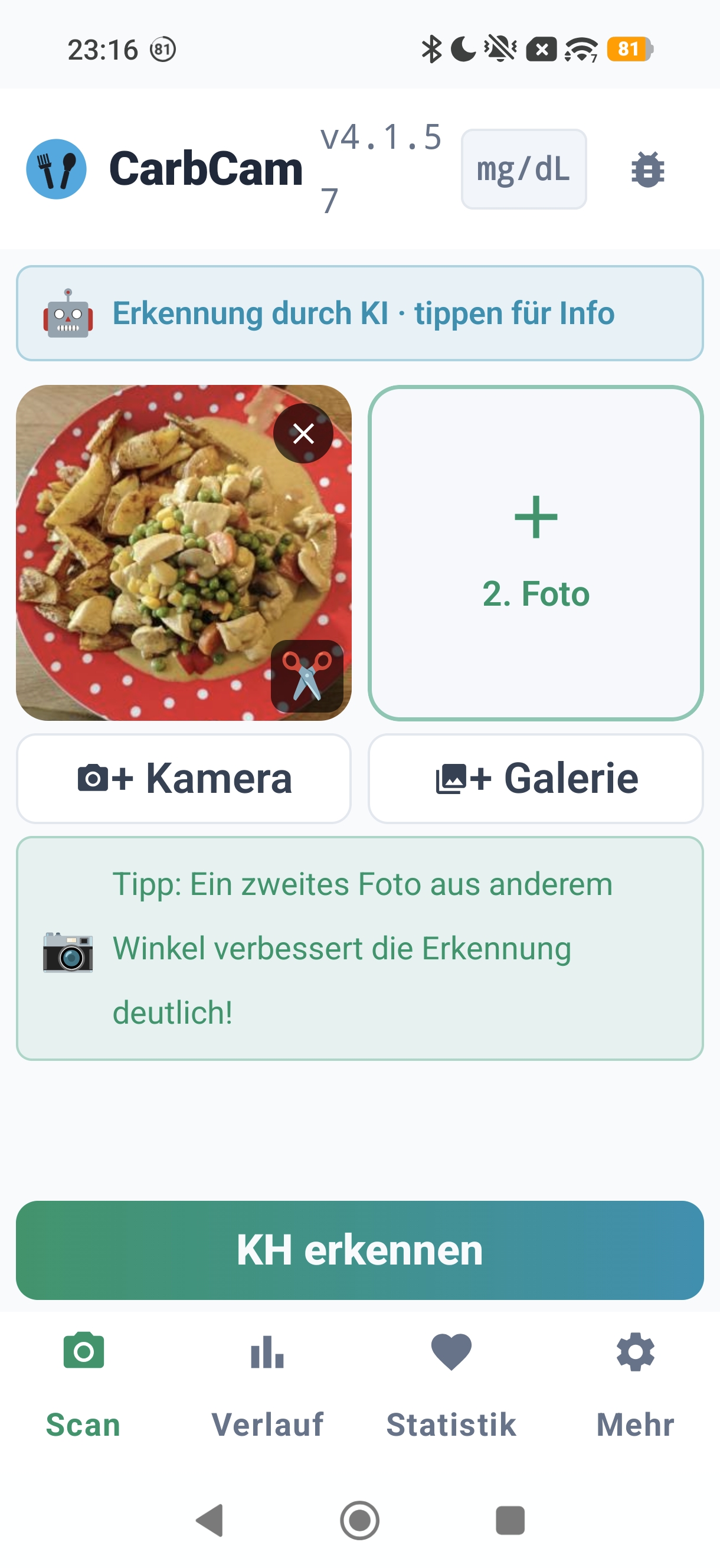
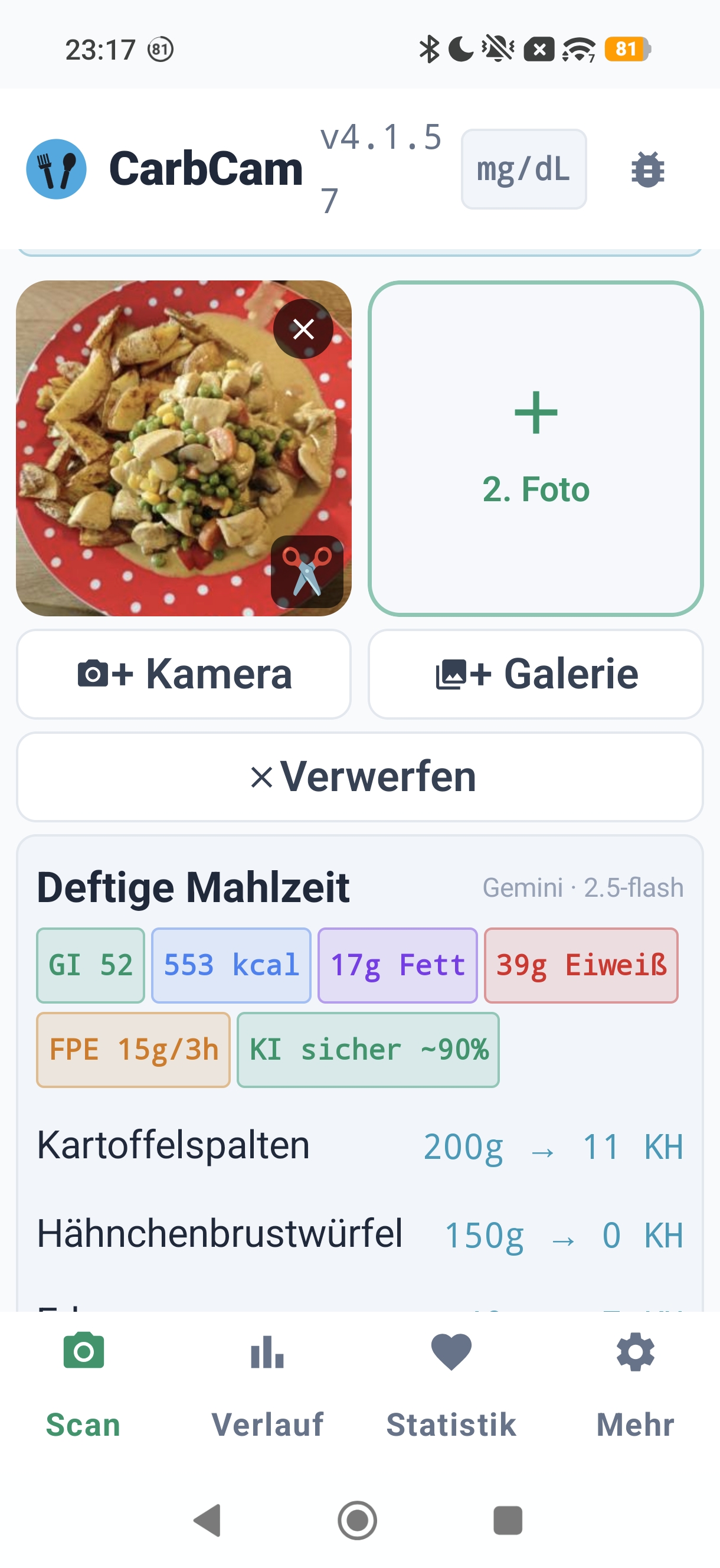
Scan tab with camera and gallery buttons. Barcodes are automatically detected in captured photos.
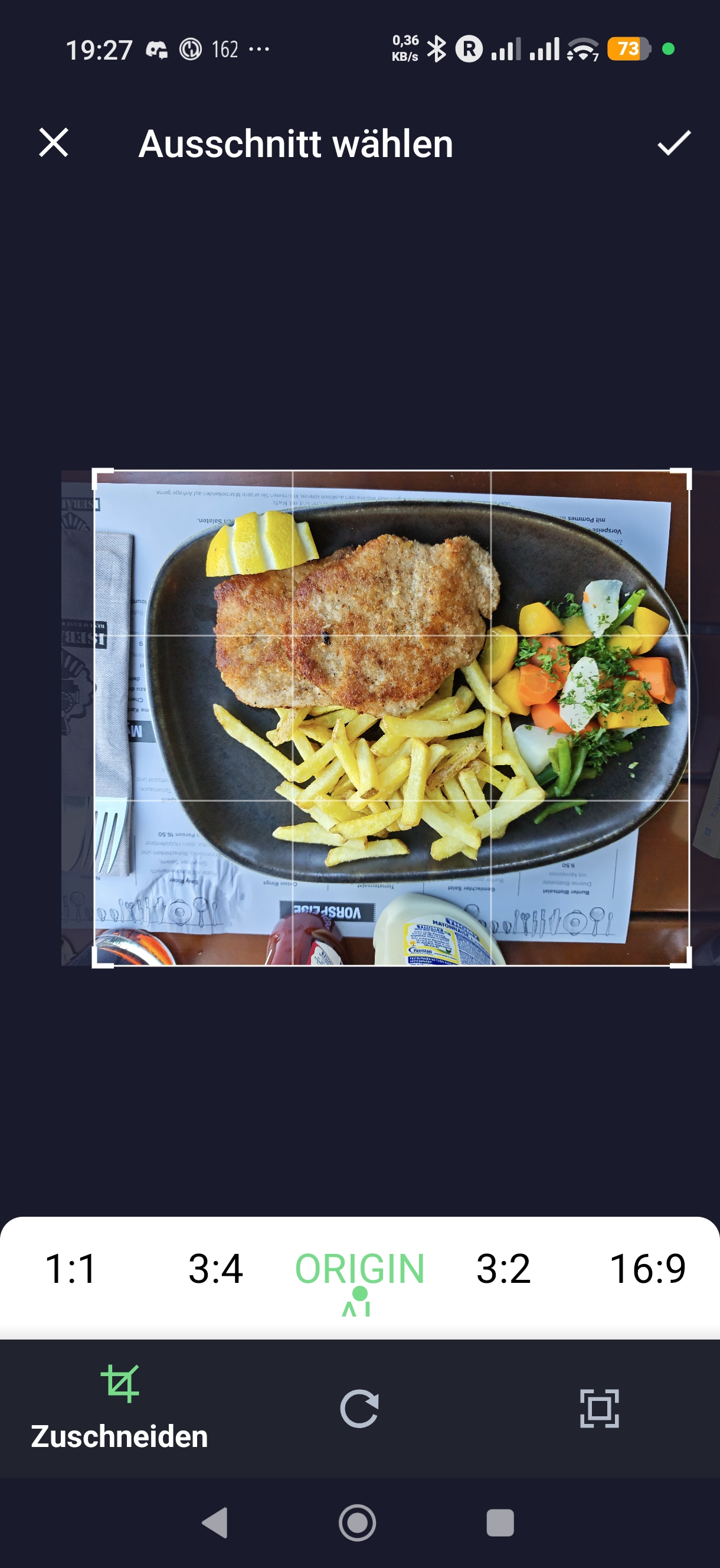
2, Crop
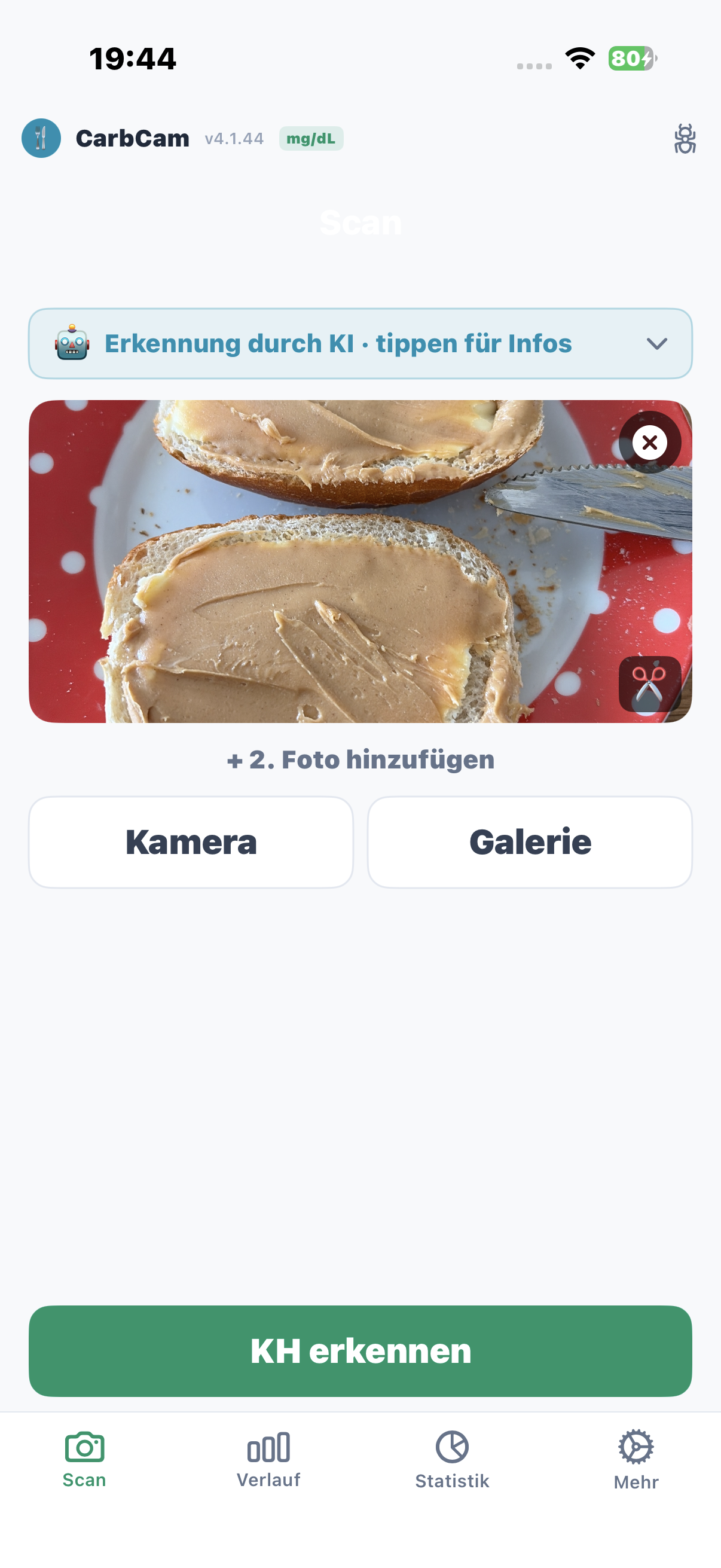
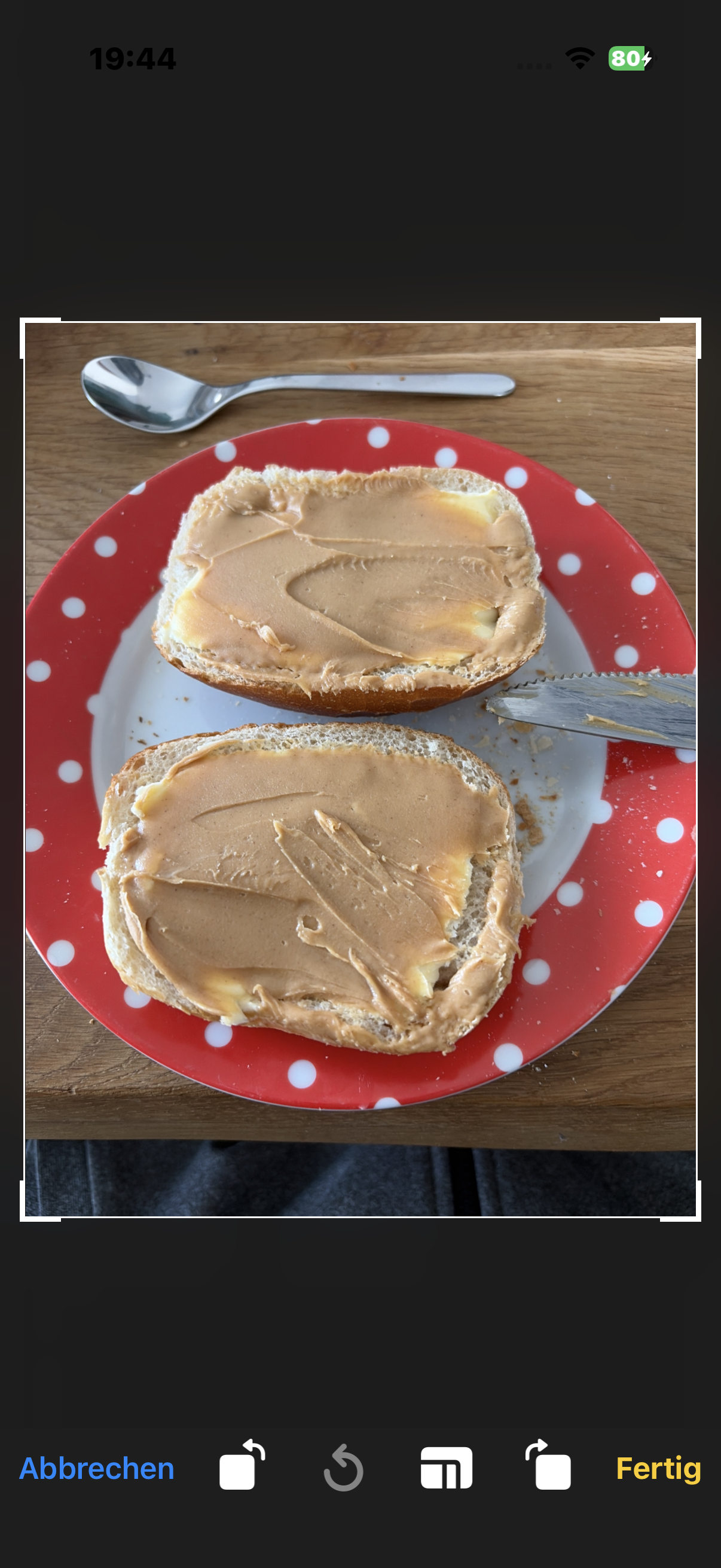
Adjust the image crop before analysis starts, less background = better recognition.
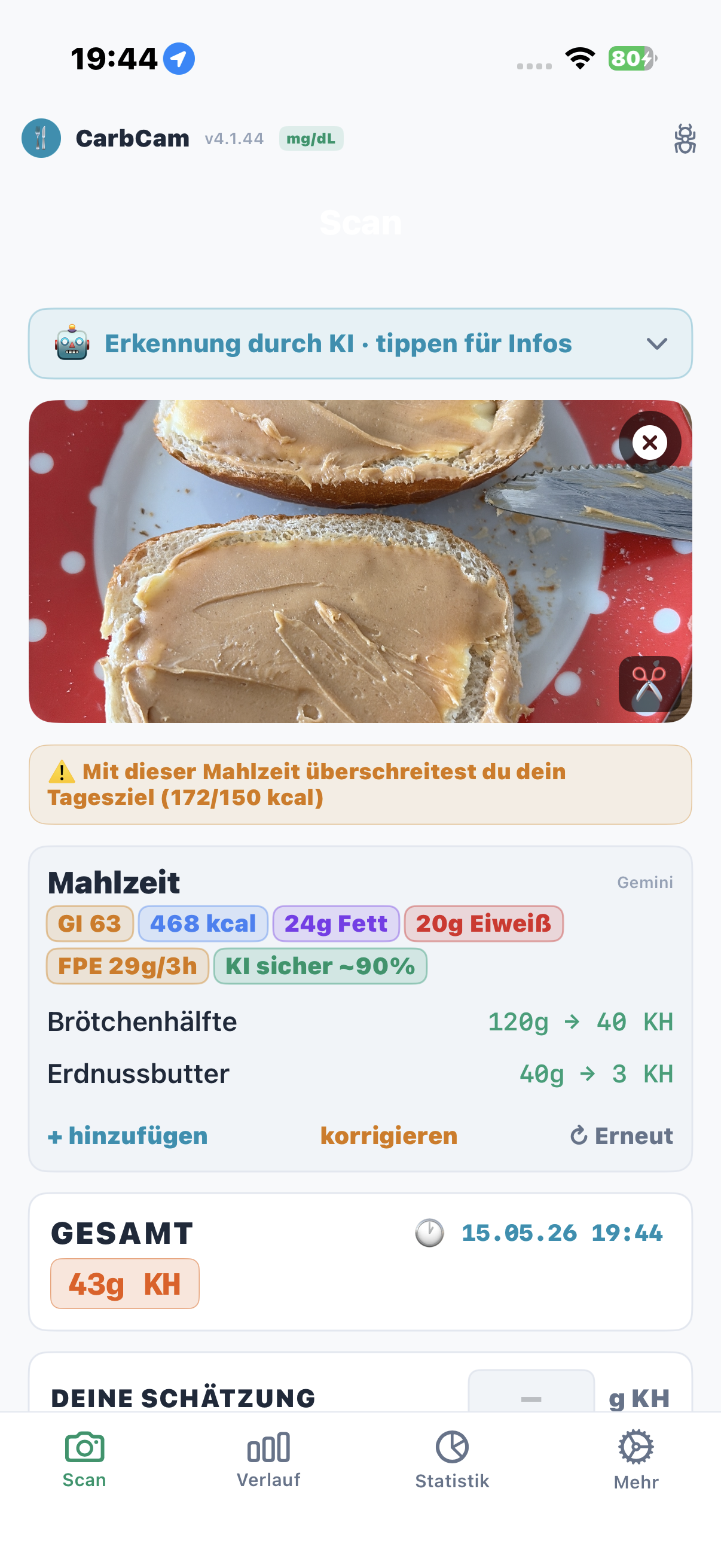
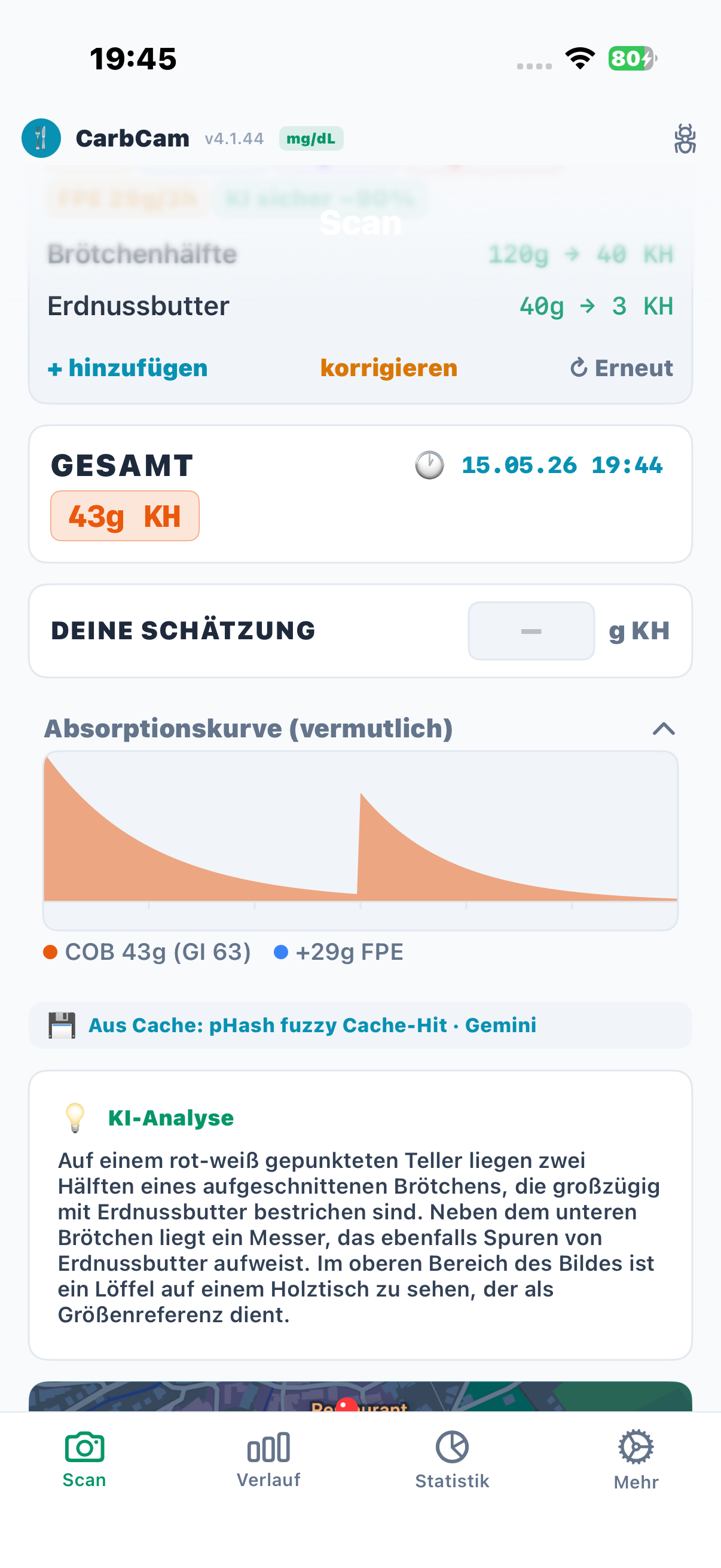
3, Result
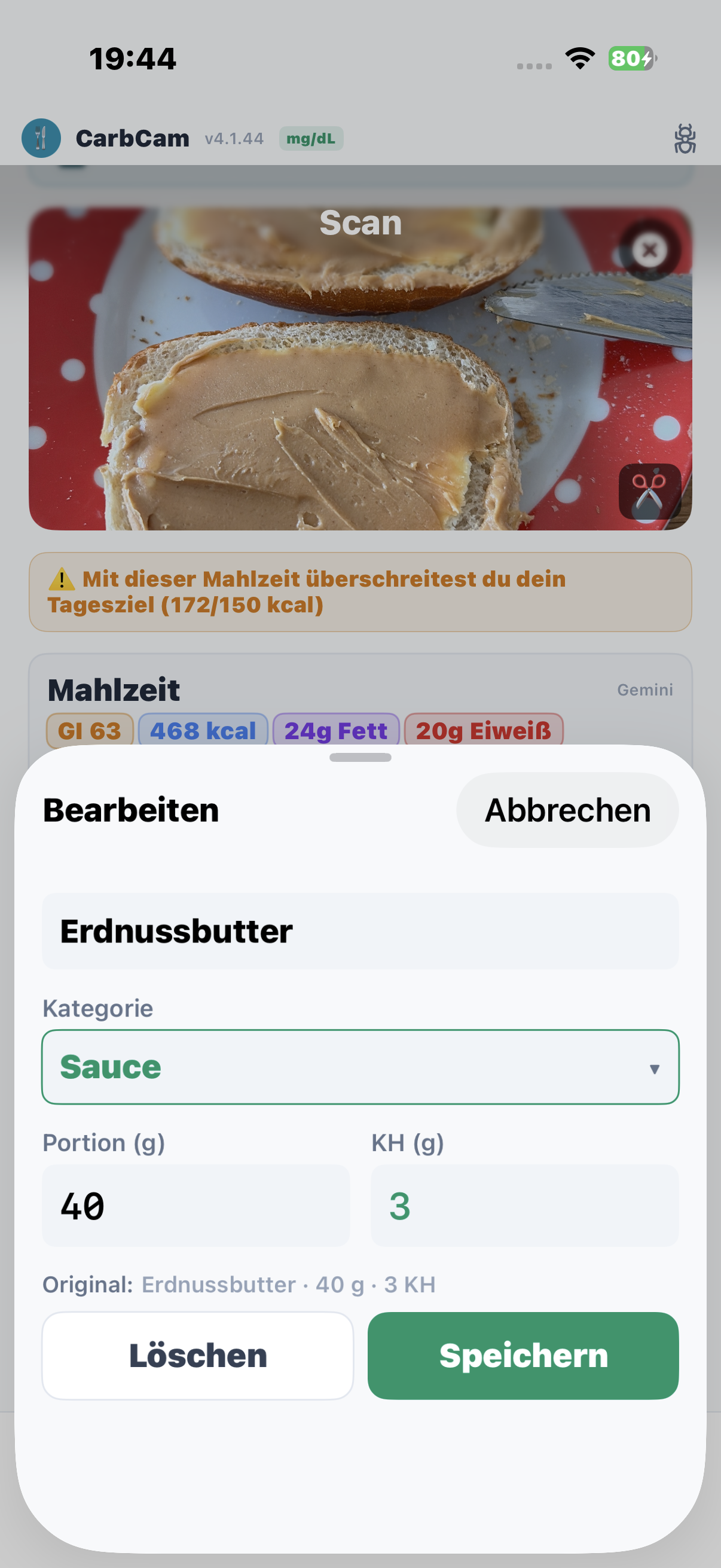
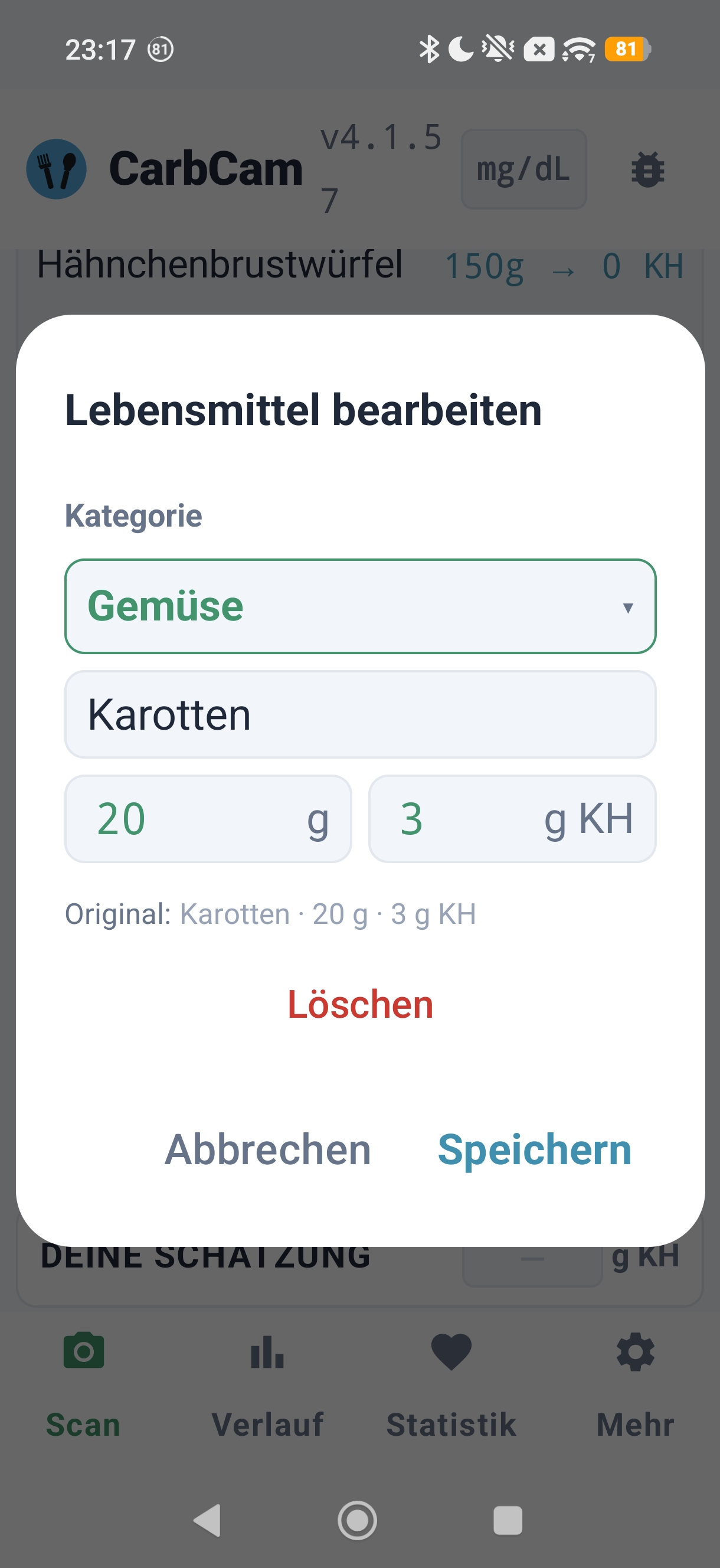
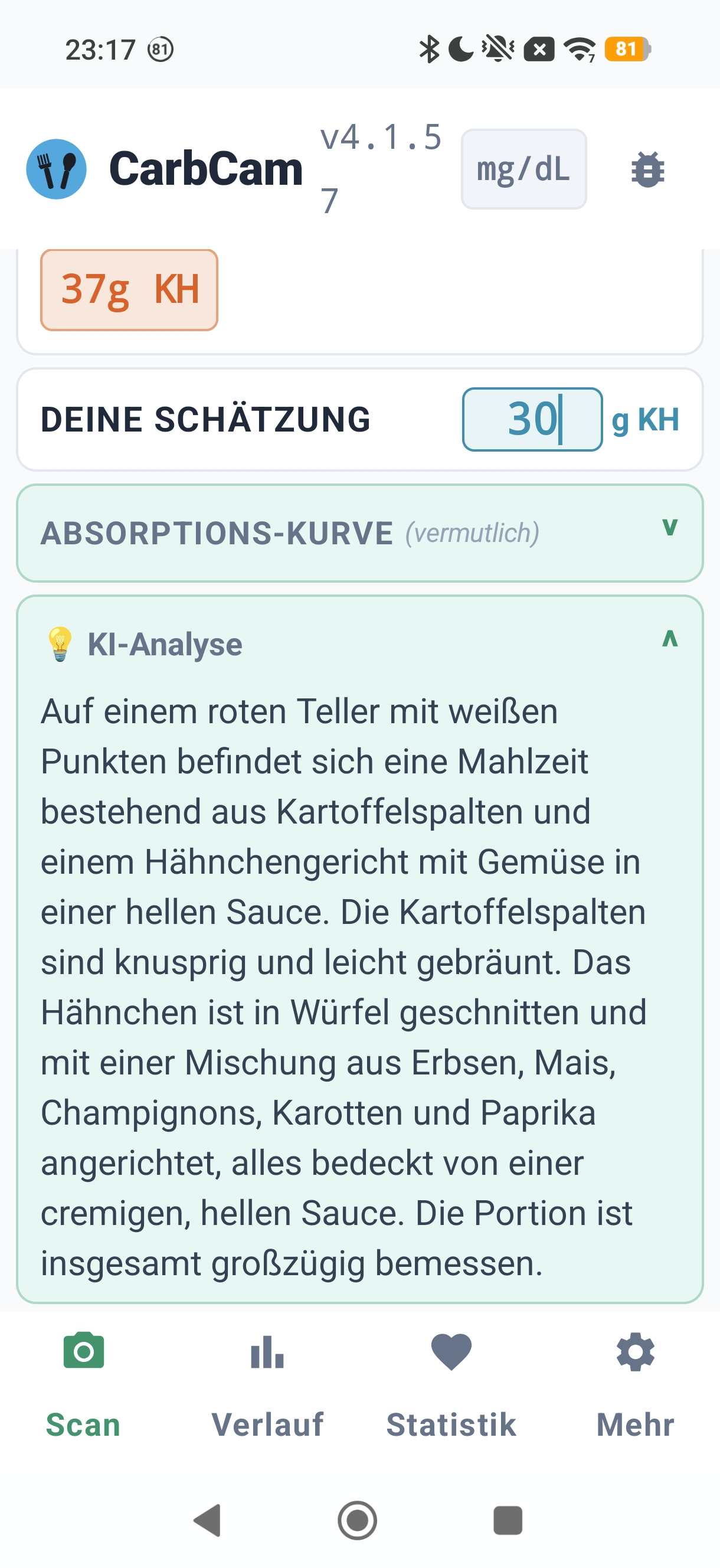
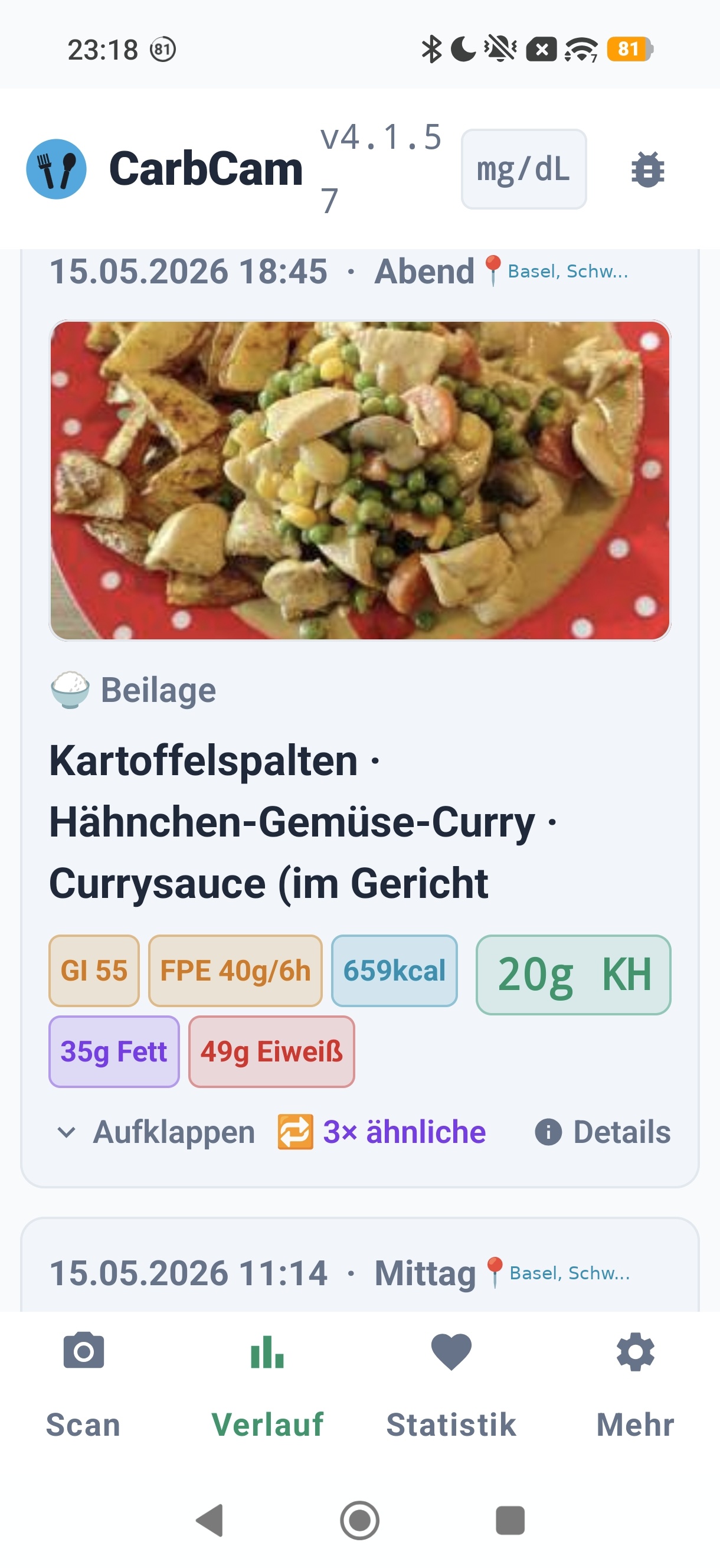
Detected food items with carbs, kcal, FPU, fat and protein, all values are editable.
4, History
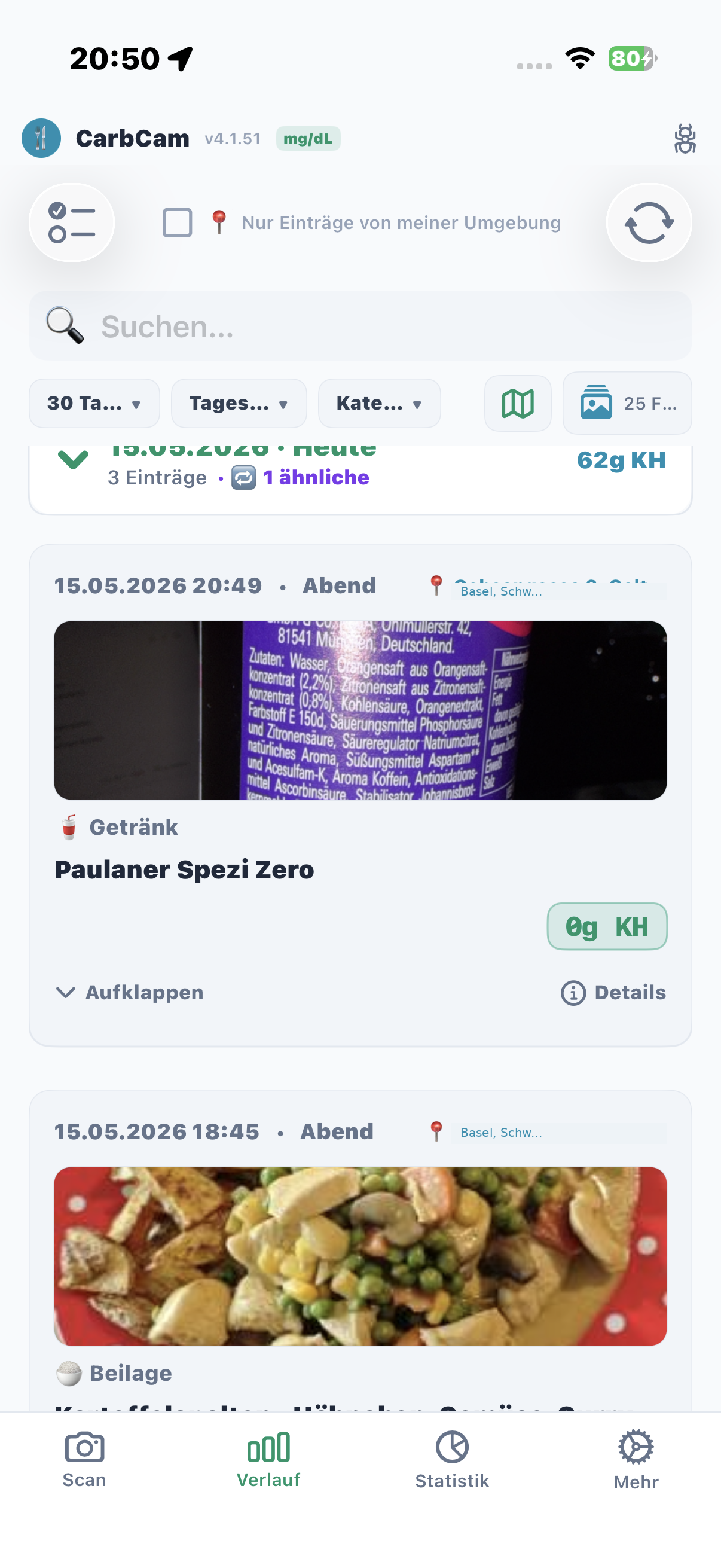
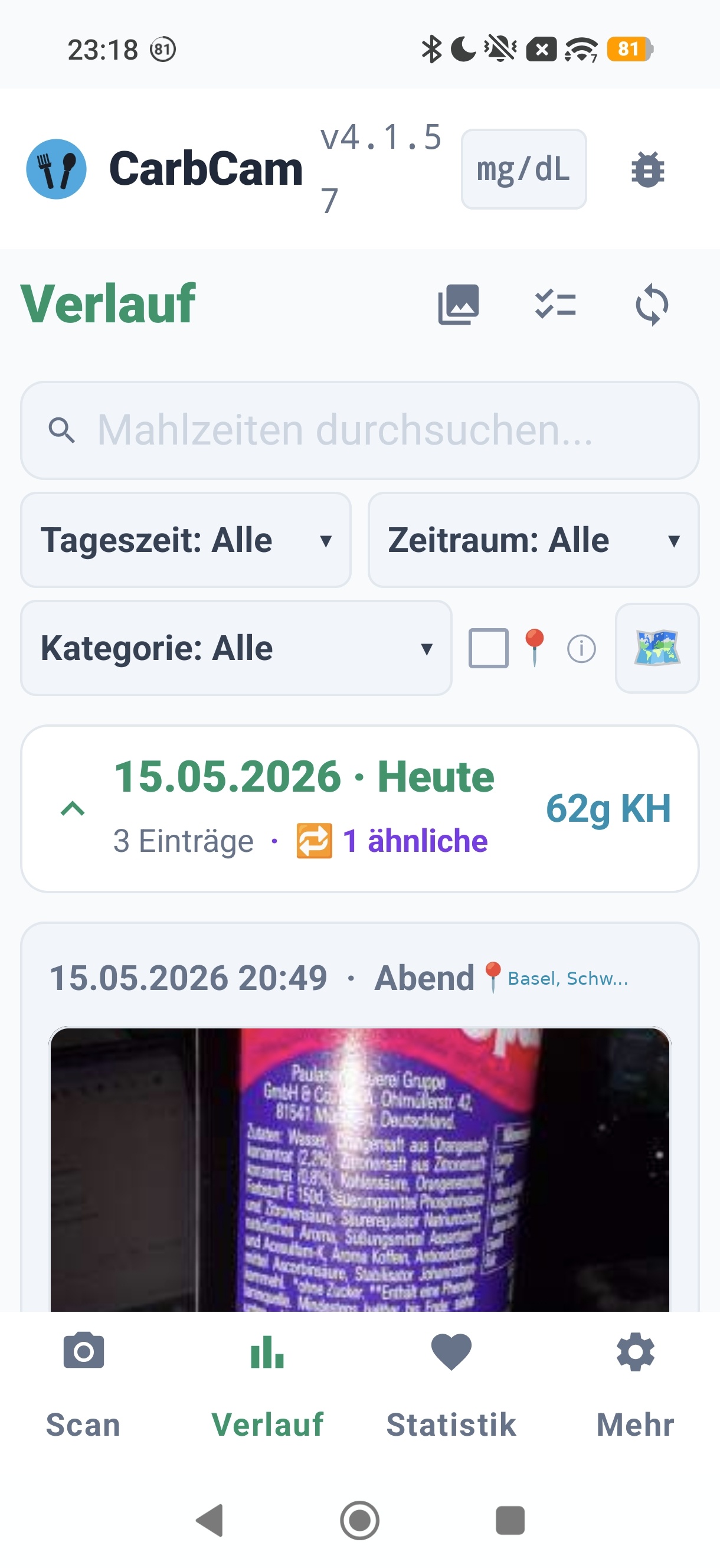
All meals listed chronologically, grouped by day. Pull-to-refresh syncs with Nightscout.
5, BG Graph
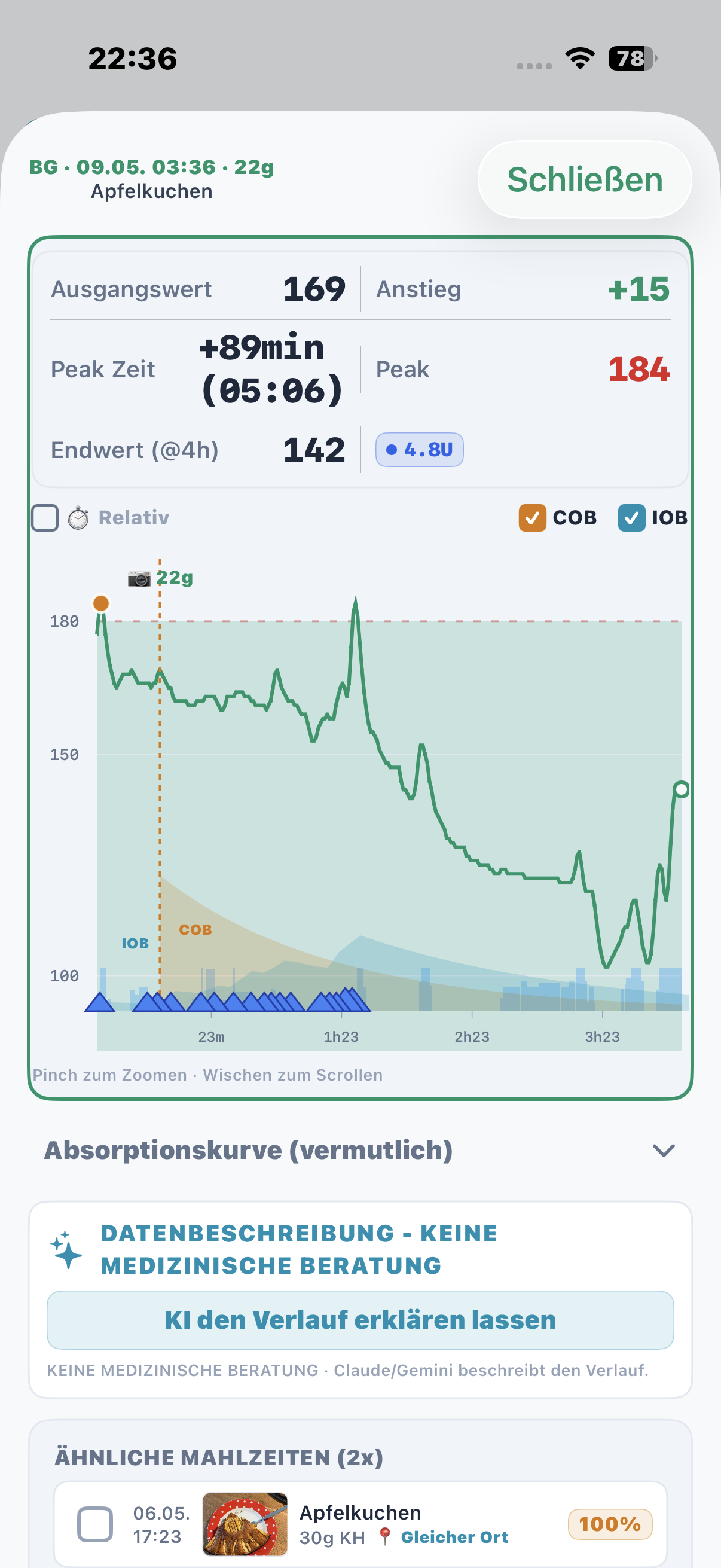
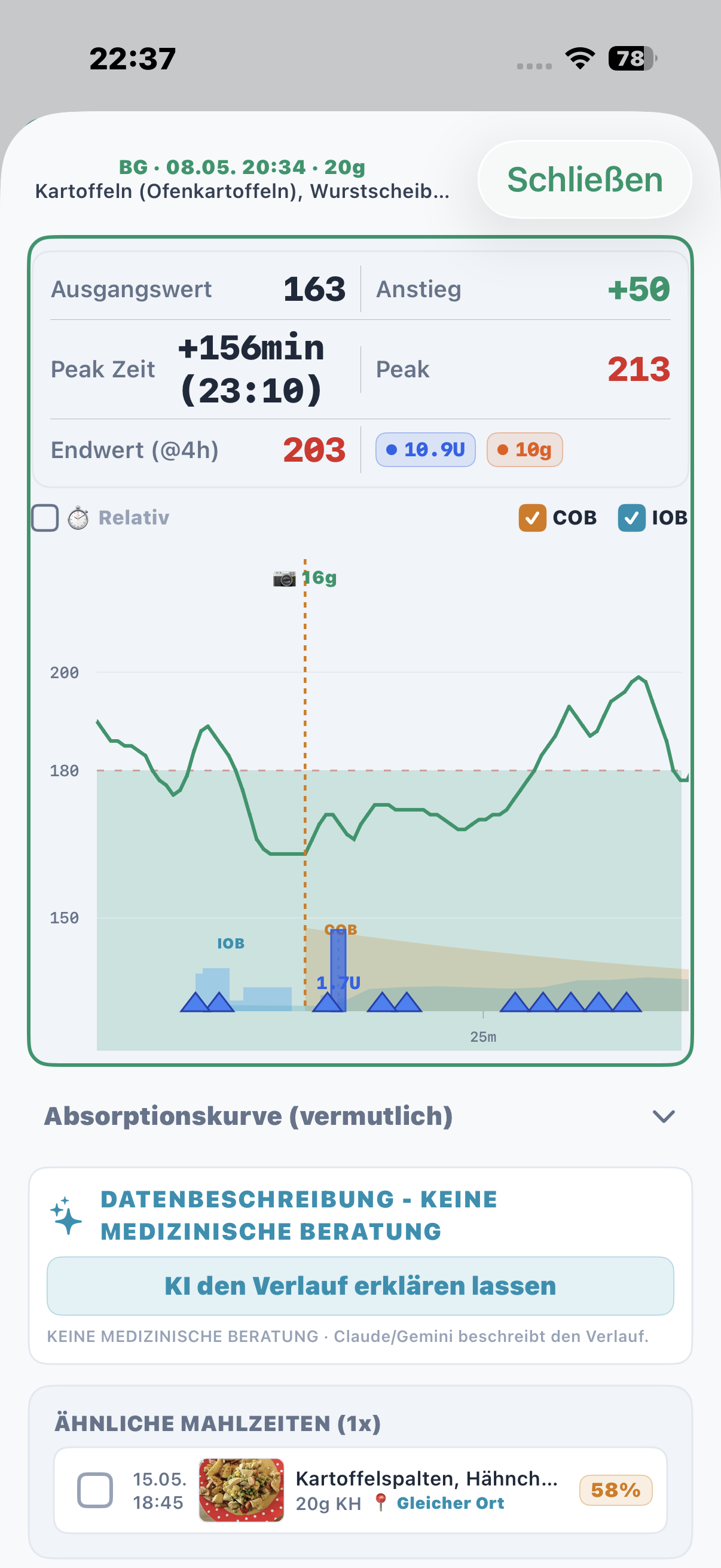
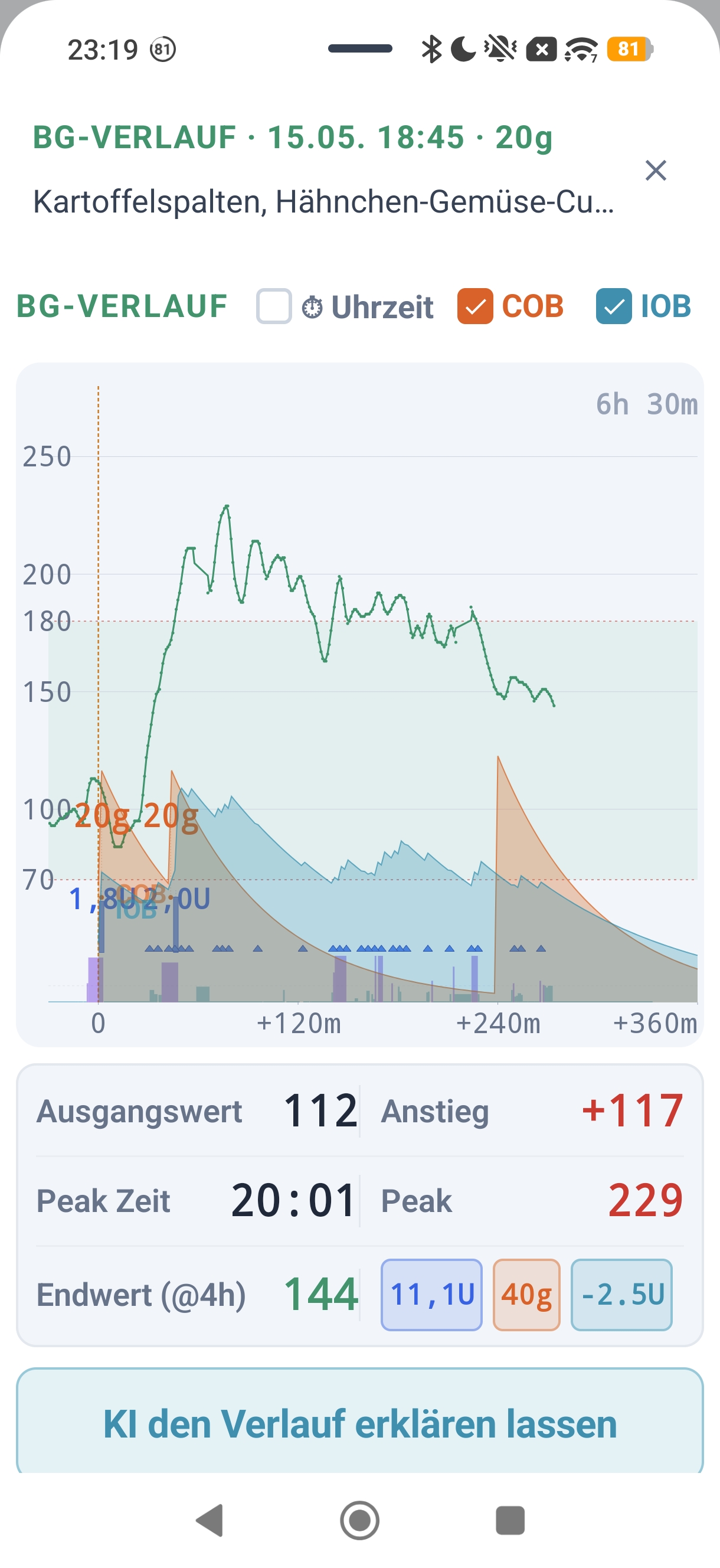
Blood glucose curve around the meal with peak marker, rise and end value, requires Nightscout.
6, Meal Details
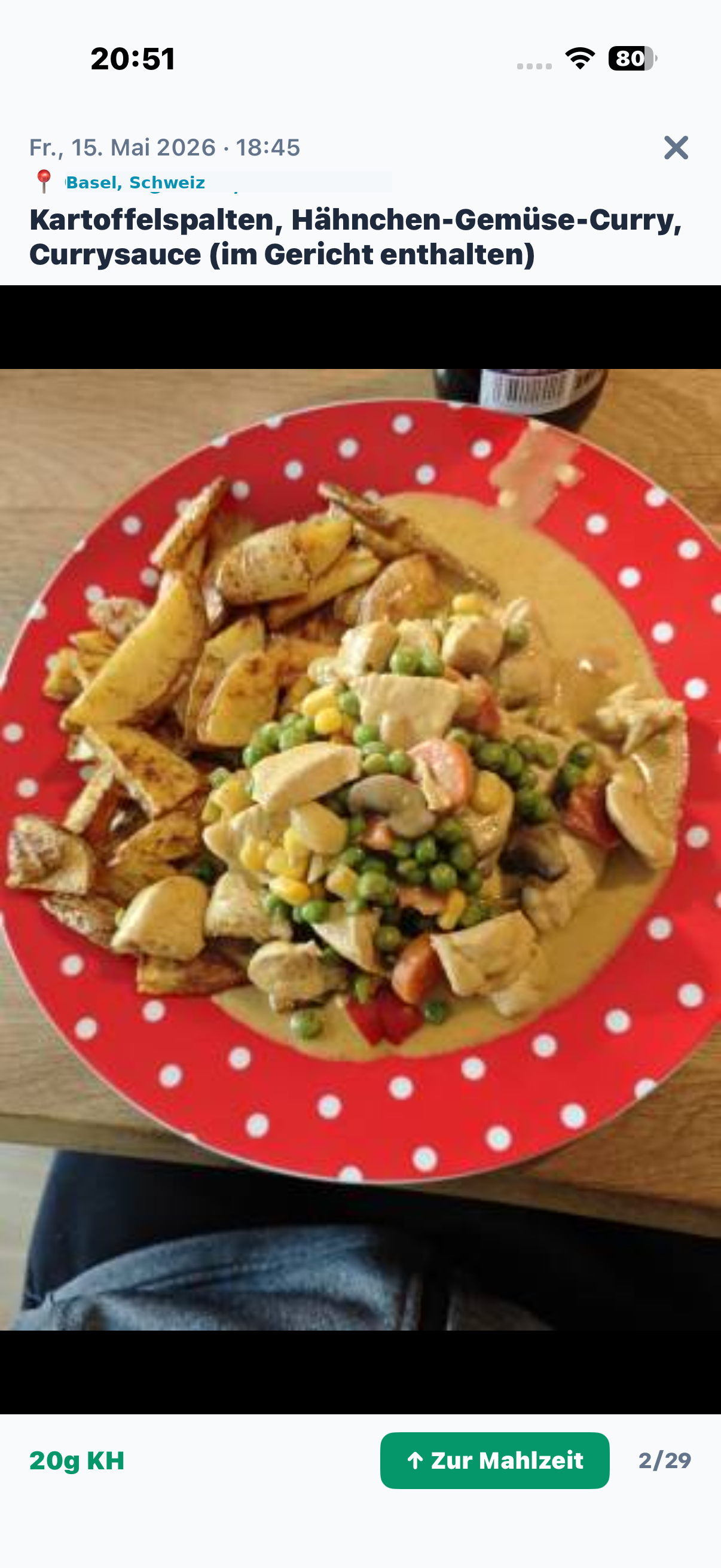
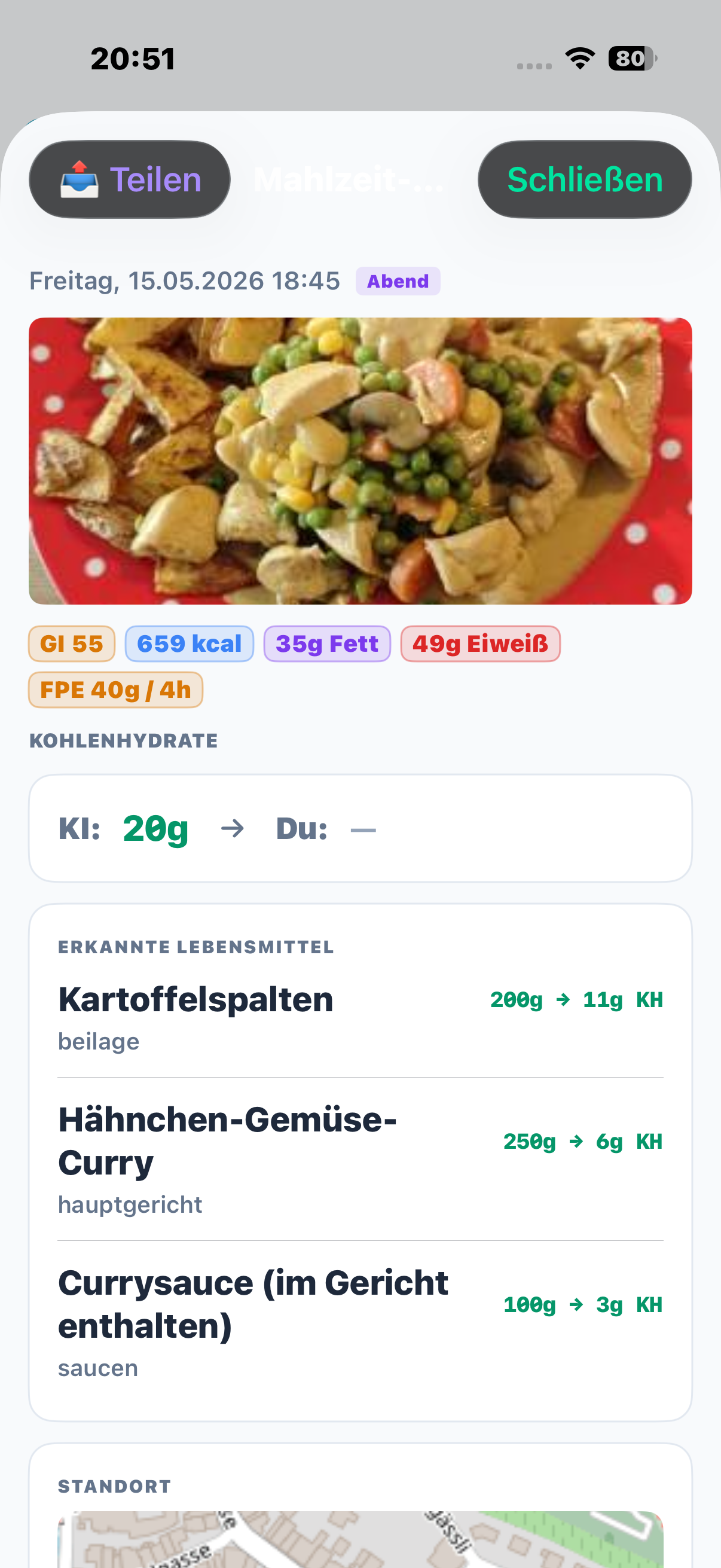
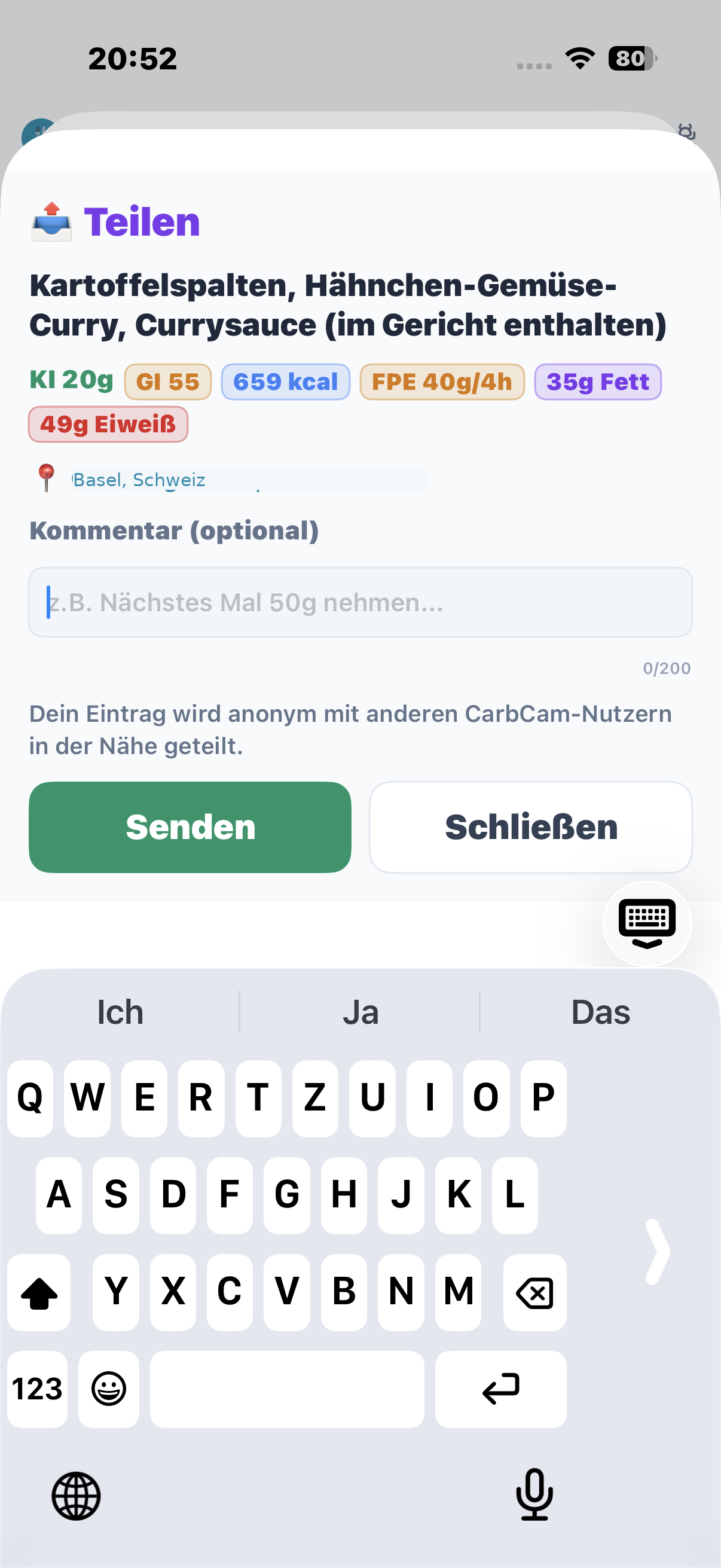
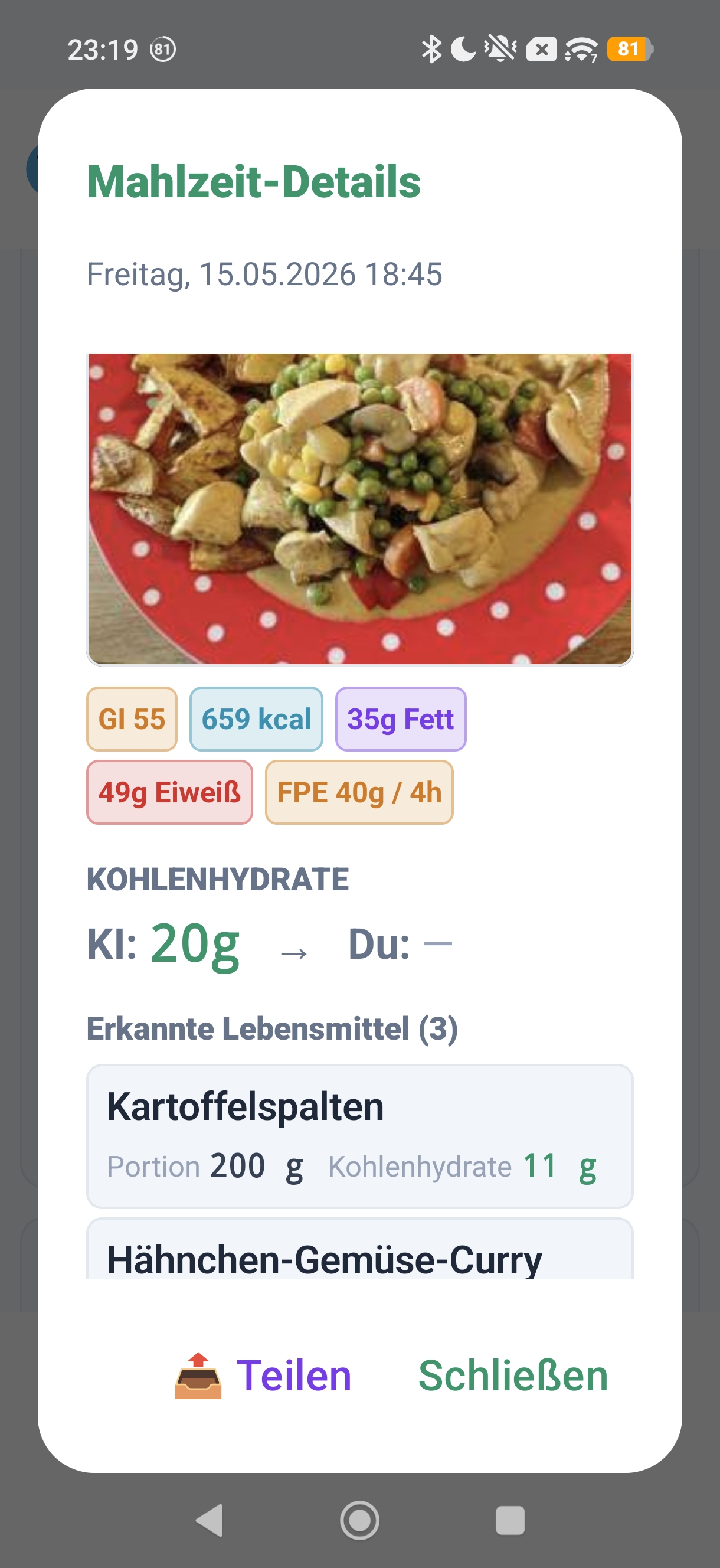
Individual components with nutritional values, photo, location and optional Nightscout note.
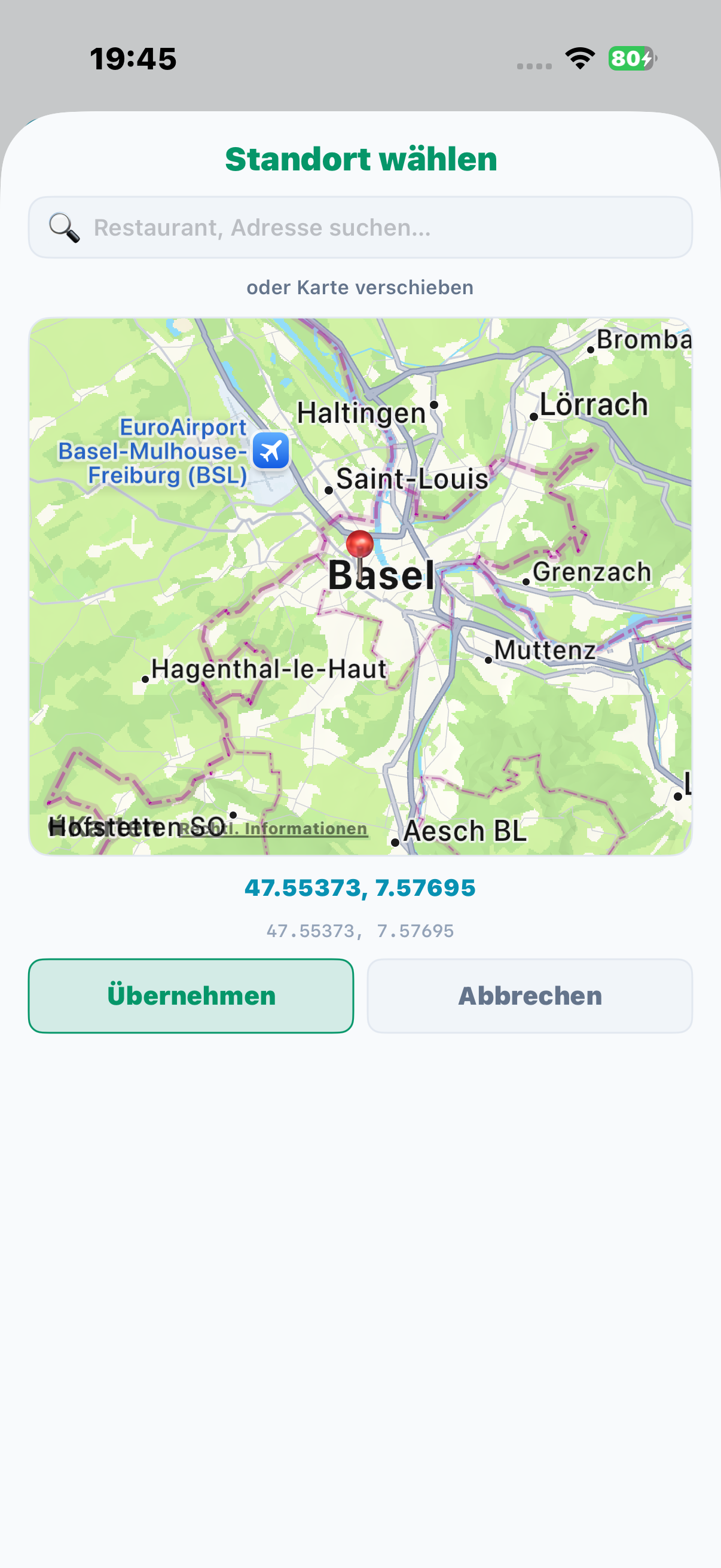
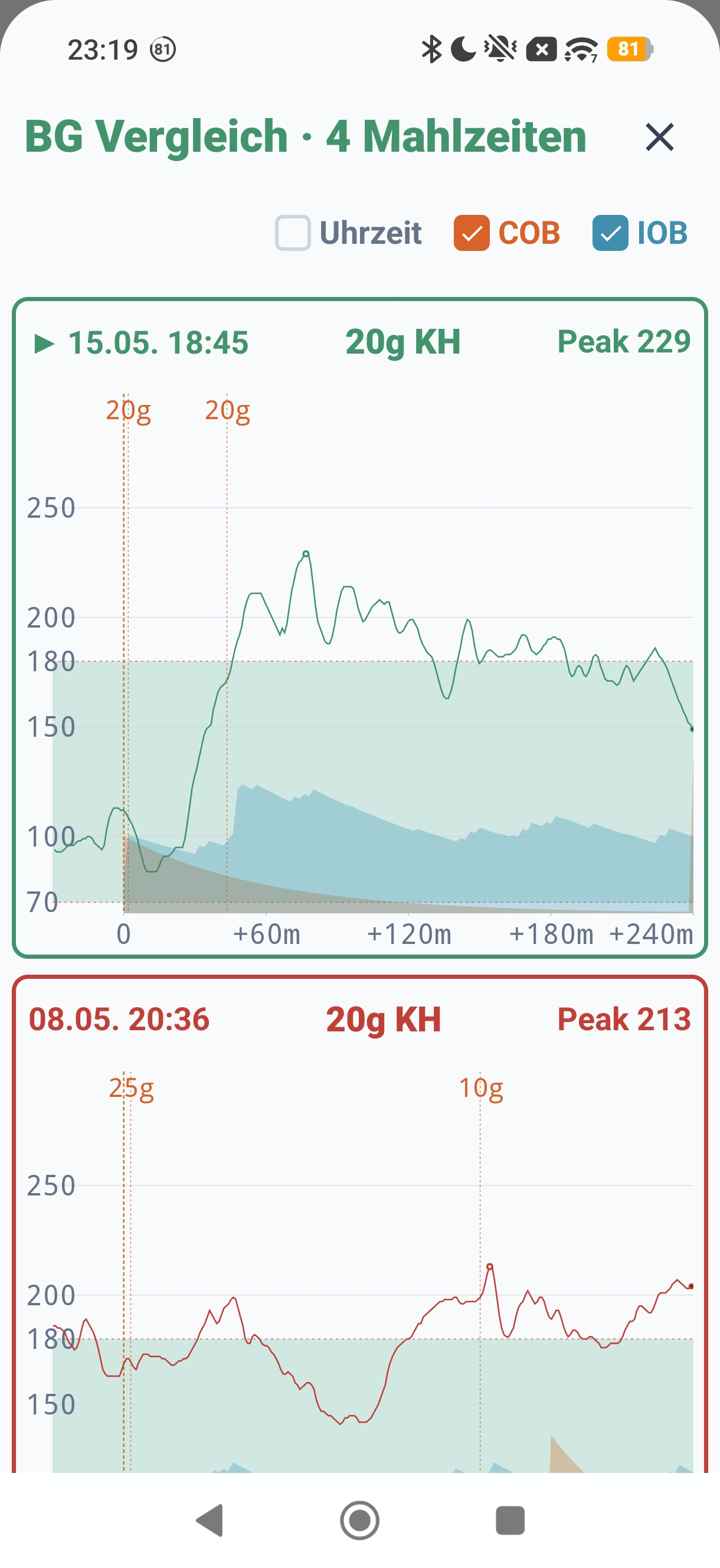
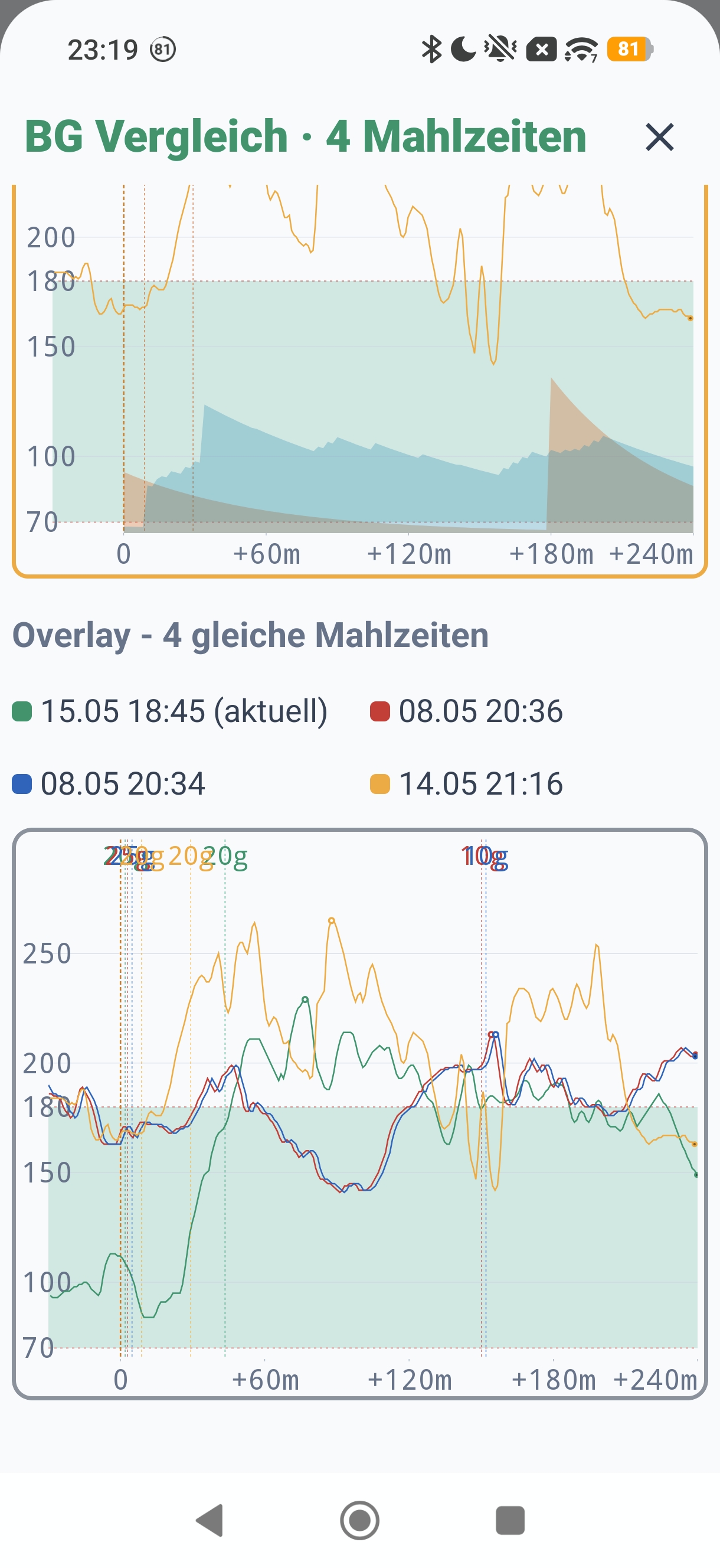
7, Compare Similar Meals
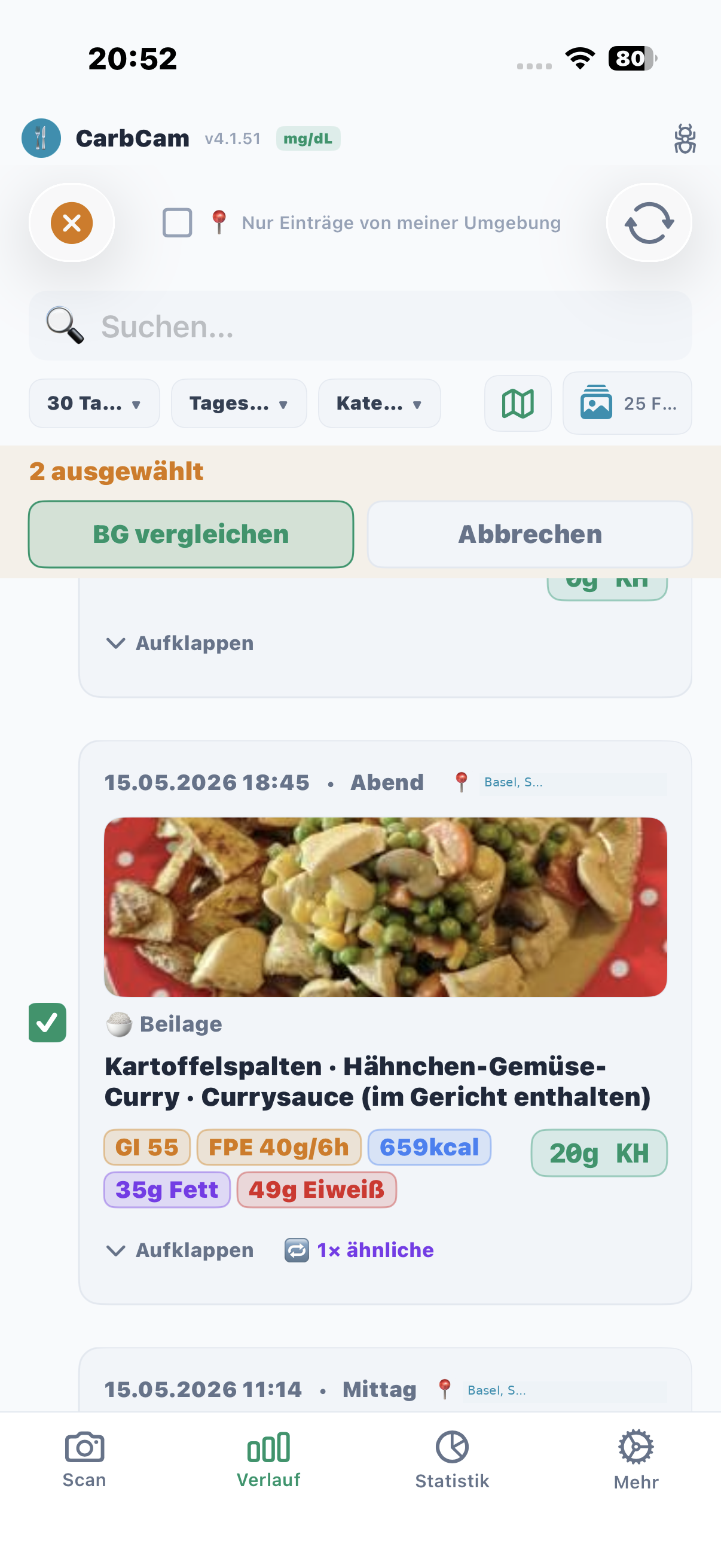
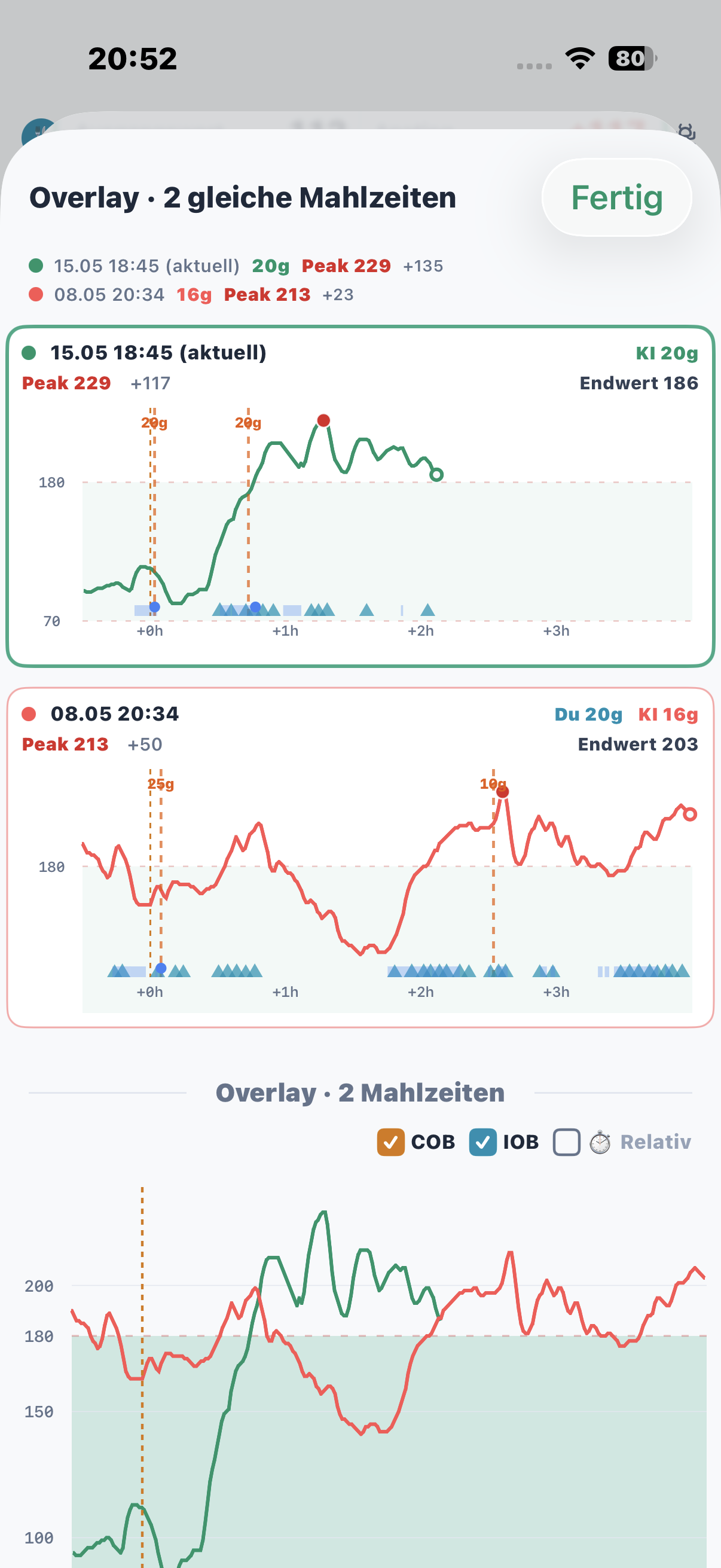
Overlay multiple BG curves, e.g. “How does my body react to pasta?”
8, Stats Tab
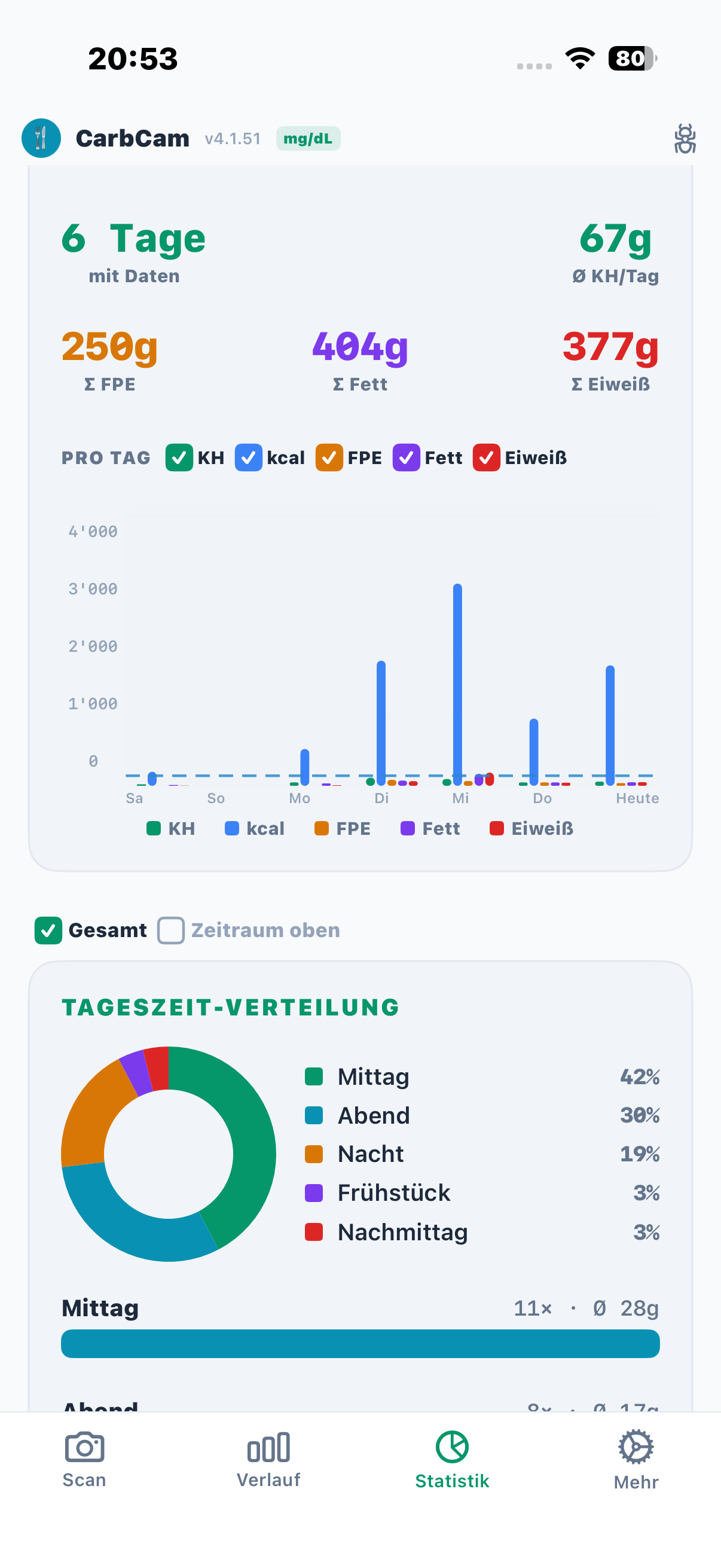
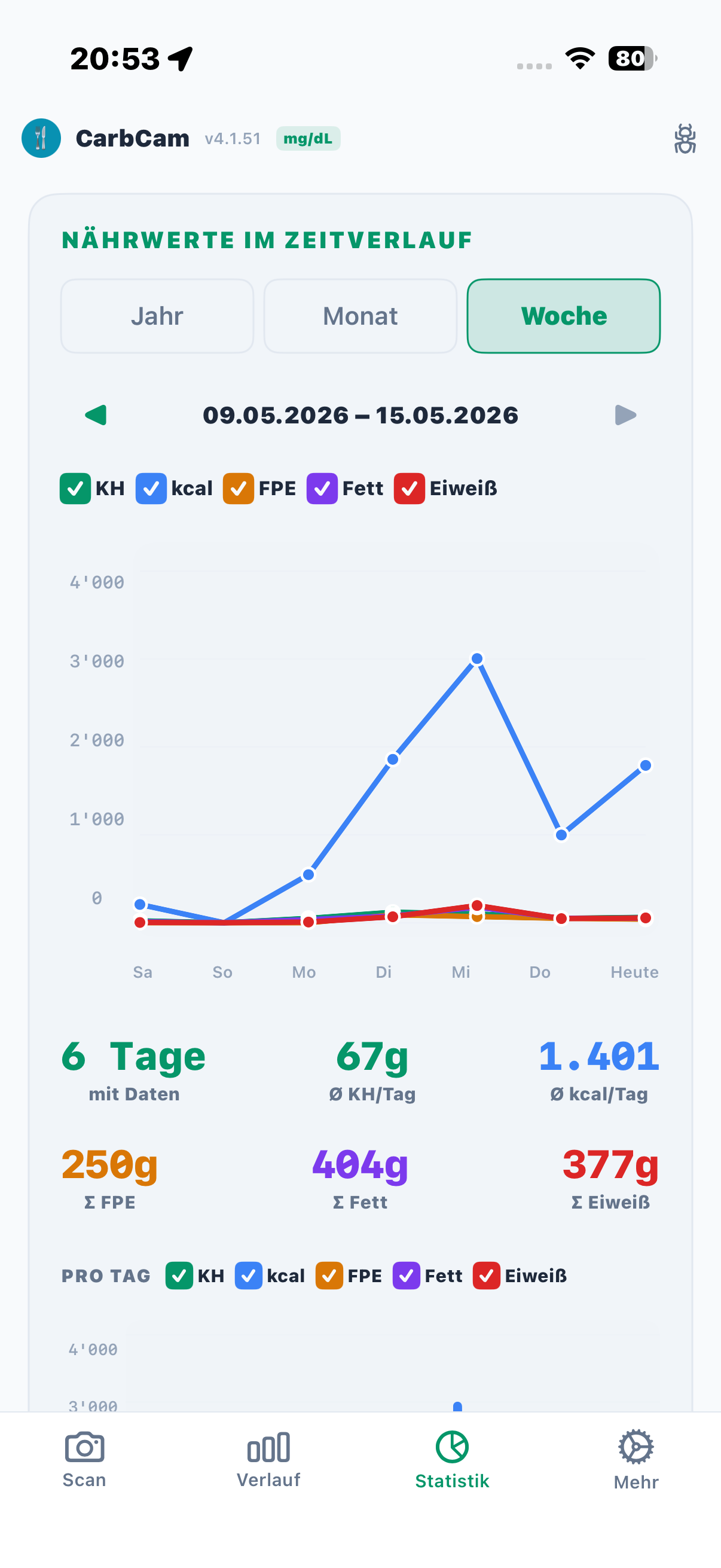
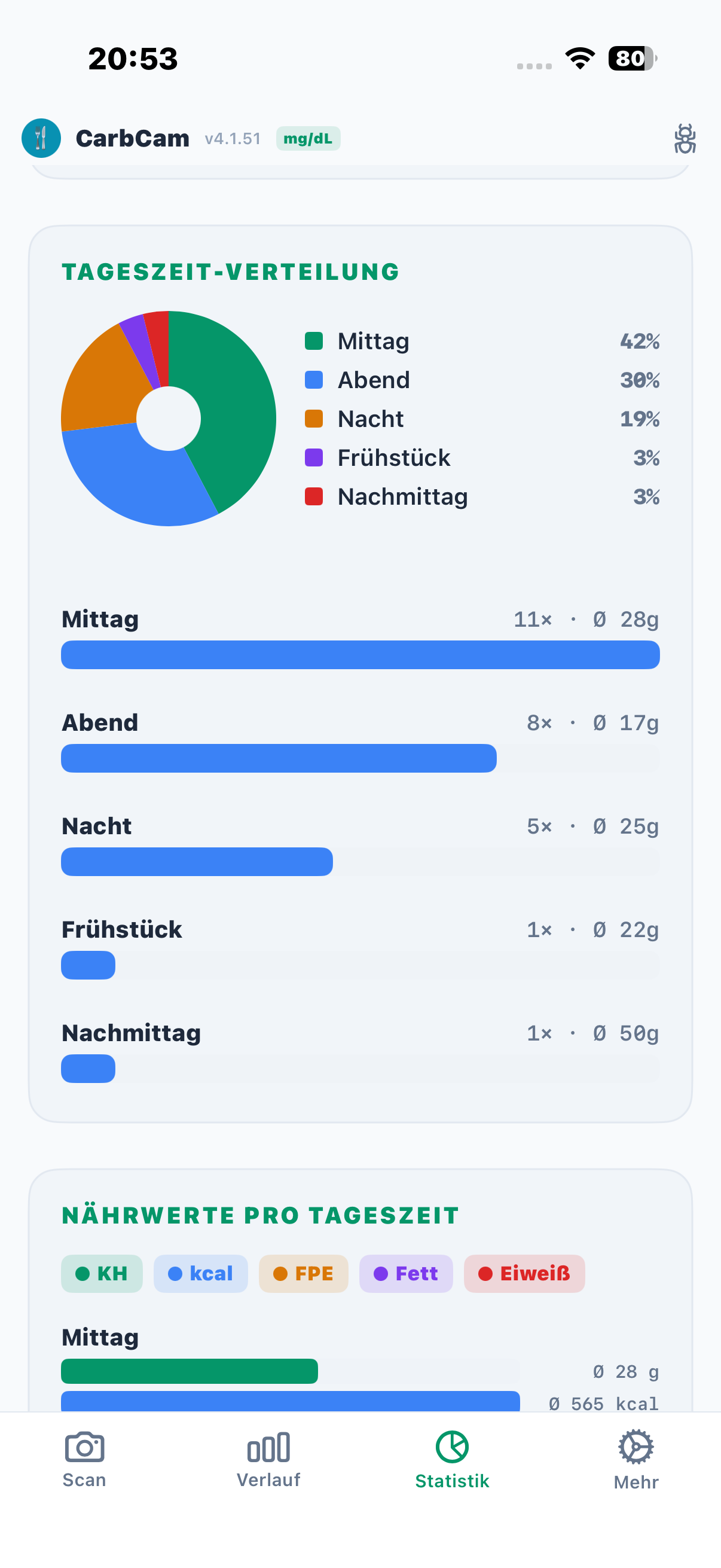
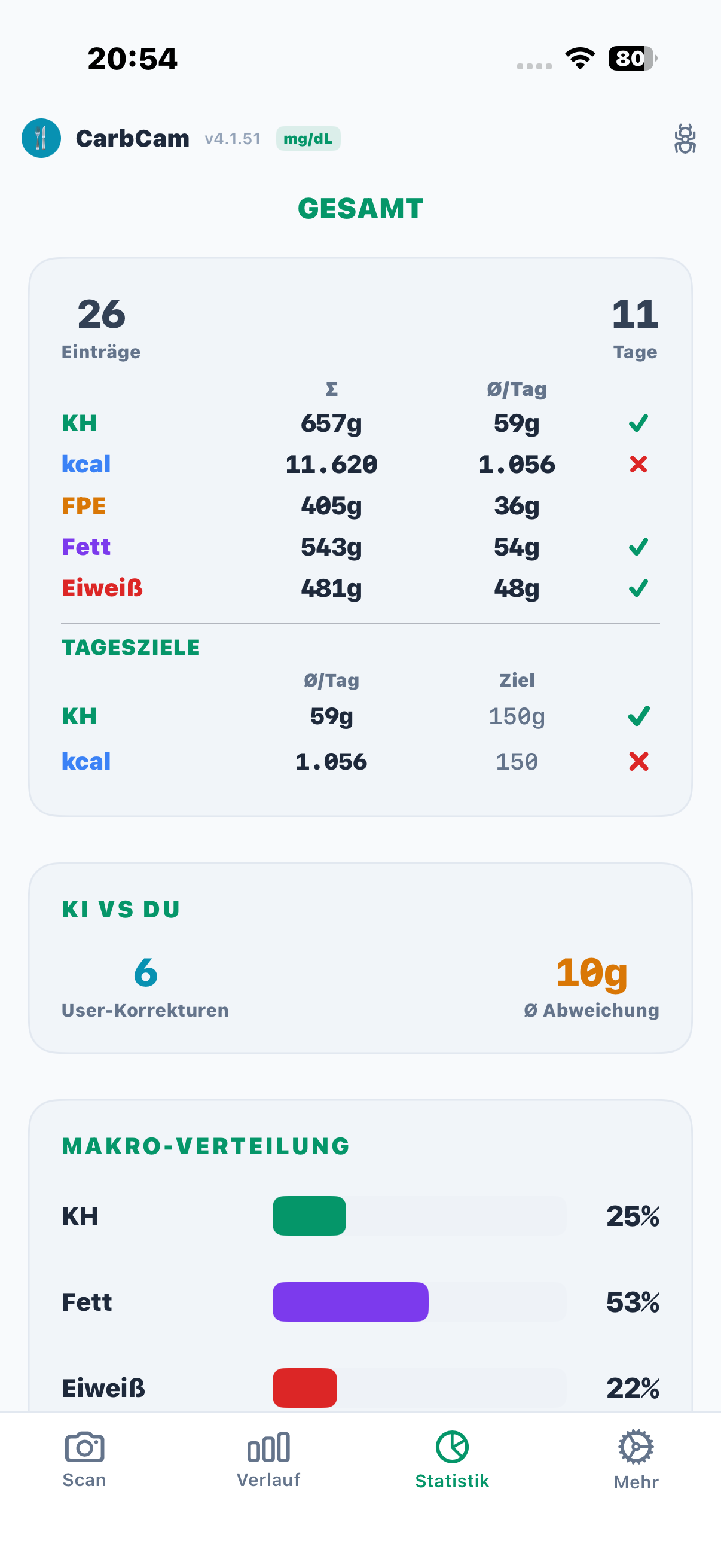
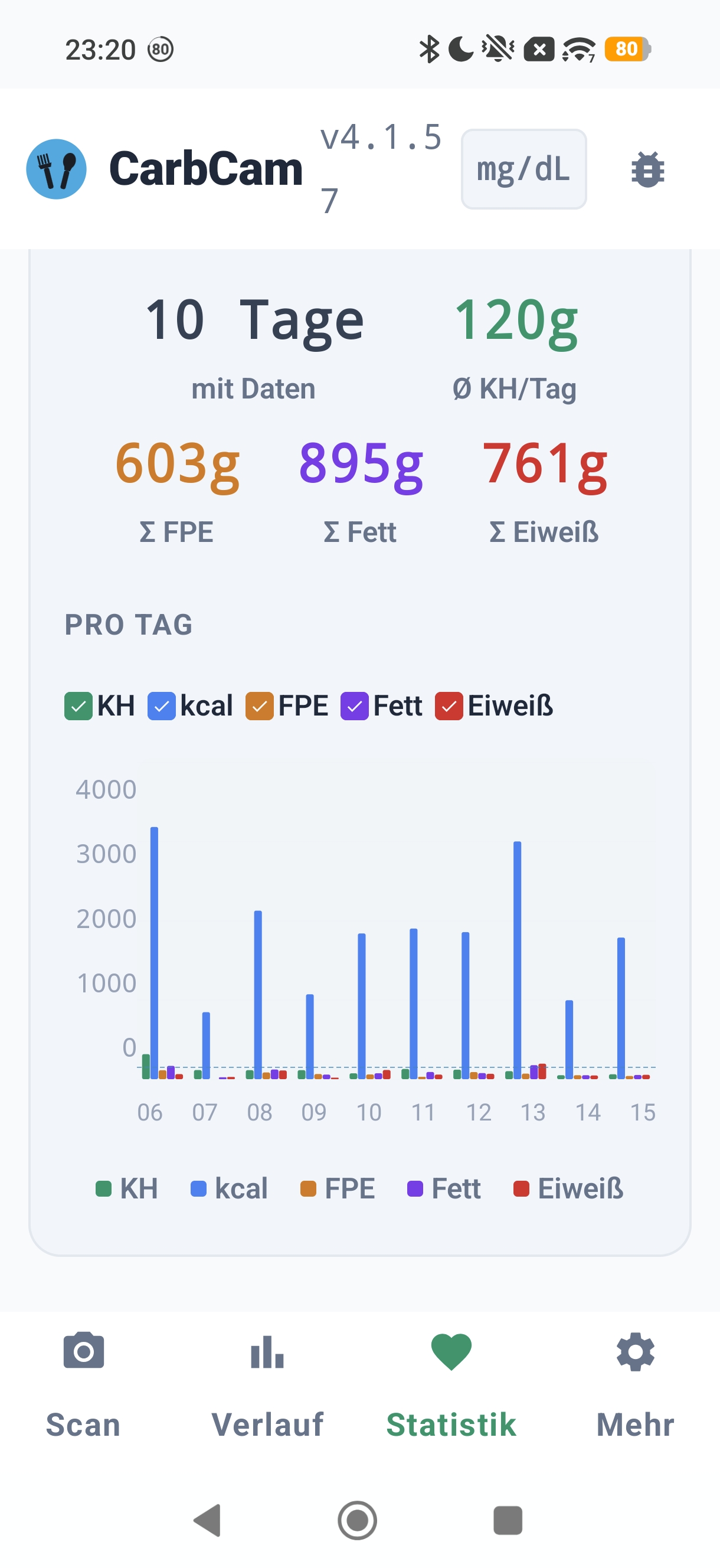
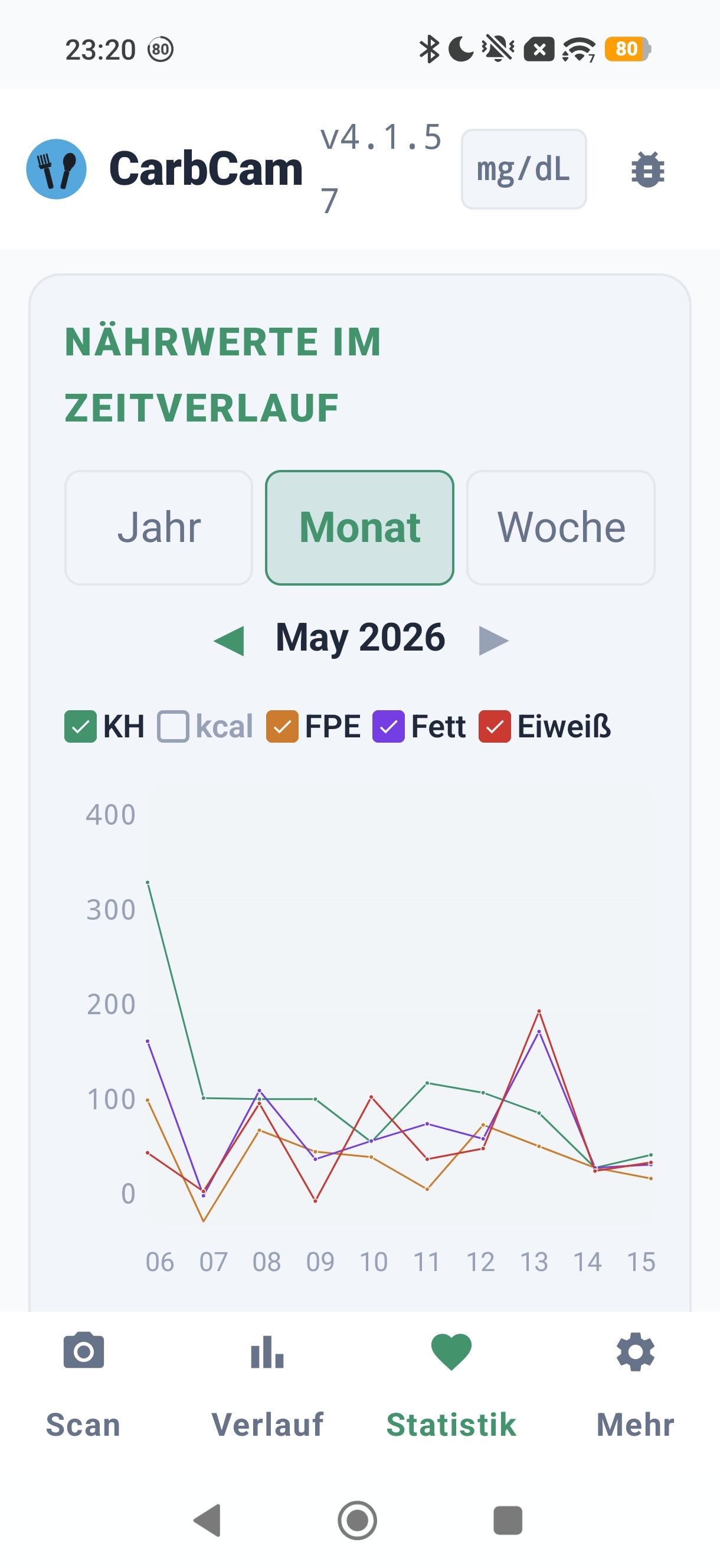
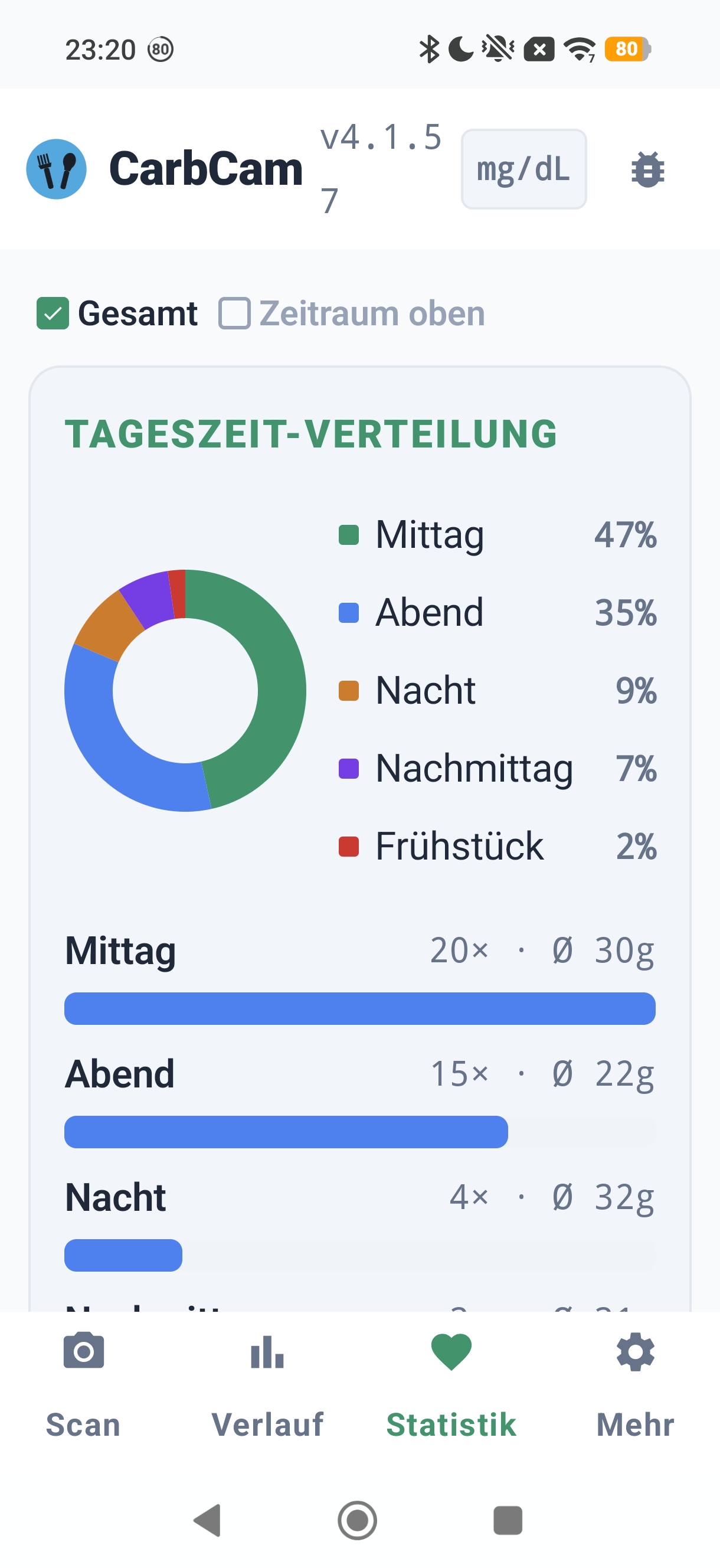
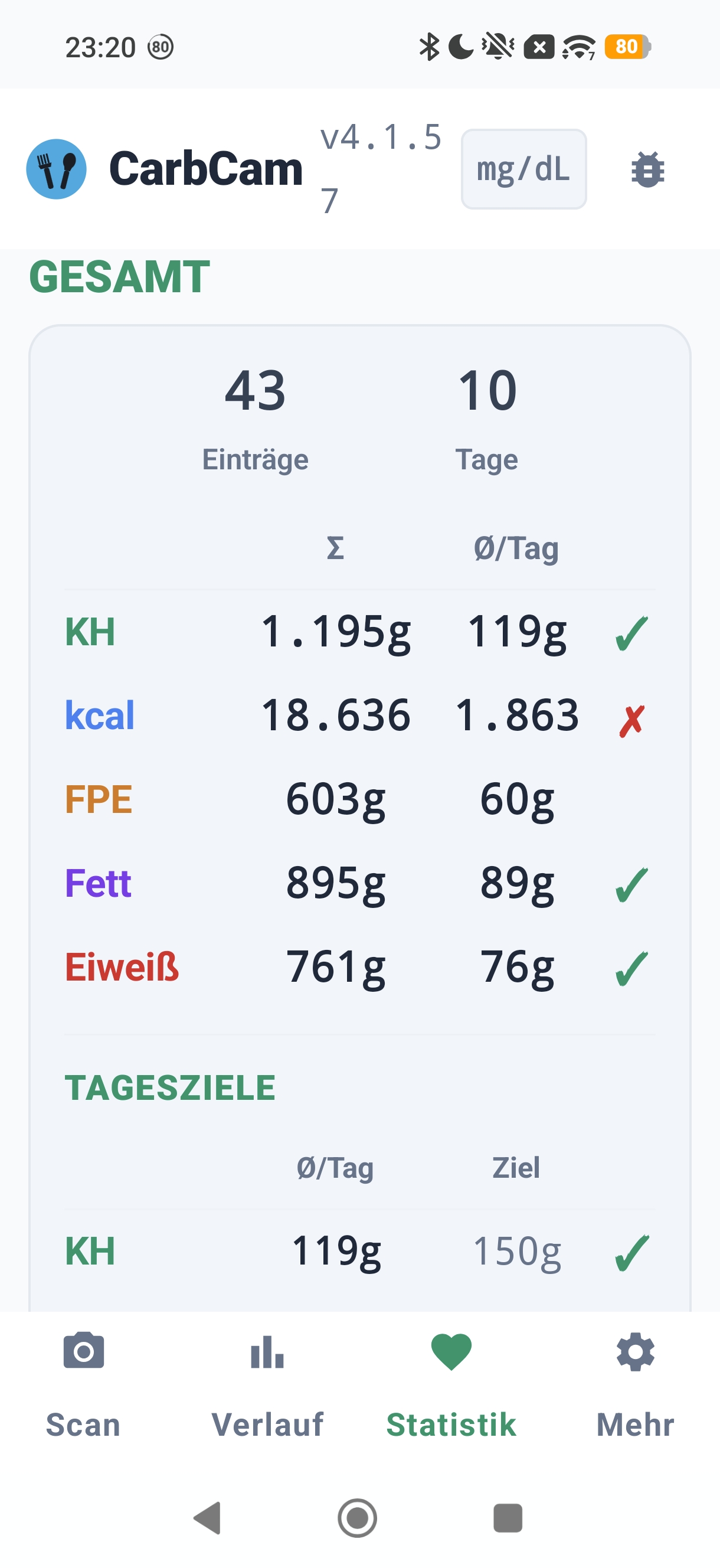
Carbs/kcal/FPU over time, trends graph, nutritional values by time of day, zoom (week/month/year).
9, Nightscout Sync
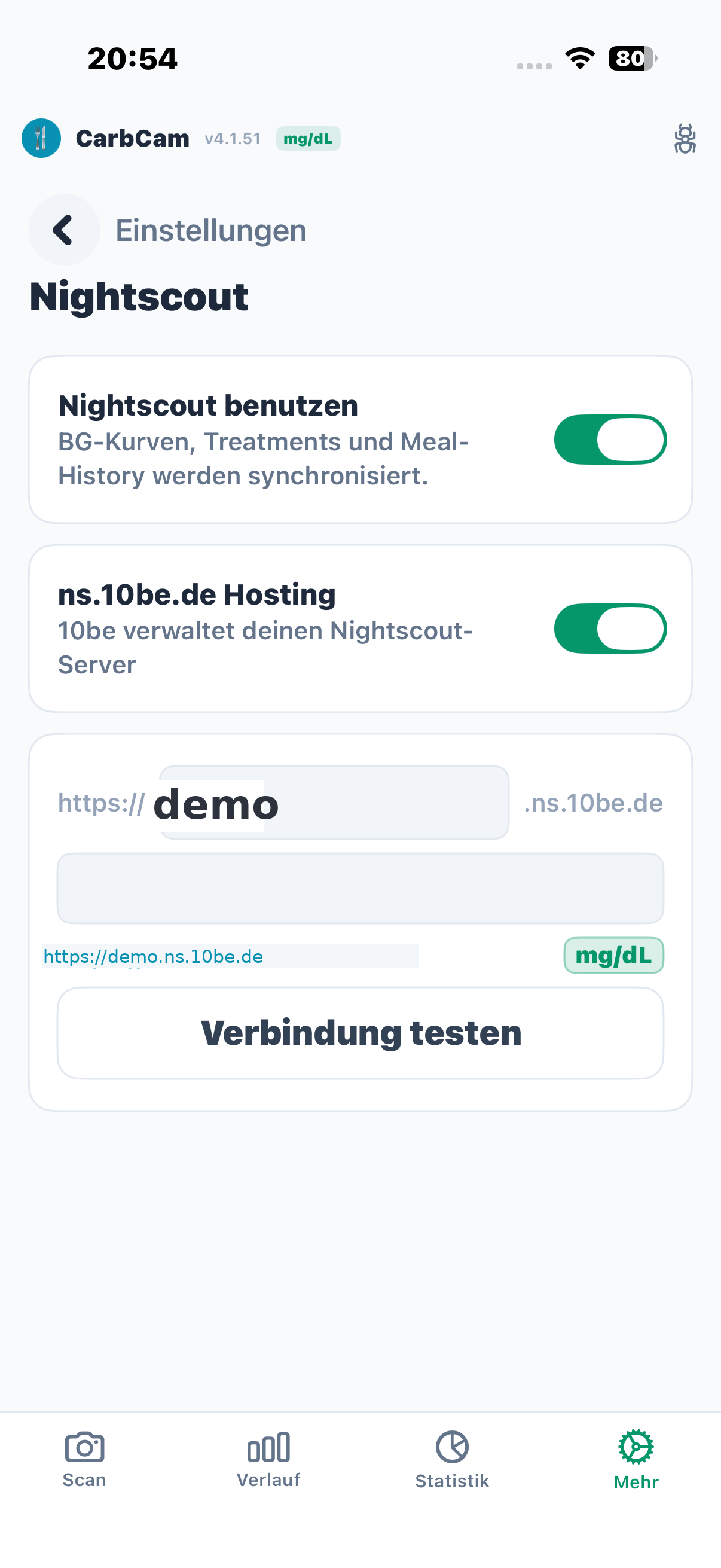
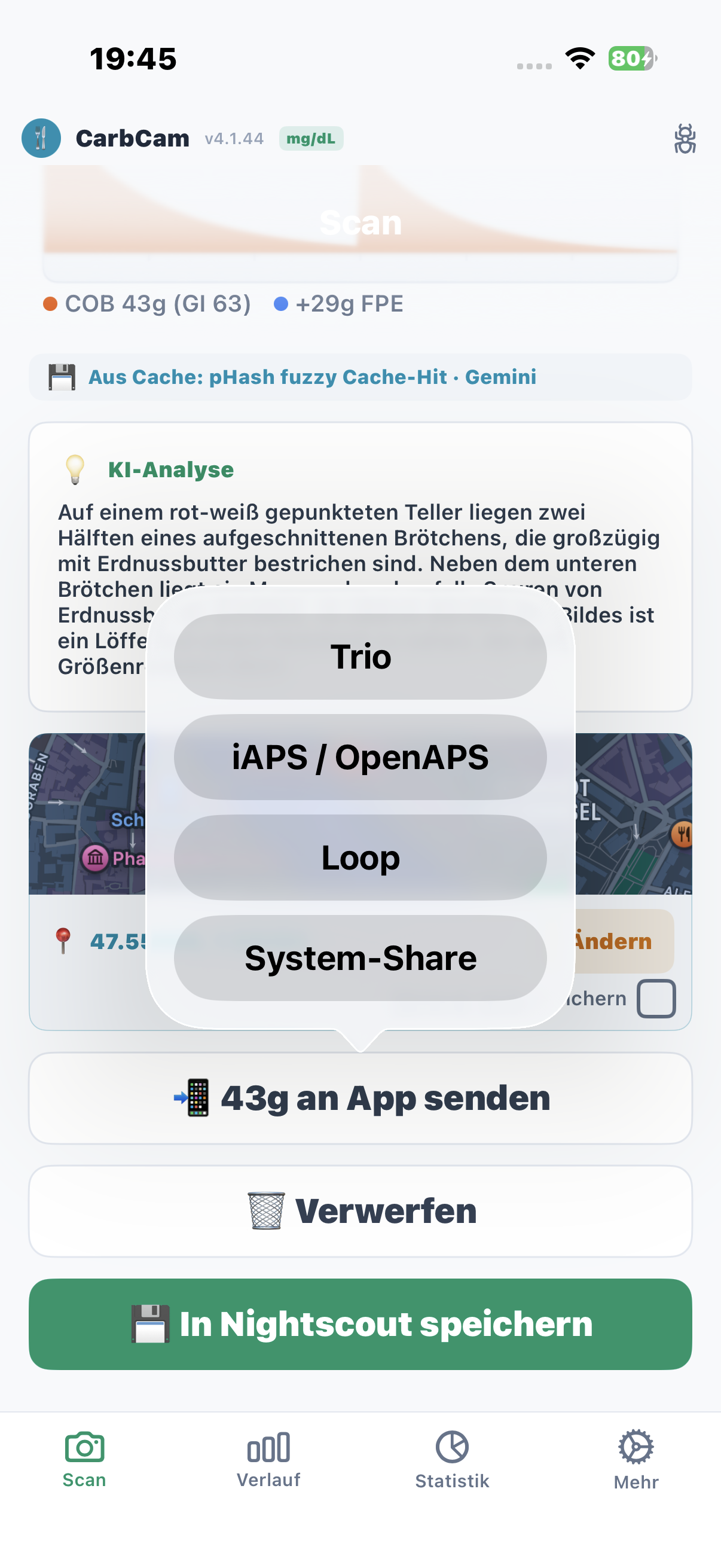
CarbCam syncs meals as a note treatment with your Nightscout
(tag carbcam / 10becarbcam). The BG curve is loaded from Nightscout entries.
No active carb treatment, your loop calculation remains untouched.
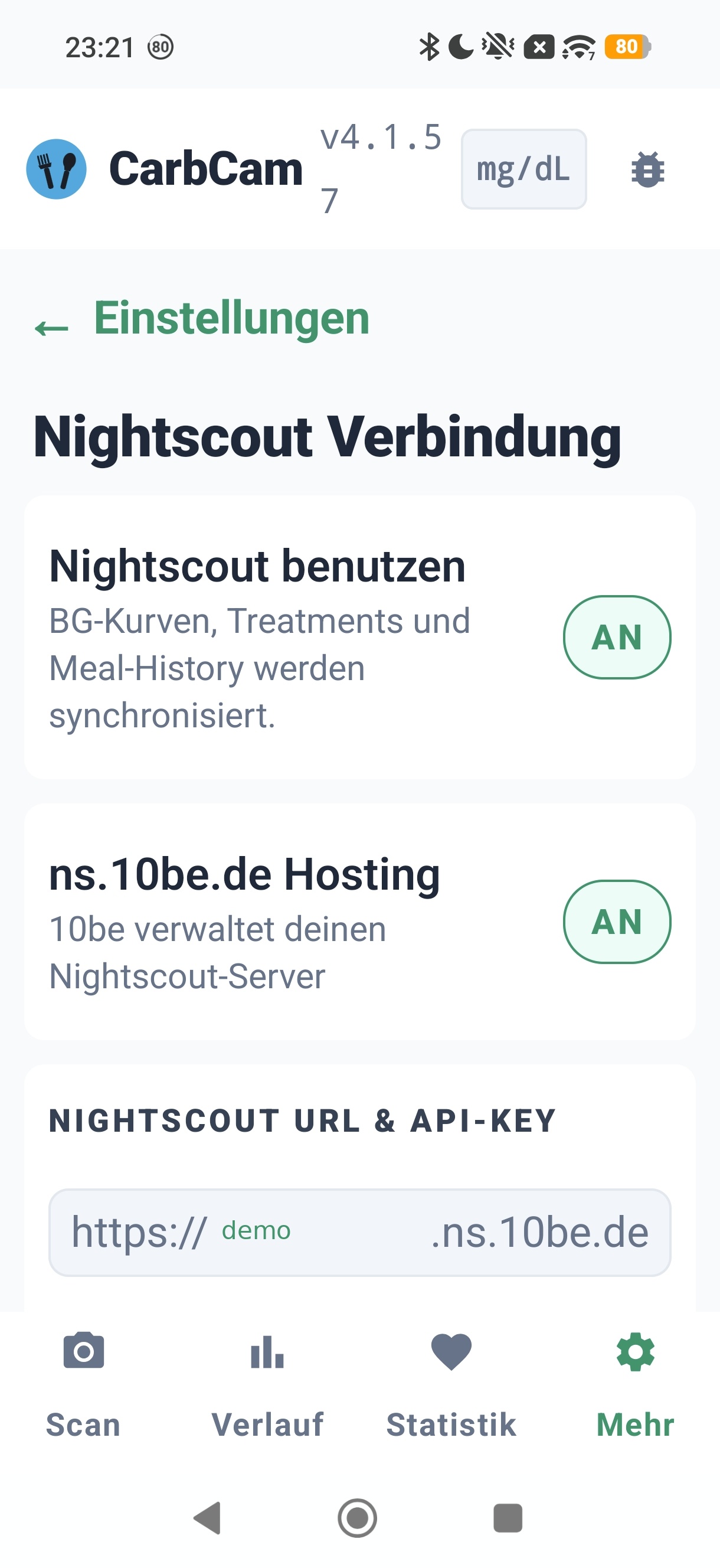
10, Settings
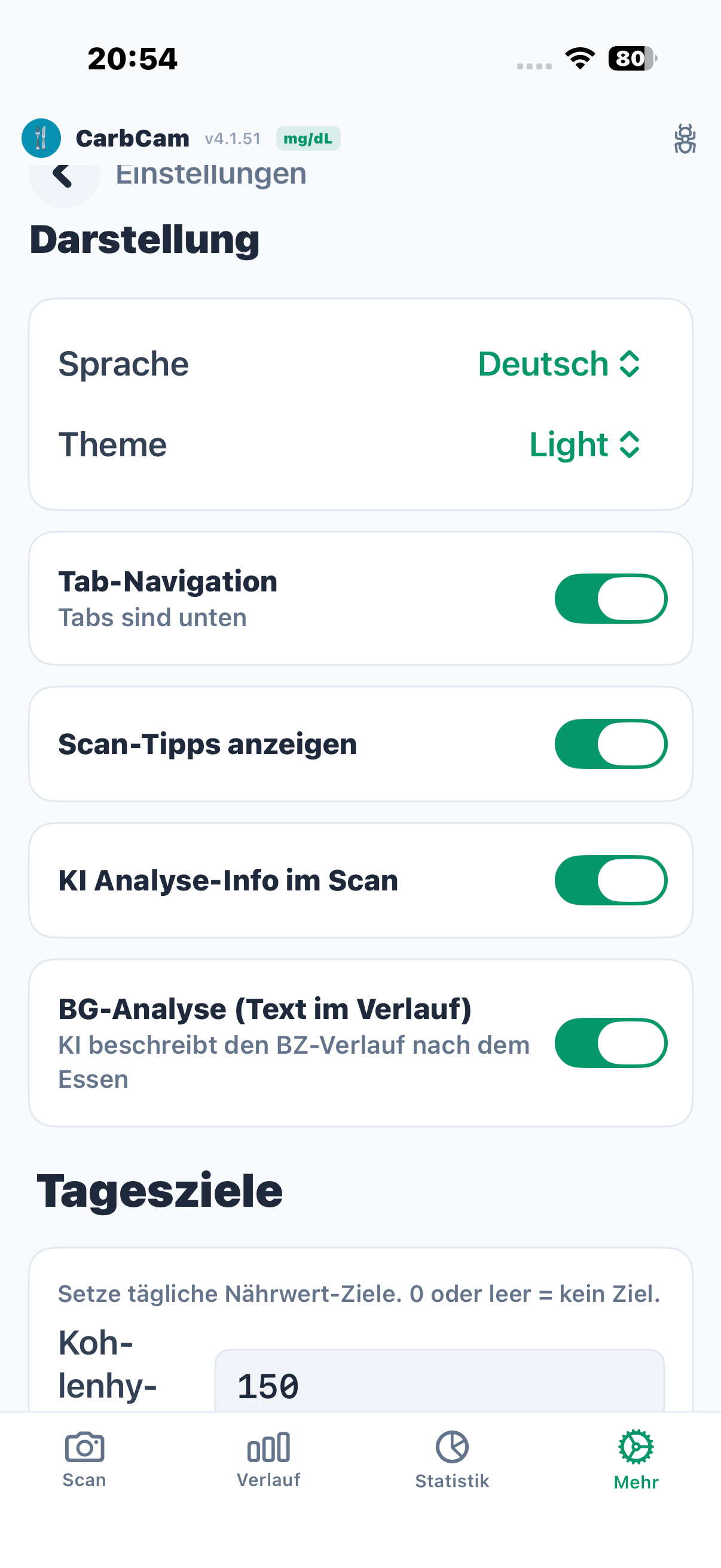
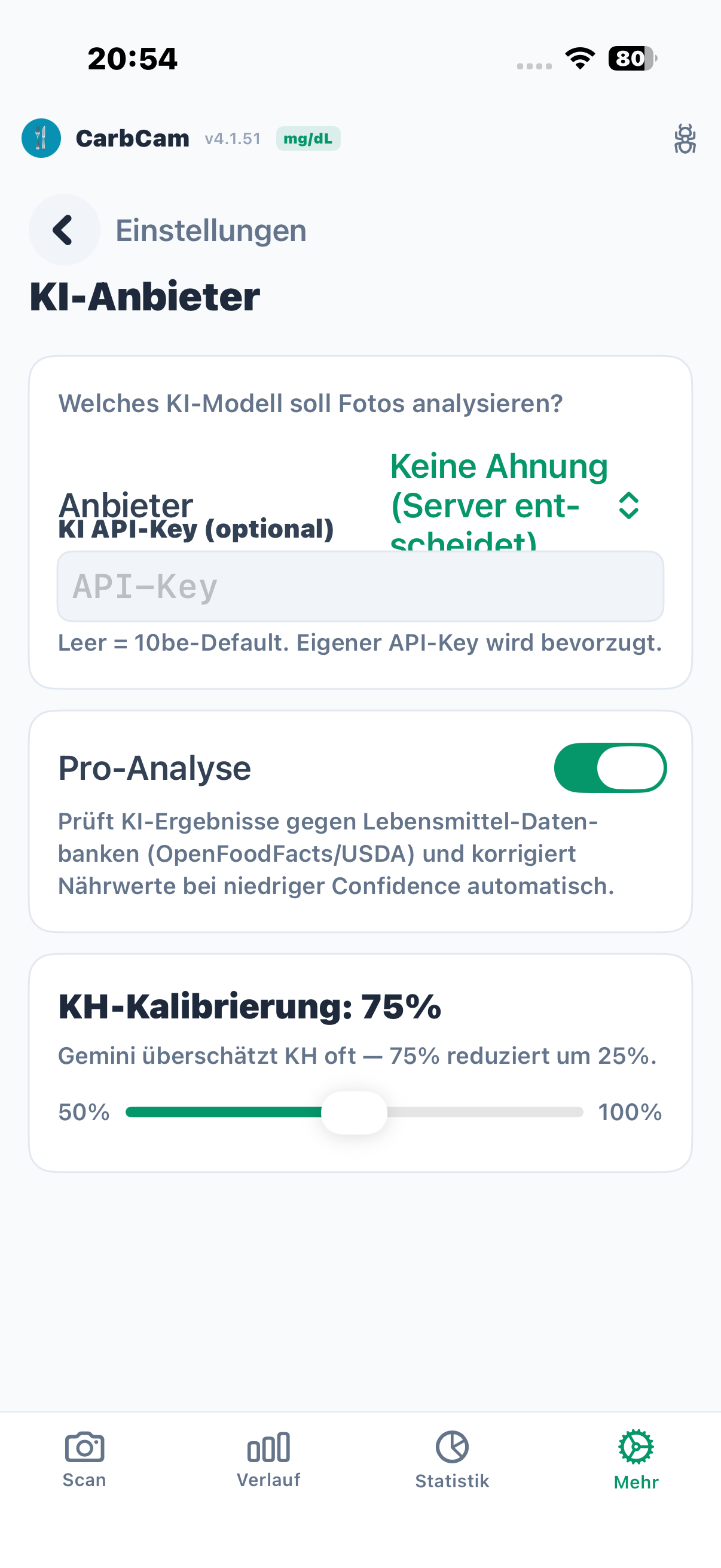
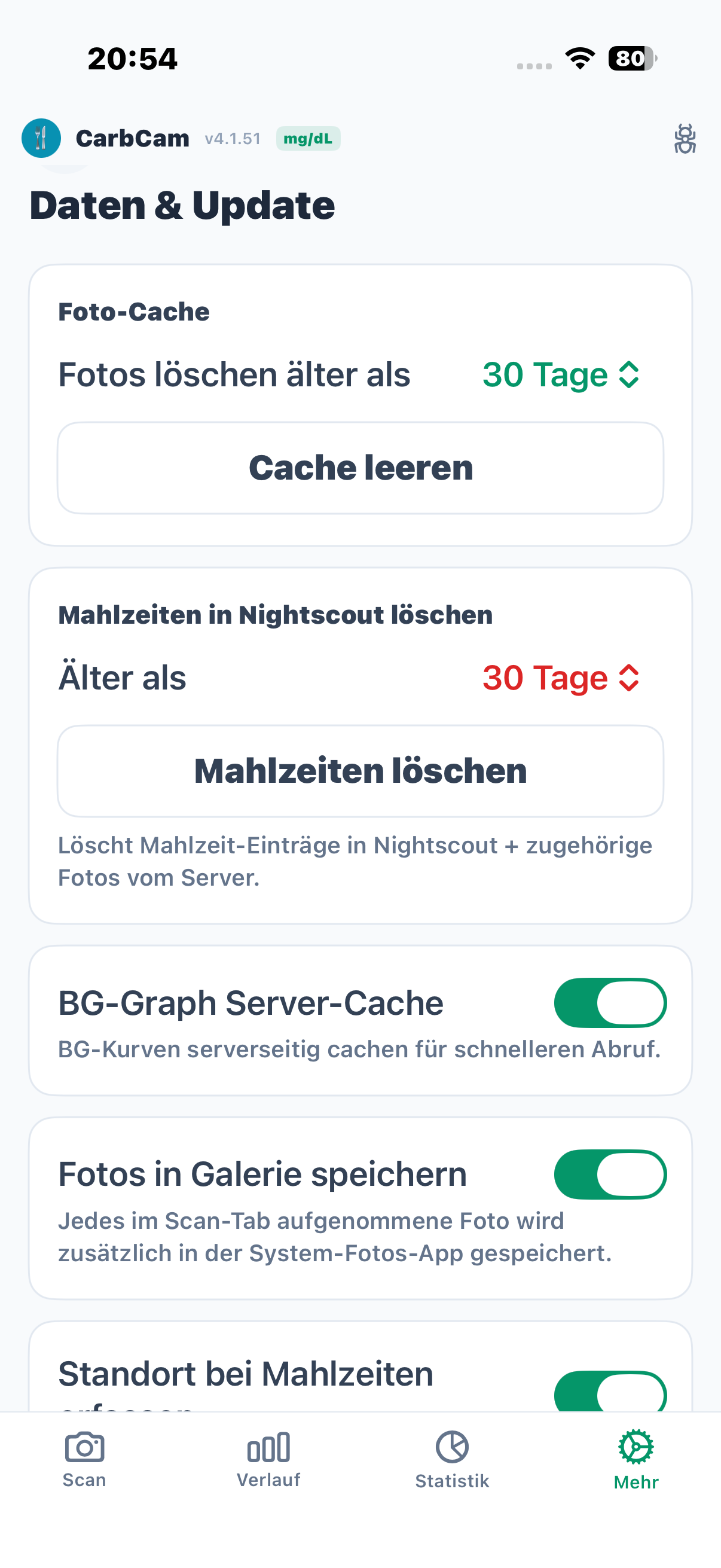
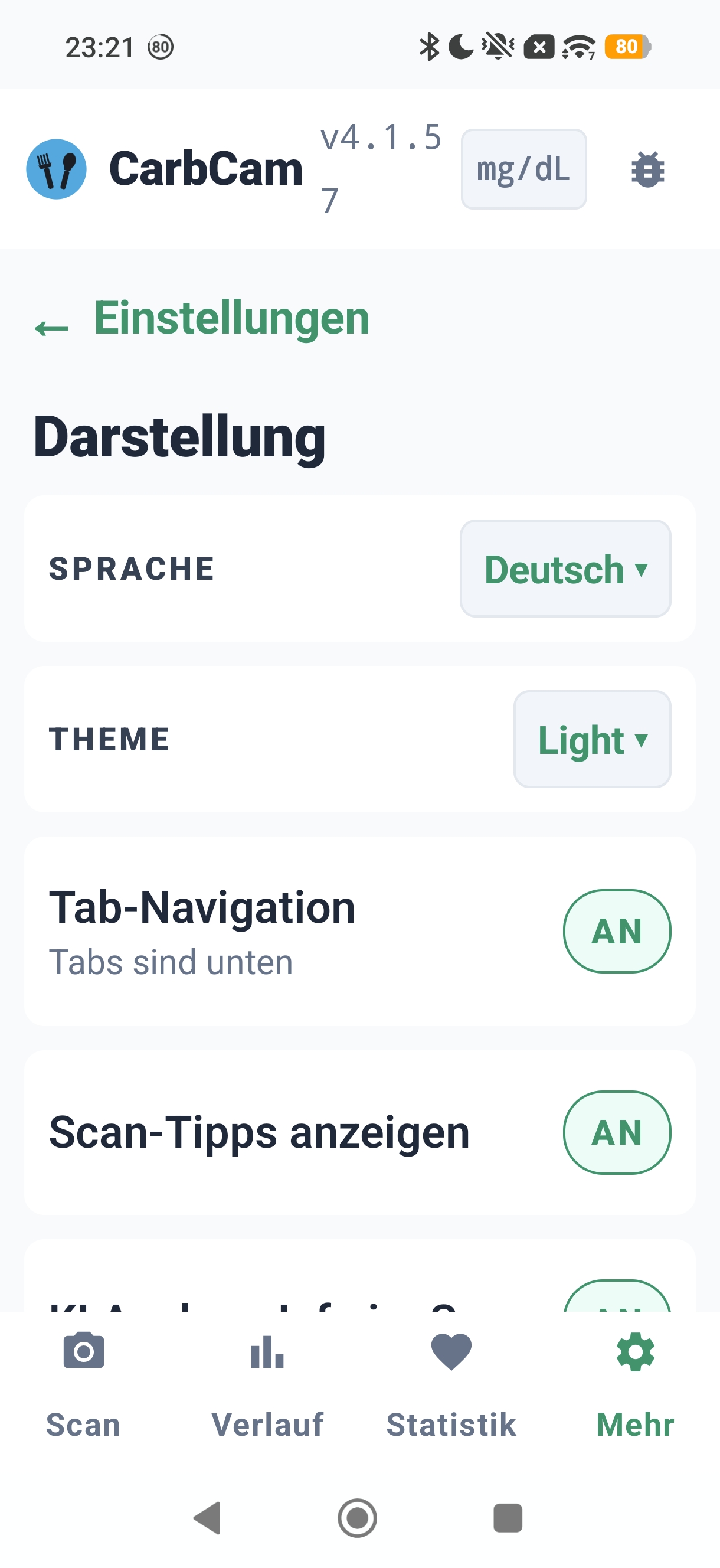
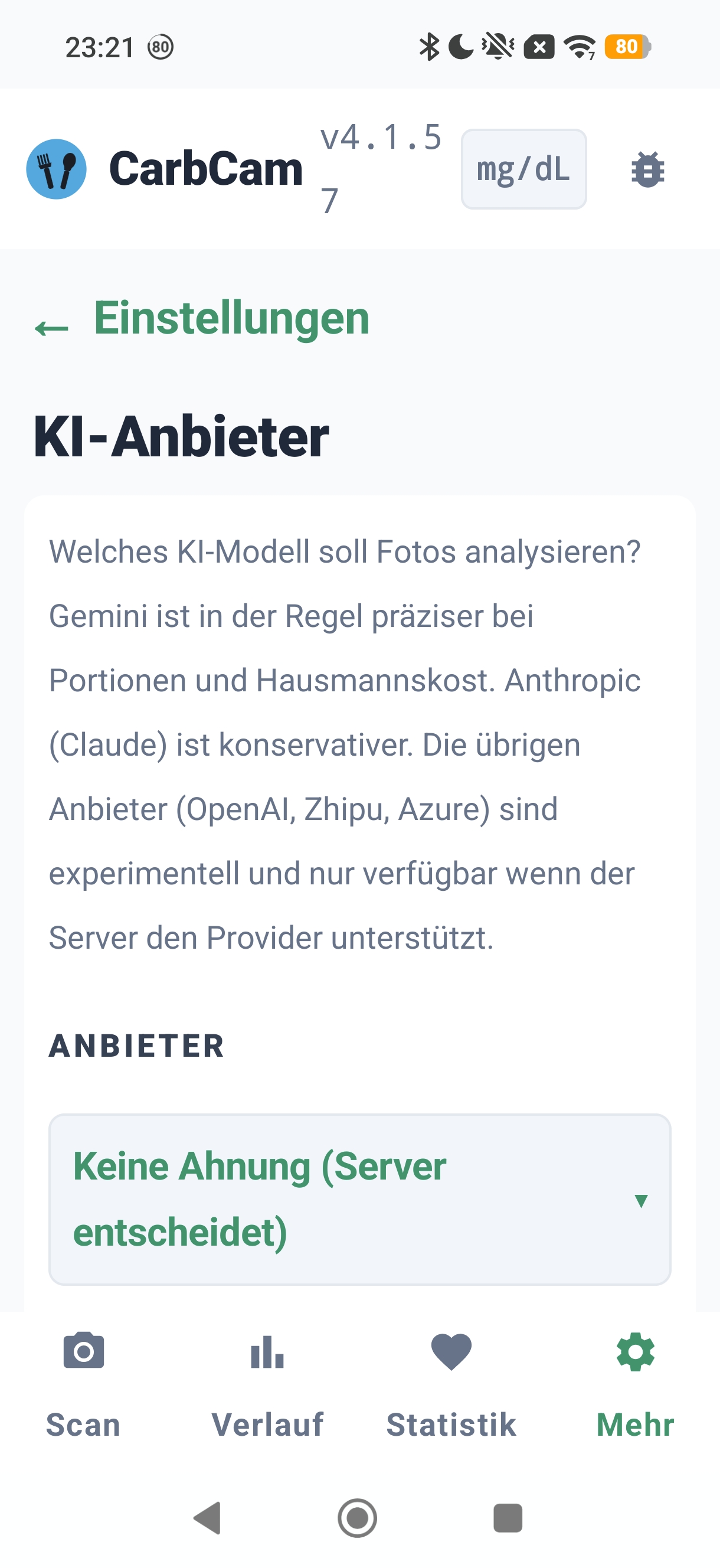
Nightscout, AI provider, subscription, appearance, daily goals, similar meals, data & update, open-source libraries.
11, Subscription & Payment
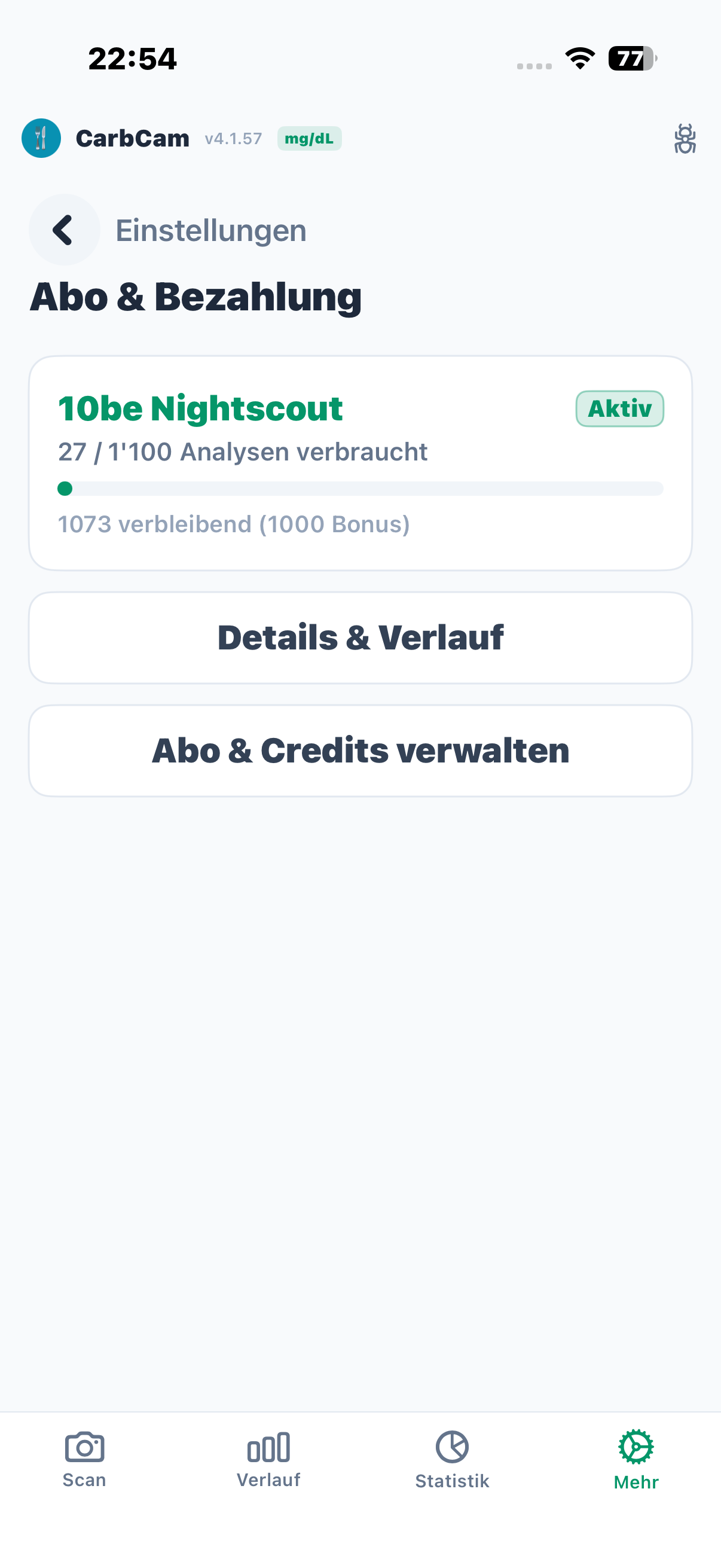
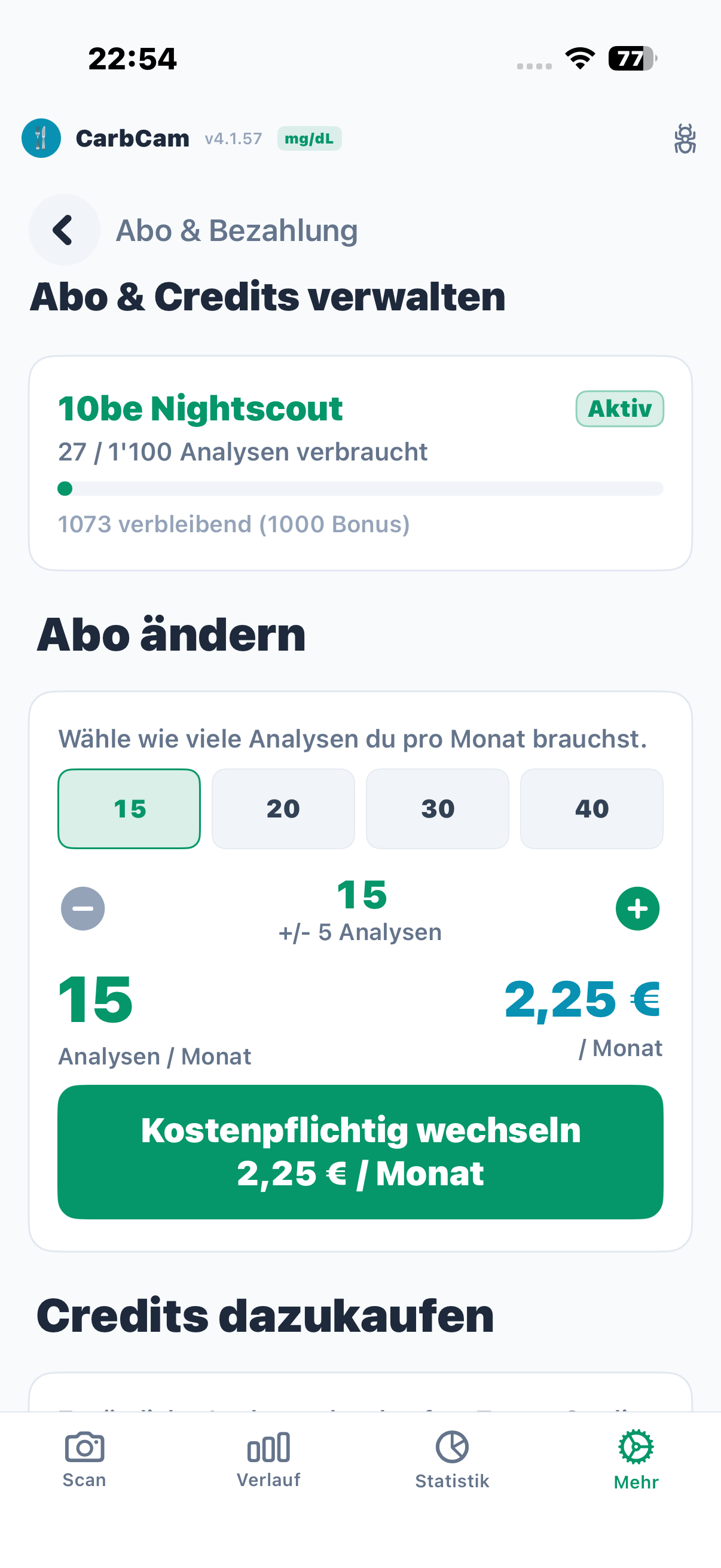
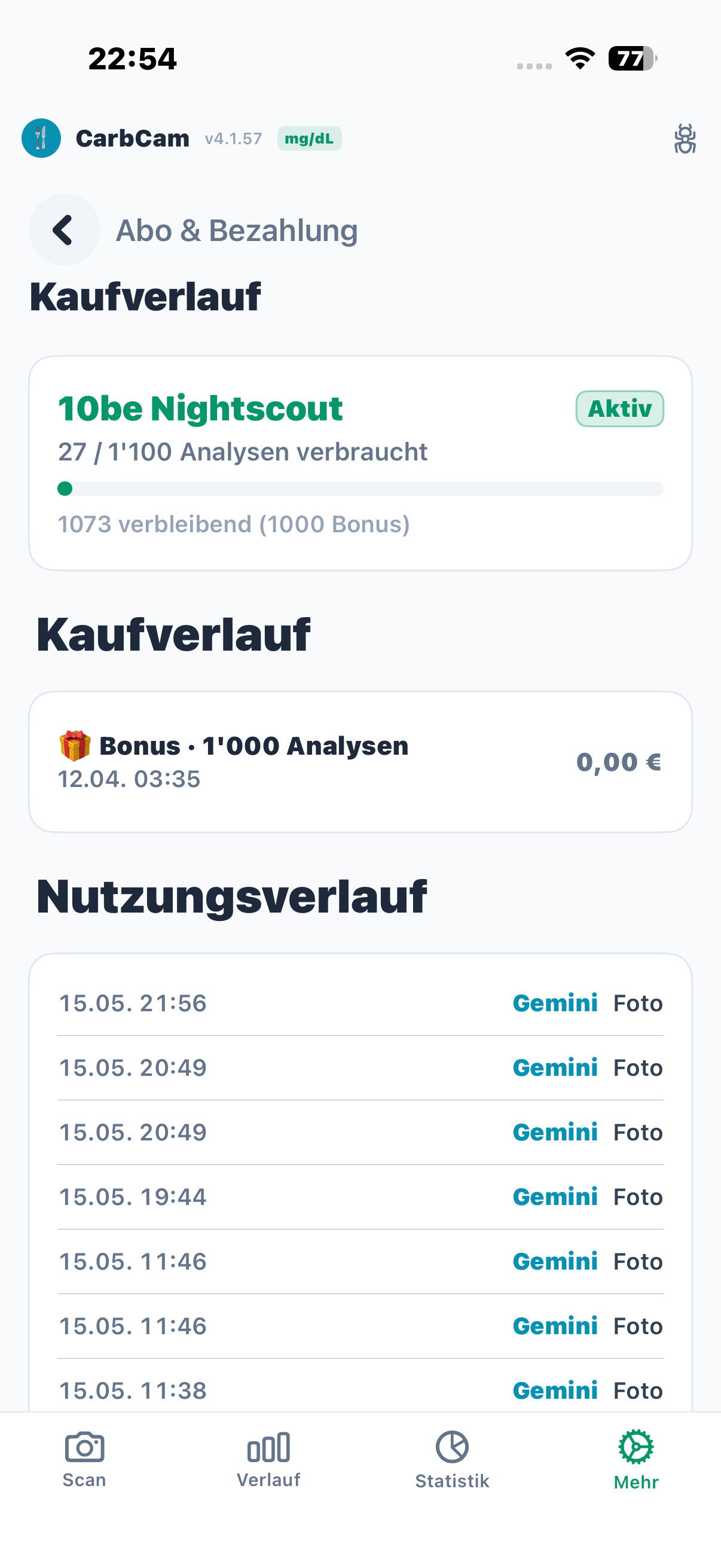
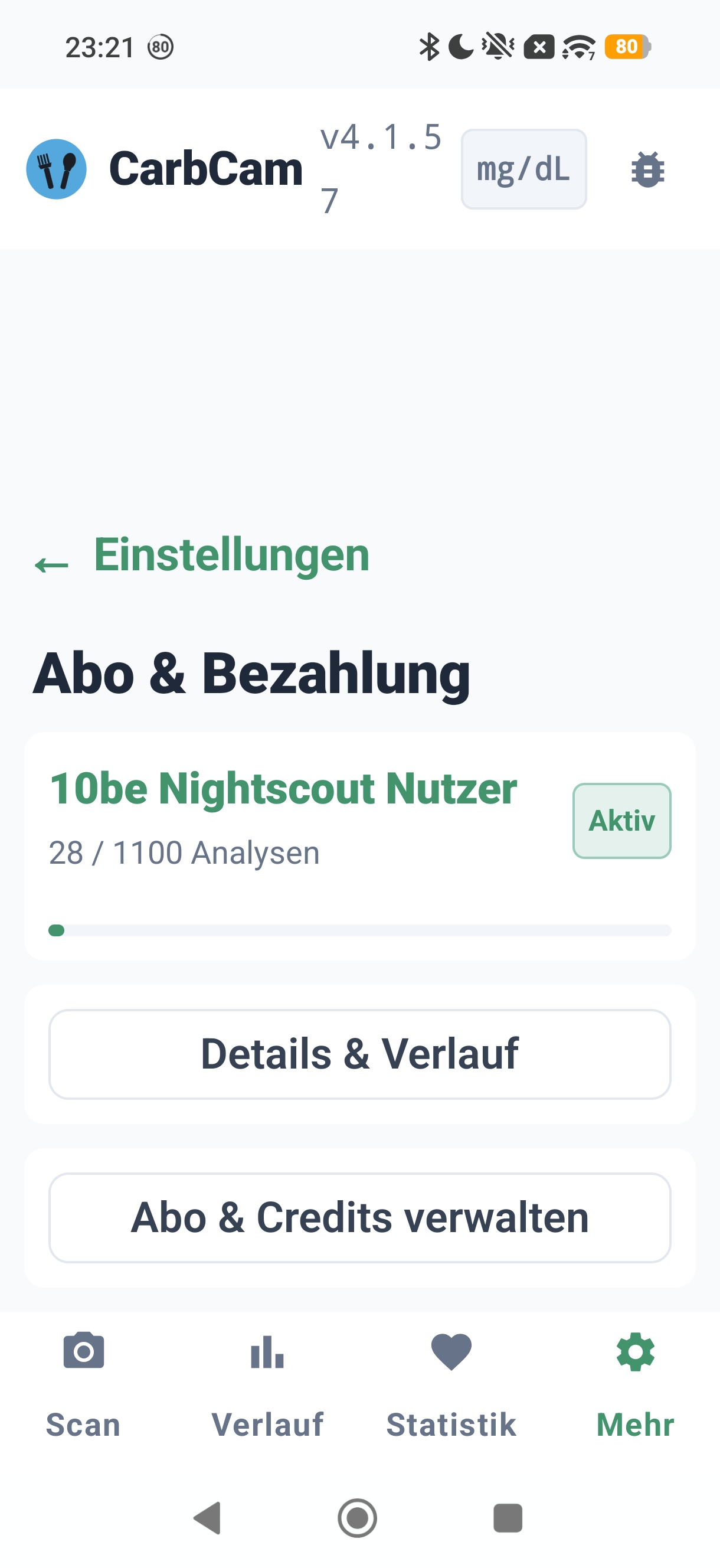
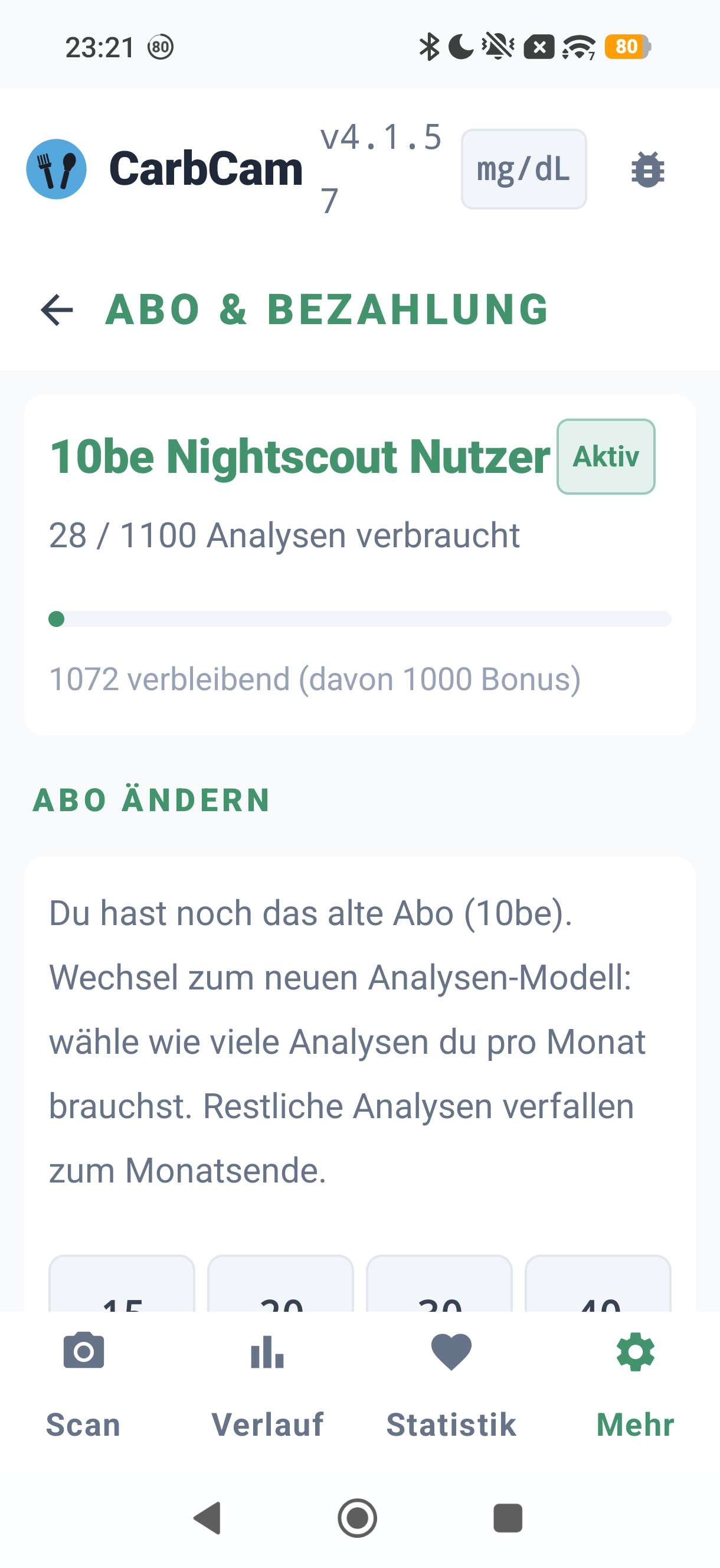
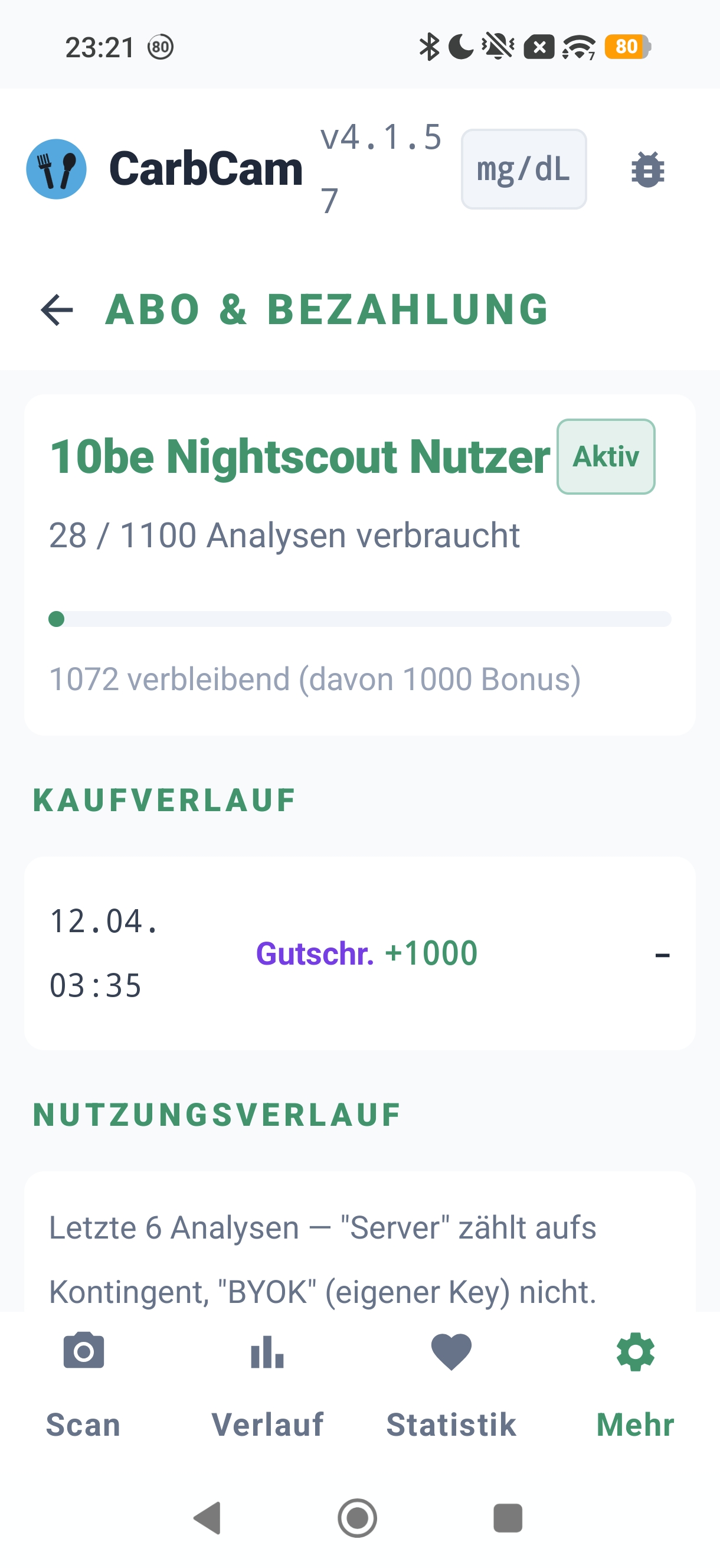
Subscription status, available analysis packs (from 15, in steps of 5), purchase history and usage overview.
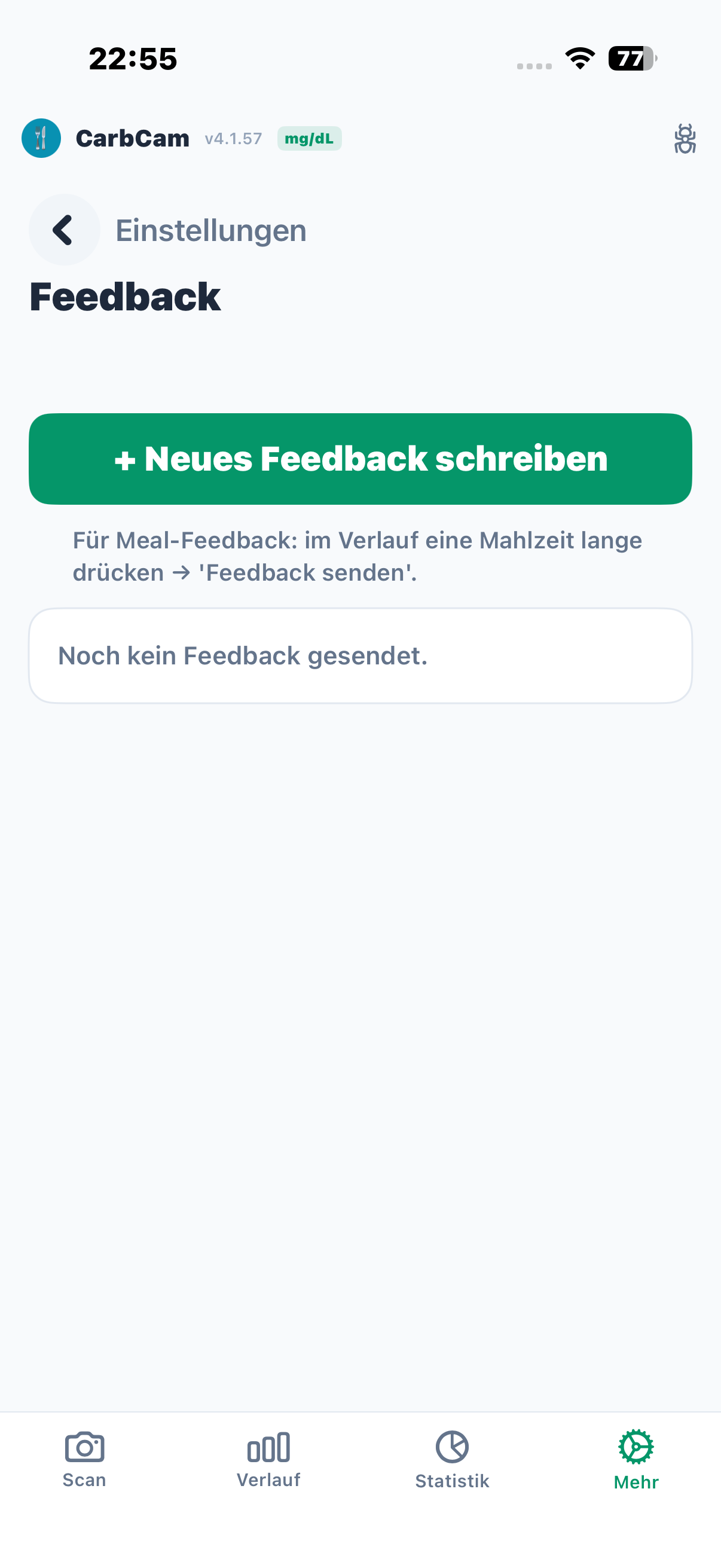
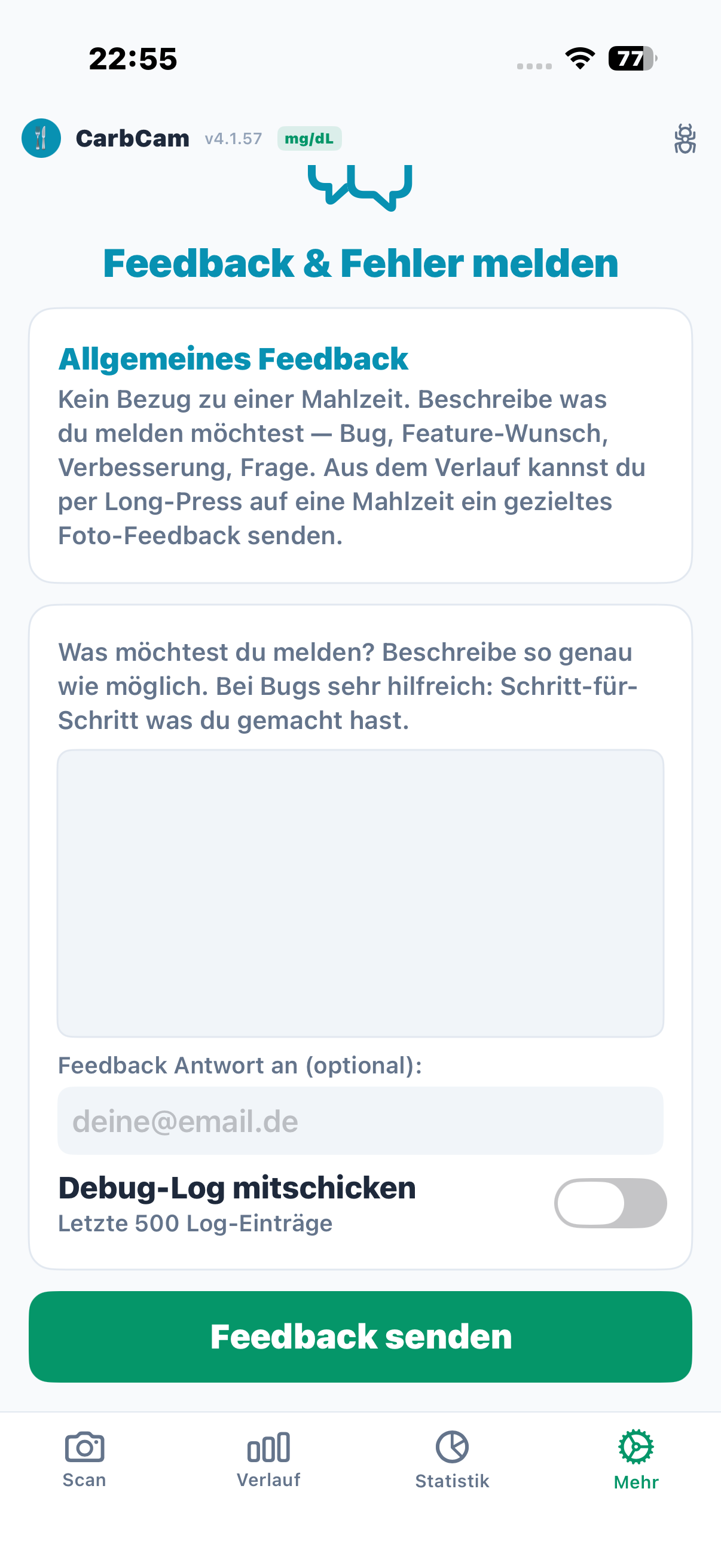
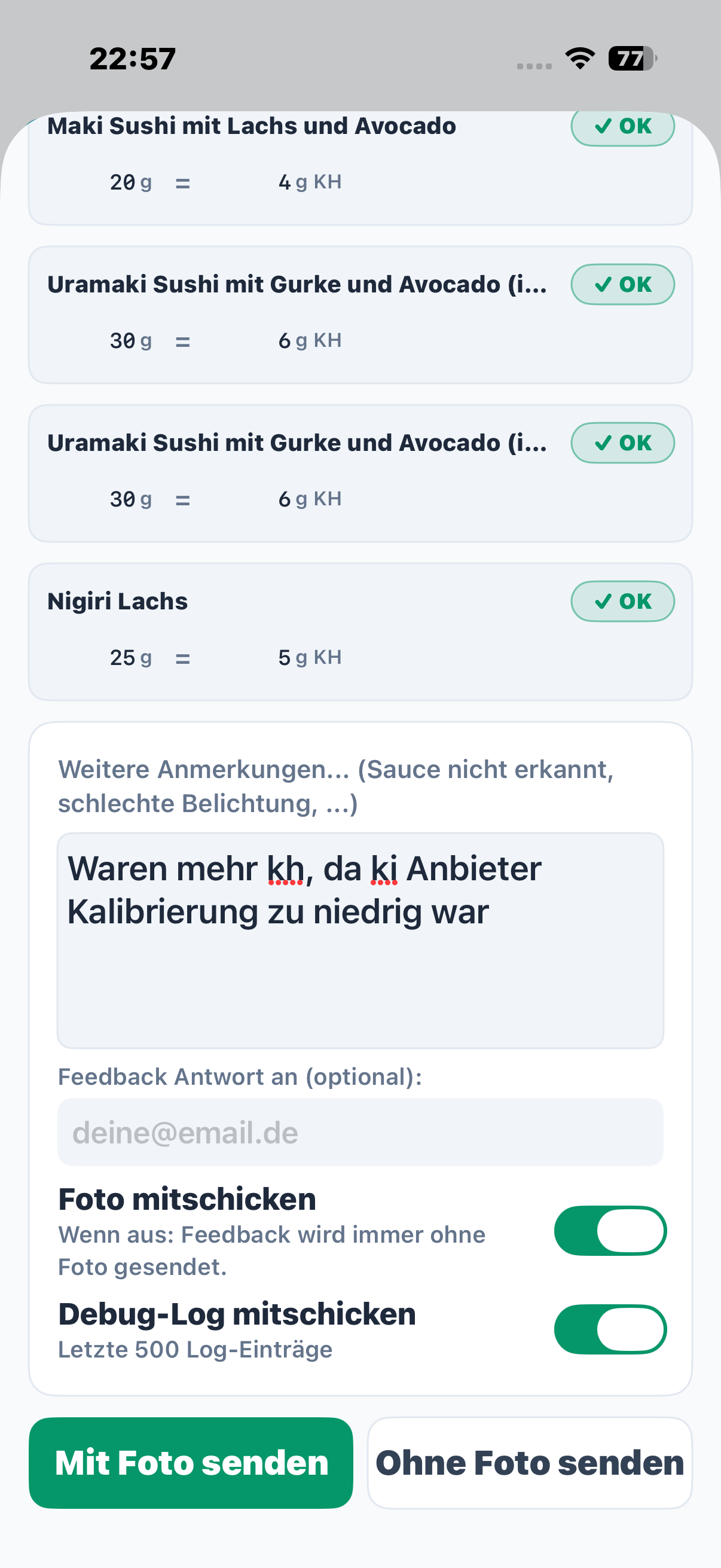
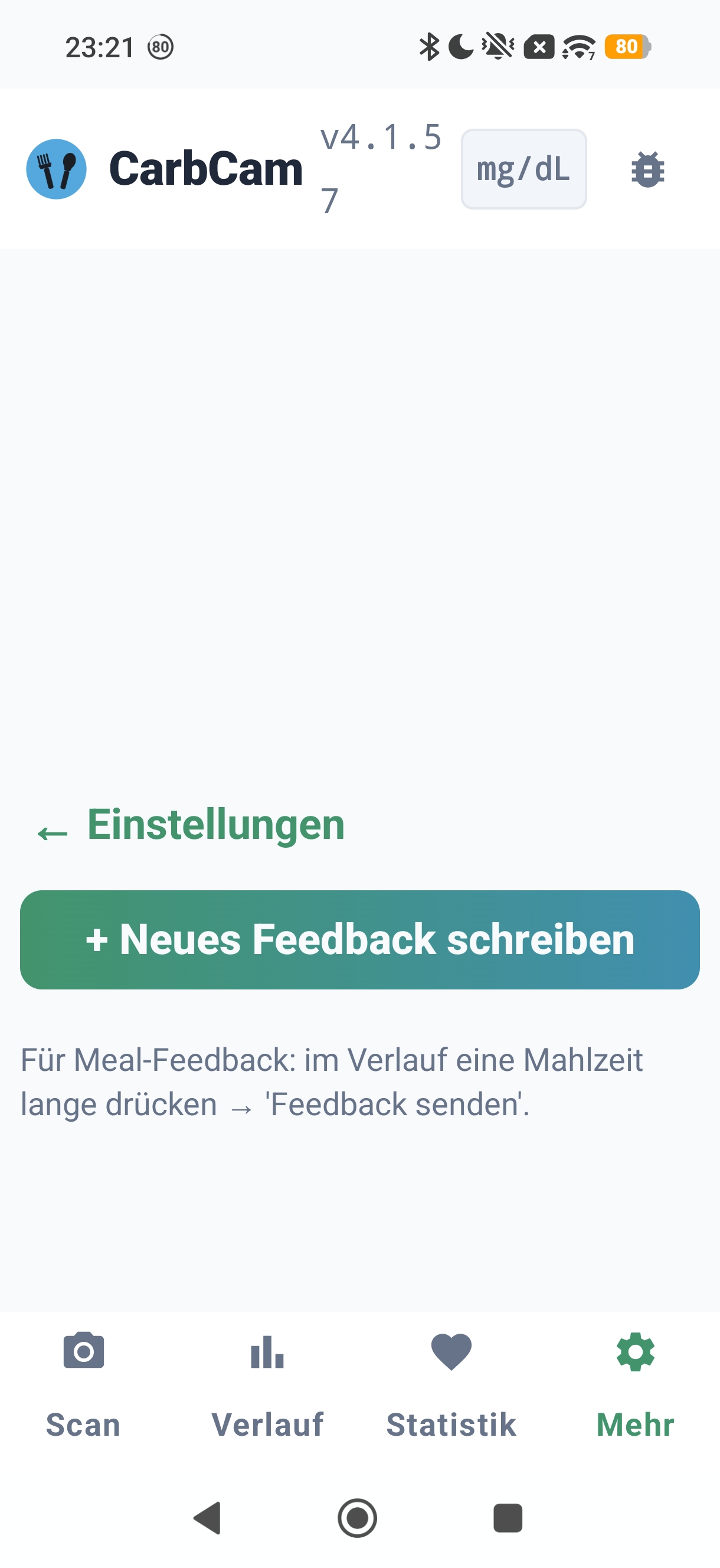
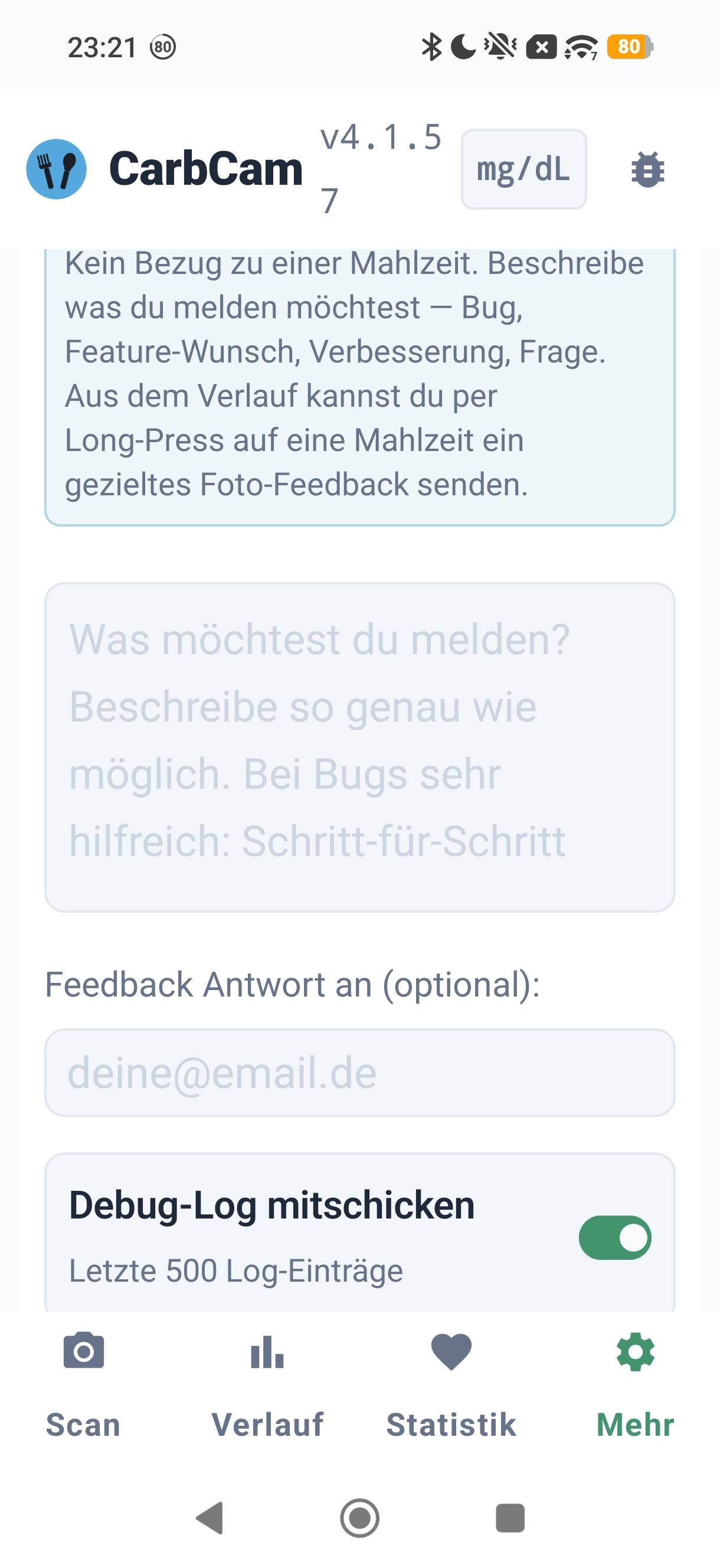
12, Feedback
Direct line to the team, send feedback, read replies, report bugs.