אחסון Nightscout: שאלות ותשובות
שאלות נפוצות
ריכזנו עבורכם מספר שאלות שעולות לעתים קרובות:
לא נמצאו תוצאות. מוזמנים לשאול את שאלתכם דרך טופס יצירת הקשר.
כללי
אנחנו מציעים את Nightscout אך ורק כ-אחסון נתונים / יומן / תוכנה לניהול מידע, שלפי המצב הנוכחי לא דורש אישור.
תשלום & מנויים
בעבר השרתים היו ממומנים ברובם, אבל זה הופסק בתחילת השנה :-(
כתוצאה מכך, צריך לשלם עבור השרתים אחרי 5 שנים, מה שלא אפשרי באופן פרטי, וסך התרומות לא מכסה אפילו 10% מהעלויות.
כתוצאה מכך, צריך לשלם עבור השרתים אחרי 5 שנים, מה שלא אפשרי באופן פרטי, וסך התרומות לא מכסה אפילו 10% מהעלויות.
אחרי ההתחברות, עברו ל-Payments בסרגל הניווט. יש לכם שתי אפשרויות:
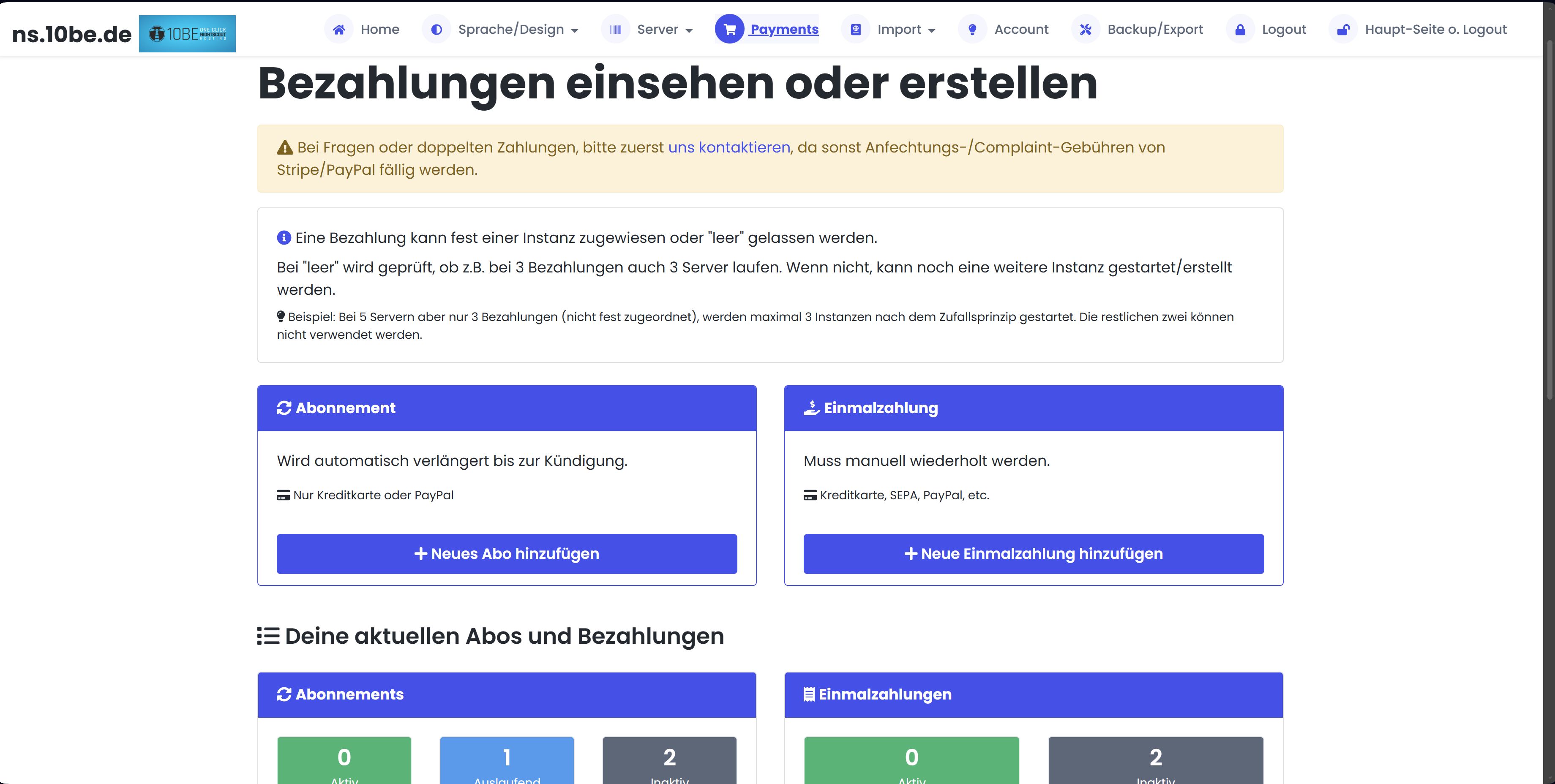
- מנוי — מתחדש אוטומטית עד לביטול. תשלום בכרטיס אשראי או PayPal דרך Stripe. מומלץ לשימוש קבוע.
- תשלום חד-פעמי — צריך לחזור עליו ידנית כשהתקופה מסתיימת. תשלום בכרטיס אשראי, SEPA, PayPal, Klarna וכו'.
בעת יצירת מנוי חדש או תשלום חד-פעמי, בוחרים את התקופה:
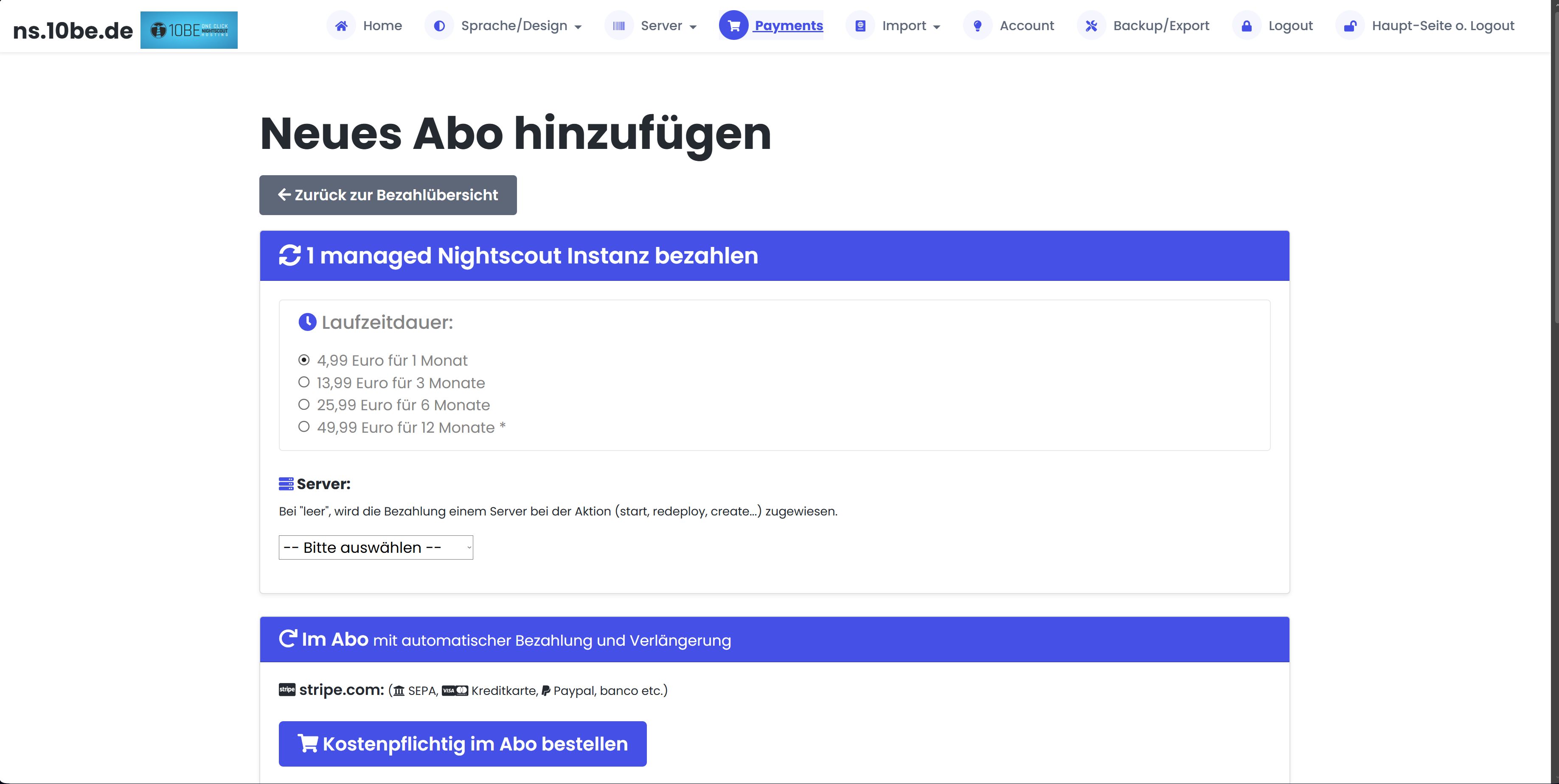
* ייצוא DB כלול עם תקופה של 12 חודשים.
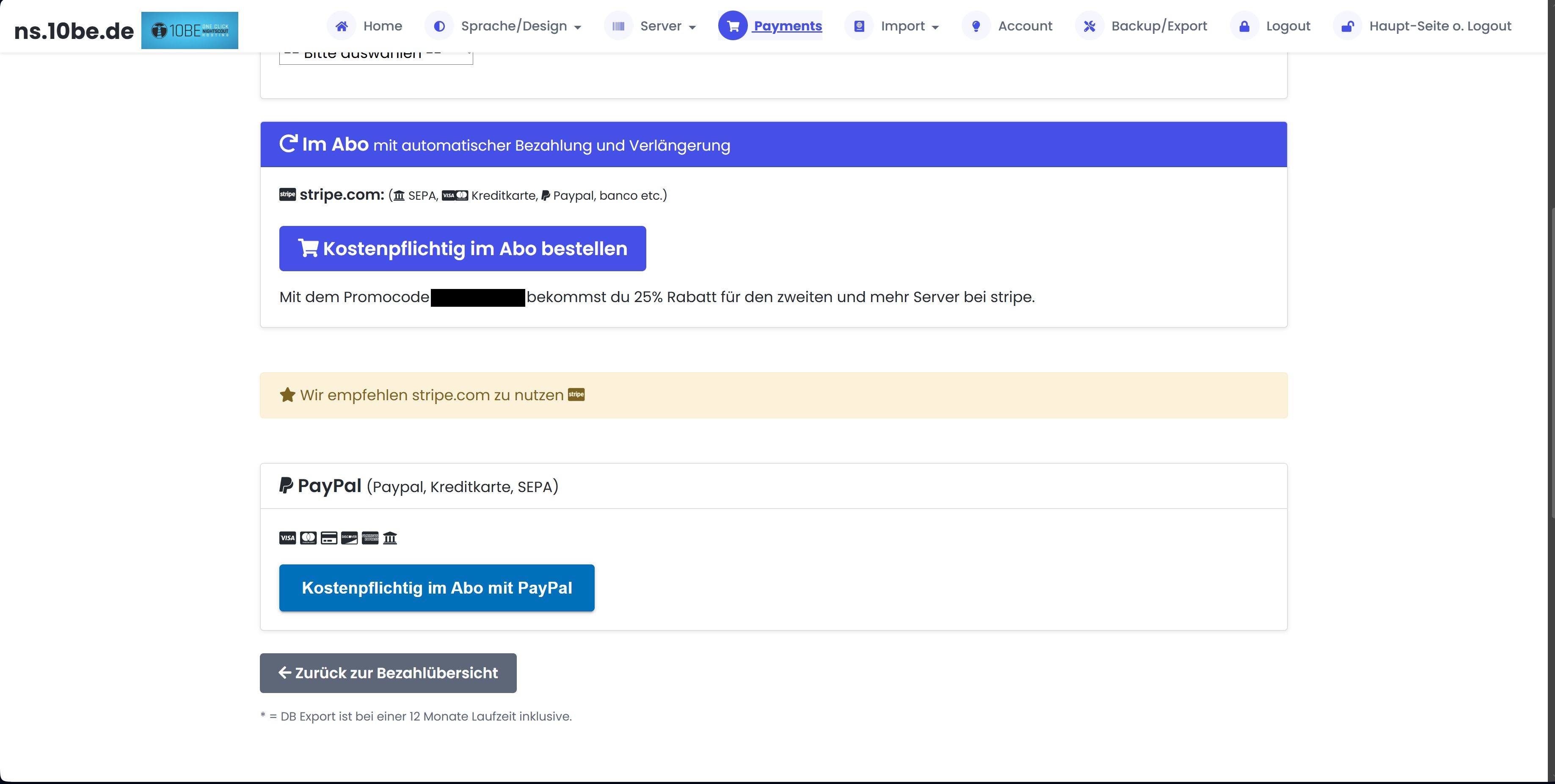
ניתן להקצות את התשלום לשרת מסוים או להשאיר את השדה ריק — הוא יוקצה אוטומטית בהפעלה הבאה של השרת.
טיפ: לשרת השני ומעלה יש קוד הנחה עם 25% הנחה ב-Stripe — מוצג אוטומטית בעת יצירת שרת שני.
| תקופה | מחיר | יתרון |
|---|---|---|
| חודש | 4.99 € | – |
| 3 חודשים | 13.99 € | חיסכון ~7% |
| 6 חודשים | 25.99 € | חיסכון ~15% |
| 12 חודשים * | 49.99 € | חיסכון ~20% + ייצוא DB כלול |
ניתן להקצות את התשלום לשרת מסוים או להשאיר את השדה ריק — הוא יוקצה אוטומטית בהפעלה הבאה של השרת.
טיפ: לשרת השני ומעלה יש קוד הנחה עם 25% הנחה ב-Stripe — מוצג אוטומטית בעת יצירת שרת שני.
אין הגבלה. עם זאת, כל מופע דורש תשלום פעיל, אחרת לא ניתן להשתמש במופע/ים.
לדוגמה, אם אתה רוצה להשתמש בשני מופעים ולא רוצה לשלם מראש, עליך לשלם 2 x €4.99 = €9.98.
יש לך 15 מופעים אבל רק 10 תשלומים, אז אתה יכול להשתמש רק ב-10 שרתים בו-זמנית.
לדוגמה, אם אתה רוצה להשתמש בשני מופעים ולא רוצה לשלם מראש, עליך לשלם 2 x €4.99 = €9.98.
יש לך 15 מופעים אבל רק 10 תשלומים, אז אתה יכול להשתמש רק ב-10 שרתים בו-זמנית.
כן! החל מה-שרת השני, אתה מקבל אוטומטית הנחה של 25% באמצעות קוד קופון. הקוד מוצג בעת יצירת שרת נוסף.
אתה גם חוסך עם מרווחי תשלום ארוכים יותר: עם תשלום מראש של 12 חודשים אתה חוסך כ-17 % בהשוואה לתשלום חודשי — בתוספת ייצוא DB כלול.
אתה גם חוסך עם מרווחי תשלום ארוכים יותר: עם תשלום מראש של 12 חודשים אתה חוסך כ-17 % בהשוואה לתשלום חודשי — בתוספת ייצוא DB כלול.
עברו ל-Payments → הצג וניהול מנויים. שם תראו את כל המנויים שלכם עם סטטוס (פעיל / מסתיים / לא פעיל).
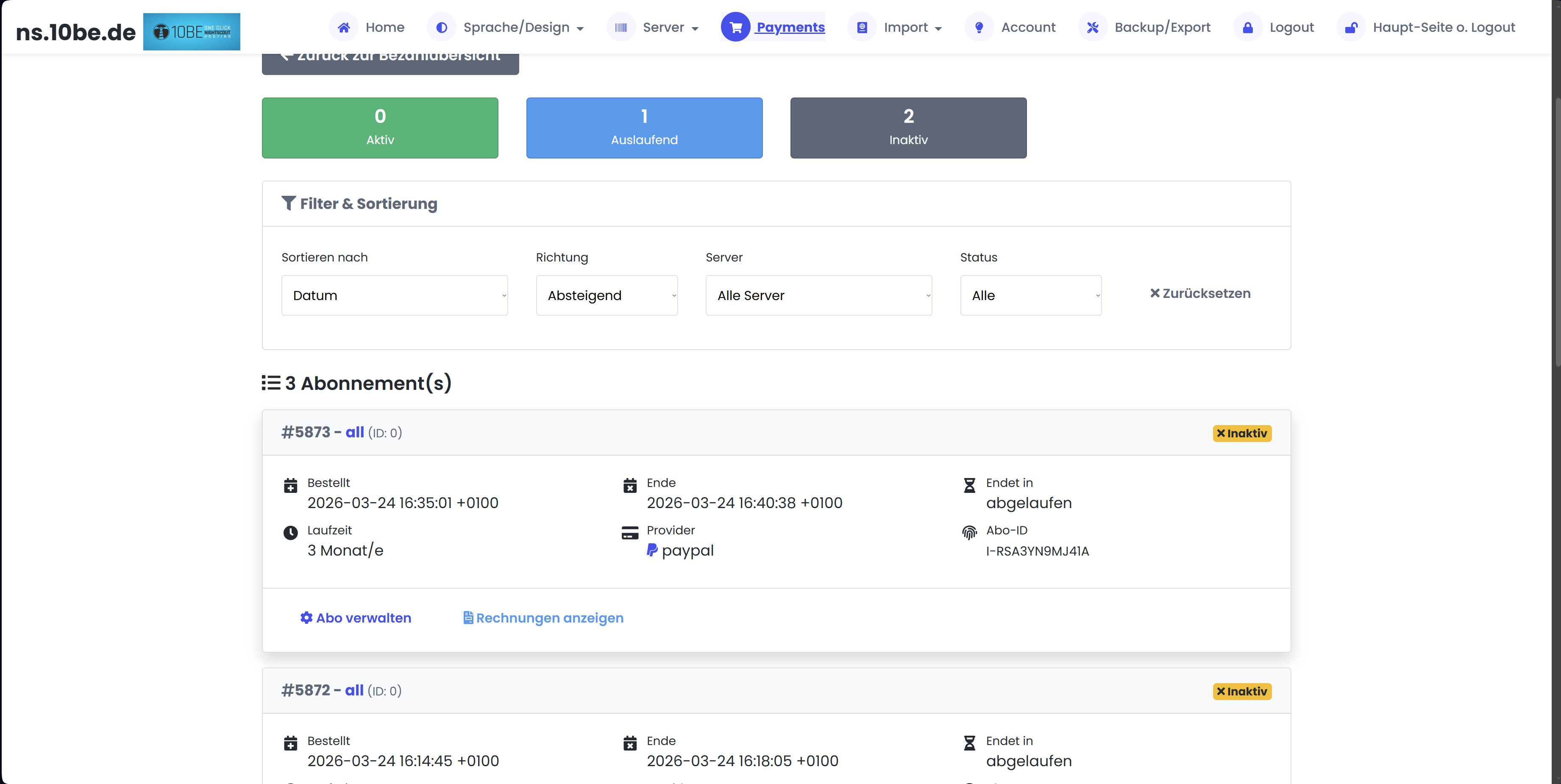
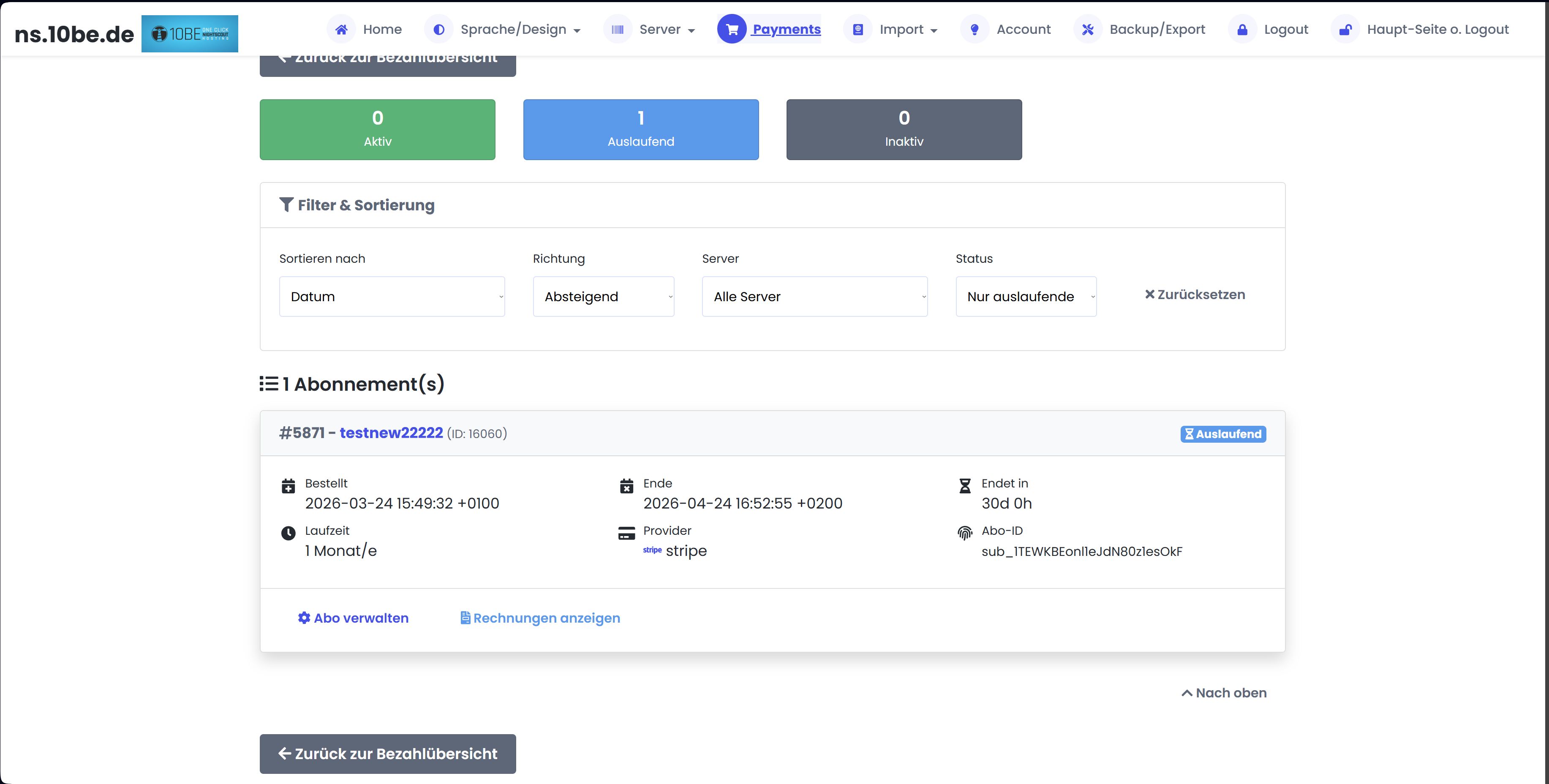
לחצו על „ניהול מנוי”. שם תראו את כל הפרטים ותוכלו להפעיל מחדש את המנוי — כל עוד תאריך הסיום לא הגיע.
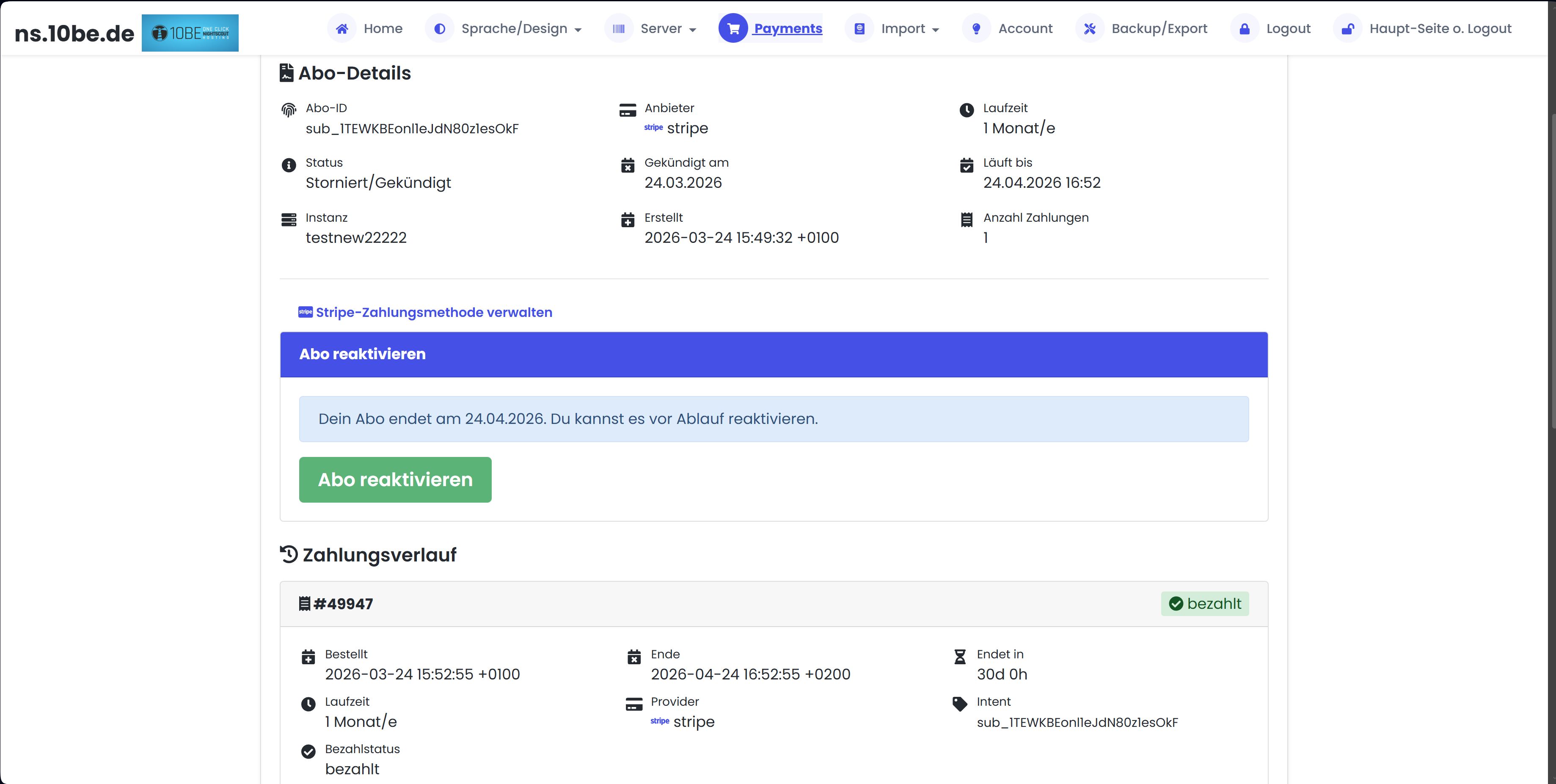
אם המנוי כבר פג, פשוט צרו מנוי חדש או תשלום חד-פעמי תחת Payments → הוספת מנוי חדש.
לחצו על „ניהול מנוי”. שם תראו את כל הפרטים ותוכלו להפעיל מחדש את המנוי — כל עוד תאריך הסיום לא הגיע.
אם המנוי כבר פג, פשוט צרו מנוי חדש או תשלום חד-פעמי תחת Payments → הוספת מנוי חדש.
ניתן להשתמש במופע רק אם בוצע תשלום.
אם אתה לא משתמש במופע, אתה יכול לבטל את המנוי בסוף התקופה ולשלם שוב רק כשתרצה להשתמש ב-Nightscout שוב.
אם אתה לא משתמש במופע, אתה יכול לבטל את המנוי בסוף התקופה ולשלם שוב רק כשתרצה להשתמש ב-Nightscout שוב.
השרת שלך יושבת, אבל לא יימחק — כל נתוני ה-Nightscout נשמרים. ברגע שתשלום פעיל חדש קיים, השרת יופעל מחדש אוטומטית.
שימו לב: מנוי עם סטטוס „מבוטל” ממשיך עד תאריך הסיום — השרת נשאר פעיל עד שמגיע התאריך.
שימו לב: מנוי עם סטטוס „מבוטל” ממשיך עד תאריך הסיום — השרת נשאר פעיל עד שמגיע התאריך.
עברו ל-Payments → הצג וניהול מנויים → ניהול מנוי → „ניהול אמצעי תשלום Stripe”. שם תוכלו להוסיף כרטיס אשראי או אמצעי תשלום חדש.
אנא צרו קשר איתנו קודם לפני שתגישו מחלוקת ב-Stripe או PayPal — החזרי חיוב ותלונות גורמים לעמלות נוספות. אנחנו פותרים את זה מהר, בקלות ותמיד בהוגנות.
שרת & טכניקה
כן, הם יימחקו תוך מספר שניות.
עם זאת, גיבוי של מסד הנתונים MongoDB ו-MySQL קיים עד 3 ימים, כך שניתן לשחזר את הנתונים עם מאמץ רב.
אחרי הימים האלה, כשהגיבויים נדרסים, לא נשארים נתונים והכל נמחק לחלוטין מהשרת/החשבון.
עם זאת, גיבוי של מסד הנתונים MongoDB ו-MySQL קיים עד 3 ימים, כך שניתן לשחזר את הנתונים עם מאמץ רב.
אחרי הימים האלה, כשהגיבויים נדרסים, לא נשארים נתונים והכל נמחק לחלוטין מהשרת/החשבון.
פרופיל Nightscout מוגדר ישירות בתוך מופע Nightscout שלך — לא בלוח הבקרה של ns.10be.de.
שלבים:
- פתח את כתובת ה-Nightscout שלך (למשל
your-name.ns.10be.de) - לחץ על התפריט (≡) בפינה הימנית העליונה ובחר עורך פרופיל
- הזן את הערכים שלך:
- אזור זמן
- משך פעולת אינסולין (DIA)
- גורם רגישות לאינסולין (ISF)
- יחס פחמימות (CR)
- קצבי בזאלי (יחידות לשעה, לפי שעה ביום)
- טווח יעד (ערכים נמוכים וגבוהים)
- לחץ על שמור ואז על הפעל — בלי הפעלה הפרופיל לא פעיל!
חשוב: כל הערכים רלוונטיים מבחינה רפואית. השתמש רק בערכים שניתנו על ידי הדיאבטולוג שלך או הגדרת Loop/AAPS שלך. אל תזין ערכי ברירת מחדל.
משתמשי Loop ו-AAPS: הפרופיל בדרך כלל מסונכרן אוטומטית מהאפליקציה — הזנה ידנית בדרך כלל לא נדרשת.
משתמשי Loop ו-AAPS: הפרופיל בדרך כלל מסונכרן אוטומטית מהאפליקציה — הזנה ידנית בדרך כלל לא נדרשת.
Master היא הגרסה היציבה והמומלצת (ה-
nightscout/cgm-remote-monitor הרשמי) עבור רוב המשתמשים. dev-psonnera הוא fork ייעודי ל-AAPS עם תיקונים נוספים (סטטוס Loop, הצגת Override, תצוגת SMB): קוד המקור בכתובת github.com/psonnera/cgm-remote-monitor (Branch dev-AAPS). מומלץ למשתמשי AndroidAPS מתקדמים. אפשר להחליף את ה-branch בכל עת בעורך השרת. לאחר השמירה השרת מופעל מחדש אוטומטית עם ה-branch החדש.
ה-URL של Nightscout שלך הוא כתובת האינטרנט של שרת Nightscout האישי שלך. תמצא אותו בסקירת השרתים בכתובת /il/profile/server.html בעמודה „URL השרת". הפורמט הוא
חשוב: אם תשנה את שם השרת, ה-URL ישתנה גם הוא — תצטרך לעדכן אותו ב-xDrip+, AAPS או Loop, אחרת הנתונים לא יזרמו יותר.
https://[שם].10be.de — אפשר גם להשתמש ב-[שם].ns.10be.de, שניהם מובילים לאותו מופע. דוגמה: אם השרת שלך נקרא mariadiabetes, ה-URL שלך הוא https://mariadiabetes.10be.de.חשוב: אם תשנה את שם השרת, ה-URL ישתנה גם הוא — תצטרך לעדכן אותו ב-xDrip+, AAPS או Loop, אחרת הנתונים לא יזרמו יותר.
אנא צור איתנו קשר. תיאורטית אין בעיה, אלא אם השינוי צריך להיכנס לקובץ my.env. קובץ זה נוצר מחדש לאחר עריכת השרת בפרופיל.
פשוט לחץ על "Redeploy" בסקירת השרתים. השרת שלך יופעל מחדש עם גרסת Nightscout האחרונה.
סקירת השרתים גם מראה לך ישירות אם הגרסה שלך מעודכנת או אם עדכון זמין.
בעדכונים גדולים (למשל גרסאות ראשיות), אנחנו מעדכנים את כל השרתים אוטומטית.
סקירת השרתים גם מראה לך ישירות אם הגרסה שלך מעודכנת או אם עדכון זמין.
בעדכונים גדולים (למשל גרסאות ראשיות), אנחנו מעדכנים את כל השרתים אוטומטית.
כן, אלא אם הפעלת את האפשרות "withoutport". אז אתה יכול לגשת למופע גם בלי הפורט באמצעות רק https://xxxx-your-name-xxxx.ns.10be.de/
כן! בעורך השרת יש את החלק "הגדרות מותאמות אישית". שם אתה יכול להוסיף כל משתני סביבה של Nightscout כזוגות מפתח-ערך.
דוגמאות:
אתה יכול גם להשתמש ב-Docker image מותאם אישית, למשל אם אתה רוצה לבדוק fork משלך של Nightscout.
דוגמאות:
CUSTOM_TITLE, THEME, SHOW_FORECAST וכו'.אתה יכול גם להשתמש ב-Docker image מותאם אישית, למשל אם אתה רוצה לבדוק fork משלך של Nightscout.
גרסאות אנדרואיד ישנות (לפני אנדרואיד 7.1.1) עדיין לא מכירות את אישור השורש של Let's Encrypt (ISRG Root X1), ולכן החיבור נדחה שם כלא מאובטח. יש שני פתרונות:
1. שימוש ב-Firefox (הכי פשוט): ל-Firefox יש מאגר אישורים משלו והוא בוטח באישור גם במכשירים ישנים. פשוט פתחו את הדף ב-Firefox, לא נדרש דבר נוסף.
2. התקנת אישור השורש (לאפליקציות ולדפדפני קיוסק כמו Fully Kiosk): אפליקציות משתמשות במאגר האישורים של המערכת, ולכן כאן עוזר רק ייבוא אישור השורש.
הורידו את הקובץ isrgrootx1.pem (או isrgrootx1.der) והתקינו אותו בהגדרות, אבטחה, "התקנה מהאחסון" או "אישור CA". תנו שם כמו "ISRG Root X1" ושימוש "VPN ואפליקציות". לתשומת לבכם: כדי להתקין אישור, אנדרואיד דורש נעילת מסך (קוד PIN או תבנית).
לאחר מכן הדף ייטען שוב כרגיל. אם יש שאלות, אתם מוזמנים ליצור איתנו קשר.
1. שימוש ב-Firefox (הכי פשוט): ל-Firefox יש מאגר אישורים משלו והוא בוטח באישור גם במכשירים ישנים. פשוט פתחו את הדף ב-Firefox, לא נדרש דבר נוסף.
2. התקנת אישור השורש (לאפליקציות ולדפדפני קיוסק כמו Fully Kiosk): אפליקציות משתמשות במאגר האישורים של המערכת, ולכן כאן עוזר רק ייבוא אישור השורש.
הורידו את הקובץ isrgrootx1.pem (או isrgrootx1.der) והתקינו אותו בהגדרות, אבטחה, "התקנה מהאחסון" או "אישור CA". תנו שם כמו "ISRG Root X1" ושימוש "VPN ואפליקציות". לתשומת לבכם: כדי להתקין אישור, אנדרואיד דורש נעילת מסך (קוד PIN או תבנית).
לאחר מכן הדף ייטען שוב כרגיל. אם יש שאלות, אתם מוזמנים ליצור איתנו קשר.
אנא הפעל את האפשרות "withoutport", אז המופע יהיה נגיש גם ישירות דרך https:// בלי הפורט.
אתה יכול גם ליצור איתנו קשר ונוכל להקצות לך פורט באופן ידני.
אתה יכול גם ליצור איתנו קשר ונוכל להקצות לך פורט באופן ידני.
בדוק את אזור הזמן בפרופיל Nightscout שלך ותקן אותו. לאחר מכן צור מחדש את הדוחות. הבעיה מופיעה לעיתים קרובות לאחר החלפת פרופיל כאשר הפרופיל הישן נשא אזור זמן שונה. ודא שכל הפרופילים (Default, Sport, Sick וכו') משתמשים באותו אזור זמן.
אם המופע מציג "running", אנא המתן עוד 10 דקות, ואז זה אמור לעבוד שוב.
אם אחרי 15 דקות זה עדיין לא עובד, אנא ערוך את המופע ושמור אותו מחדש או לחץ על "redeploy", ואז זה אמור לעבוד שוב.
אם זה עדיין לא עובד, אנא צור איתנו קשר.
אם אחרי 15 דקות זה עדיין לא עובד, אנא ערוך את המופע ושמור אותו מחדש או לחץ על "redeploy", ואז זה אמור לעבוד שוב.
אם זה עדיין לא עובד, אנא צור איתנו קשר.
זו בעיית DNS מקומית. בדרך כלל מספיק להפעיל מחדש את הטלפון. אם ההודעה עדיין מופיעה, הפעל מחדש גם את נתב ה-DSL.
חיבור אפליקציות CGM
ב-xDrip+ → Settings → Cloud Upload → API REST Upload → מלא את השדה xDrip Base URL בערך:
https://[password]@[name].ns.10be.de/api/v1/. ה-URL המוכן להעתקה זמין בסקירת השרת של NS10BE עם הסיסמה והשם כבר משולבים.
ב-AAPS → תפריט המבורגר → Settings → NSClient (לחילופין מטאב NSClient: תפריט המבורגר → NSClient settings) → הזן את ה-URL של Nightscout ואסימון ה-API בנפרד. URL:
https://[name].ns.10be.de (ללא סיסמה ב-URL). אסימון ה-API נמצא בסקירת השרת של NS10BE כשדה הניתן להעתקה.
Loop iOS משתמש בתבנית Services (Loop 3+):
- ב-Loop הקש על Settings בפינה הימנית התחתונה.
- פתח את החלק Services והקש על '+ Add Service'.
- בחר Nightscout מהרשימה.
- מלא שני שדות:
- Site URL:
https://[name].ns.10be.de(URL מלא כולל https://) - API Secret: סיסמת ה-API שלך ב-NS10BE מסקירת השרת (לא סיסמת ההתחברות!)
- Site URL:
- הקש על 'Test Connection' — בהצלחה יופיע סימן ירוק. לאחר מכן 'Add Service'.
- הפעל את העלאת ה-BG: בהגדרות Loop תחת CGM (או ישירות ברשומת השירות של Nightscout) הפעל את כפתור / מתג 'BG upload'.
חשוב: מתג ה-BG-upload מכבה את עצמו לעיתים. אם לא מגיעים יותר ערכי BG ל-Nightscout — בדוק תחילה אם המתג עדיין פעיל.
ב-Trio → Settings → Services → Nightscout → הזן URL ואסימון API. URL:
https://[name].ns.10be.de. אסימון API מסקירת השרת של NS10BE שלך. לאחר מכן הפעל את המתג 'Allow Uploading to Nightscout' כדי להתחיל את ההעלאה.
ב-Juggluco: הקש על המחצית השמאלית של המסך (פותח את התפריט הראשי) ← Settings ← Exchange data ← Uploader. שם: הפעל 'v1', בטל 'Test v3' ובטל 'Send amount'. URL:
https://[name].ns.10be.de (ללא קו נטוי בסוף). סיסמת API מסקירת השרת של NS10BE שלך.
עבור Dexcom (Share), Diasend, Glooko, Medtronic (CareLink), Medtrum ו-Eversense אינך מזין URL בשום אפליקציה. בעת יצירה או עריכה של שרת בסקירת השרת של NS10BE שלך, דיאלוג ההגדרות מציג אפשרויות כמו 'Dexcom Share', 'Diasend/Glooko', 'CareLink', 'Medtrum' או 'Eversense'. הקש על הרשומה המתאימה, הזן את פרטי ההתחברות של פורטל היצרן, שמור — סיימת. NS10BE מבצעת אז Polling אוטומטי במרווחי זמן קבועים של ערכי ה-CGM משרת היצרן ומספקת אותם בשרת Nightscout שלך. לא נדרשת אפליקציה נוספת ולא נדרש Bridge על מכשיר אנדרואיד נפרד.
LibreLinkUP אינו מוגדר באפליקציה. בעת יצירה או עריכה של שרת בסקירת השרת של NS10BE שלך, דיאלוג ההגדרות מציג את האפשרות 'LibreLinkUP'. הקש עליה, הזן את פרטי ההתחברות של LibreLinkUP (אימייל + סיסמה), שמור — סיימת. NS10BE מבצעת אז Polling אוטומטי של ערכי ה-CGM משרת LibreLinkUP ומספקת אותם בשרת Nightscout שלך. לא נדרשת אפליקציה נוספת, לא נדרש Bridge על מכשיר אנדרואיד.
התקן את האפליקציה xDrip+/Spike/Nightscout Watch מחנות Garmin Connect IQ — ישירות לחנות. בהגדרות האפליקציה הזן את ה-Nightscout URL:
https://[name].ns.10be.de. אם השרת שלך מאומת, הזן בנוסף את אסימון ה-API מסקירת השרת של NS10BE שלך. מבט מהיר על הפרק יספיק כדי לראות את הערך הנוכחי, מגמה והיסטוריה.
נתונים & ייבוא
בלינוקס למשל עם הפקודה הבאה:
לחלופין, אתה יכול להשתמש ב-DB Export כדי לייבא את מסד הנתונים ישירות למסד נתונים אחר תמורת תשלום.
mongorestore -h dsXXXXXX.mlab.com:XXXXXX -d databasename -u username -p dbpassword /your/path/dbbackup/nightscoutXXXX/לחלופין, אתה יכול להשתמש ב-DB Export כדי לייבא את מסד הנתונים ישירות למסד נתונים אחר תמורת תשלום.
ns.10be.de תומך במספר שיטות ייבוא ישירות בלוח הבקרה:
עבור אל ייבוא בלוח הבקרה ובחר את השיטה המתאימה.
- ייבוא API — Nightscout ל-Nightscout, פשוט הזן את כתובת המקור ו-API secret
- ייבוא MongoDB — העלה dump מלא של DB (למשל מ-Atlas/mLab)
- ייבוא CSV — לנתוני Omnipod, Freestyle Libre ו-Dexcom
עבור אל ייבוא בלוח הבקרה ובחר את השיטה המתאימה.
זה יכול לקרות אם פרטי ההתחברות שגויים או אם נעשה שימוש במשאבה חדשה יותר מ-640G.
עם Dexcom US, עלולות להתרחש בעיות שמופיעות ב-Server.log כ-"Error refreshing token null 500 Code: 'SSO_AuthenticateMaxAttemptsExceeed', Message: `Synchronization of SSO account during login failed. AccountId=......."
ראה פוסט זה ב-FB
עם Dexcom US, עלולות להתרחש בעיות שמופיעות ב-Server.log כ-"Error refreshing token null 500 Code: 'SSO_AuthenticateMaxAttemptsExceeed', Message: `Synchronization of SSO account during login failed. AccountId=......."
ראה פוסט זה ב-FB
שתי אפשרויות: 1) מחרוזת התחברות MongoDB מ-MongoDB Atlas (או ספק MongoDB אחר) — הדבק אותה ב-NS10BE Dashboard תחת Import ← MongoDB import. מחרוזת ההתחברות נמצאת ב-Atlas Dashboard תחת Cluster ← Connect ← Drivers. 2) קבצי BSON מגיבוי
mongodump — בחר את כל קבצי ה-.bson בו זמנית. NS10BE מזהה את הפורמט אוטומטית ומייבא לאינסטנציית היעד שנבחרה.
ארוחות ופחמימות
CarbCam משתמש בזיהוי תמונה מבוסס בינה מלאכותית כדי לזהות את רכיבי הארוחה, להקצות להם גדלי מנה ולסכם את הפחמימות על בסיס ערכי הייחוס של USDA FoodData Central. ההערכה מתבצעת באמצעות שלושה מנועי AI לבחירה (Gemini 2.5 Flash, Claude, OpenAI). הדיוק עבור צלחת רגילה הוא כ-±15-25%, מעט פחות עבור מנות מעורבות או מותגים לא ידועים. השתמש בסליידר הכיול של ה-AI (50-100%) כדי להתאים את האומדן לחילוף החומרים האישי שלך.
FPE היא יחידת שומן-חלבון. FPE אחד שווה ל-100 קק"ל משומן וחלבון יחד — נוסחה: FPE = (שומן × 9 + חלבון × 4) ÷ 100. ארוחות עתירות שומן וחלבון (כגון פיצה, המבורגר, רטבים שמנים) גורמות לעלייה מאוחרת ברמת הסוכר על פני מספר שעות, אשר ערכי פחמימות בלבד אינם מכסים. משתמשי משאבה משתמשים בערכי FPE כדי להגדיר בולוס מורחב (dual-/square-wave). CarbCam מחשב FPE אוטומטית ומציג אותו כצ'יפ בצבע ענבר ליד פחמימות (ירוק) וקלוריות (כחול).
מערכות AID (AAPS, iAPS, Loop, Trio)
באנדרואיד, CarbCam שולח broadcast intent סטנדרטי ל-AAPS — לא נדרש טלאי. בתוצאת הסריקה הקש על כפתור השיתוף, בחר AAPS מהרשימה, ואשף הבולוס ייפתח עם הערכים מולאים מראש. אותו broadcast מזוהה גם על ידי xDrip+ ו-Trio. חשוב: בהגדרות NSClient של AAPS (תפריט המבורגר ← Settings ← NSClient) חייבת להיות מופעלת קליטה של broadcasts מקומיים. הכותרת המדויקת עשויה להשתנות בין גרסאות של AAPS.
ב-iOS, CarbCam שולח קריאת URL-scheme (לדוגמה
carbcam-iaps://carbs?value=…&fat=…&protein=…) לאפליקציית היעד. כדי שאשף הבולוס יעבד את הערכים, יש להתקין טלאי CarbCam קטן בפורק שלך (iAPS, LoopWorkspace או Trio) — הטלאים לכל שלושת הפורקים נמצאים במאגר של CarbCam ונבנים על ידי המשתמש דרך Xcode + TestFlight. עם הטלאי משודרים פחמימות, שומן וחלבון, לא רק פחמימות כמו בפתרונות מבוססי תצלום בלבד. ללא הטלאי נפתח תפריט השיתוף של המערכת כברירת מחדל.
לחיות עם סוכרת
לא — מה ש-CarbCam שומר ב-Nightscout הוא הערה פשוטה בלבד (
eventType=Note) עם קידומת המותג de.be10.carbcam. Loop, AAPS, iAPS ו-Trio מתעלמים מהערות אלה לצורך חישובי בולוס ובסיס — ההערה משמשת רק כיומן ארוחות שניתן לאמת. רק כאשר אתה משתמש פעיל בכפתור השיתוף בתוצאת הסריקה מועבר טיפול אמיתי בפחמימות למערכת ה-AID שלך (ראה קטגוריה מערכות AID).
פחמימות (carbs) הן מקור הסוכר במזון — לחם, אורז, פסטה, פירות, ממתקים, אך גם רטבים וחטיפים רבים מכילים אותן. הגוף מפרק אותן לגלוקוז, אשר מעלה את רמת הסוכר בדם. בסוכרת מסוג 1 מעריכים את כמות הפחמימות בכל ארוחה, ובולוס האינסולין מחושב לפי היחס האישי בין אינסולין לפחמימות (גרם פחמימות ליחידת אינסולין). הערכה מדויקת יותר של פחמימות מובילה ישירות למינון בולוס מדויק יותר ולעקומת סוכר יציבה יותר אחרי ארוחה — לכן ערכי הפחמימות הם הכפתור החשוב ביותר בניהול היומיומי של סוכרת.
יש לכם שאלות נוספות?
אל תהססו ליצור איתנו קשר!
צרו קשר